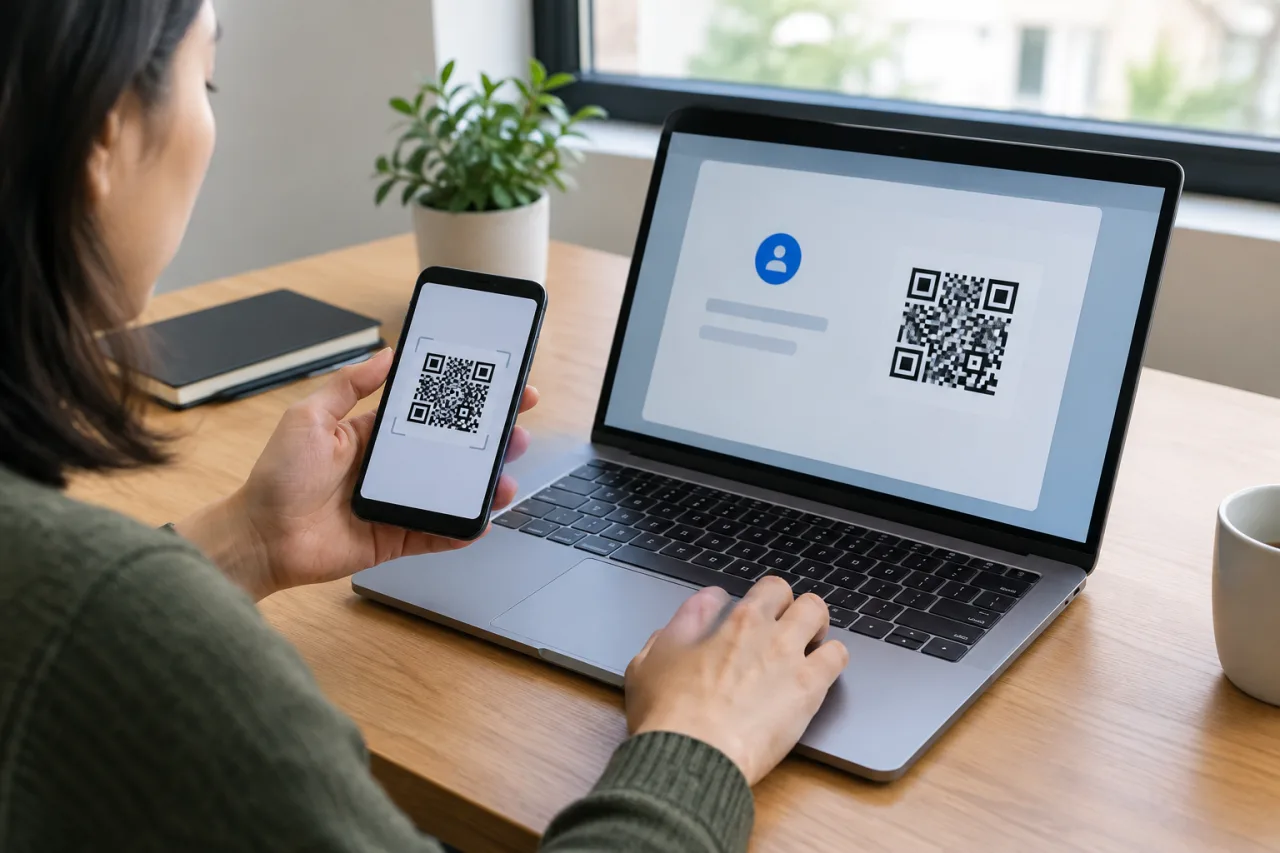
Key Takeaway
- 💻 There is no official Google Authenticator app for Windows — Google ships it for phones only, and its own support forums confirm there is no desktop client; the honest answer comes first, then the safe workarounds.
- 🧩 The cleanest workaround: an open-source browser extension implementing the same TOTP standard reads the same QR codes and setup keys Google Authenticator uses — your codes generate in the browser toolbar instead.
- 📱 The broken-phone case has a real path: an exported QR (Authenticator’s transfer feature) or the original site setup keys re-enroll everything on a PC-side tool — this is also why saving export QRs is the single best habit in this guide.
- 🔐 A desktop 2FA code generator trades convenience for attack surface: the same PC that gets malware could read your secrets — so every local setup needs a PIN lock, and passkeys are the upgrade that removes the whole problem.
- 🌫️ The emulator route works but is the last resort: running the phone app inside a Windows Android emulator eats 4GB+ RAM and adds attack surface for little gain over the browser extension.
Table of Contents
Google Authenticator is a phone app by design, and the moment a phone screen dies — or a workday runs entirely on a PC — the internet’s most-asked 2FA question arrives: is there a Google Authenticator for Windows? Google’s own support communities answer the same way every time: no native Windows version exists, and the volunteers recommend third-party TOTP tools that speak the standard instead. That standard answer hides the practical truth worth knowing: Google Authenticator is one implementation of a public algorithm, and several safe, verifiable tools replicate its codes on a desktop — with a few caveats Google will never print for you. This guide settles the question, then walks the workarounds in order of safety, including the broken-phone recovery path and the settings that keep desktop codes from becoming a liability.
Why There Is No Google Authenticator for Windows — the Official Shape of the Answer
Google publishes Google Authenticator for Android and iOS only, and its support forums hold the position in place: volunteers and product experts answer “not available” to the desktop question, year after year. The design logic is defensible — a second factor lives most safely on a separate device from the browser that logs in, and a phone stays pocketable, offline-capable, and isolated. But the official answer leaves real people stranded: the support threads that keep appearing are written by people whose phones broke, whose laptops are the sole work device, or whose workflow simply lives on a PC all day. Google Authenticator questions like these have an honest answer that is not “impossible” — it is “the standard is public, and other implementations run on Windows,” which is where the workarounds begin.
Workaround 1: The Browser Extension Route (the Safe Default)
The browser-based route uses an open-source extension for Chrome, Firefox, and Edge that implements the same TOTP standard Google Authenticator runs on — it reads the same QR codes and the same setup keys, and generates matching 6-digit codes from the toolbar. The setup flow: install the extension from its official store listing, click its icon, scan or paste the QR code (or enter the setup key manually with “enter a provided key”), and the account appears with a live rolling code. Two controls matter immediately: set the extension’s encryption passphrase so stored keys are not readable by anyone at the keyboard, and lock the browser profile itself when away. The honest strength of the extension route is verifiability — the code is public on GitHub, the standard it implements is documented, and the same secret produces the same code as your phone would. The honest weakness: it lives in your browser, which is the same attack surface your email runs in — so this route pairs with the browser-hygiene settings our hijacker guide covers.
Workaround 2: Desktop TOTP Apps for Windows
The same standard has desktop implementations — utilities that store TOTP secrets locally on Windows and generate codes independent of the browser. Google does not endorse any of them, and this guide follows the same discipline: choose a tool with public code or a long verifiable track record, download only from the official site or store, and check that it encrypts its secret store behind a master password or Windows credential protection. Setup mechanics mirror the multi-factor authentication setup: each service shows a QR code or a setup key during enrollment, and a desktop TOTP app offers the “enter a setup key” path. One structural warning matters here — codes generated on the same PC you log in from are no longer “something you have” in the strict sense; a fully compromised PC renders both the password and the second factor compromised together. That is the trade, stated plainly, and it is why the passkey section below exists.
Workaround 3: The Broken-Phone Rescue and the Export Habit
The most urgent case in every support thread is the dead screen: the phone no longer displays codes, and an account now demands one. Google Authenticator includes an export feature — a QR screen that transfers accounts to another device — and the community guidance is consistent about what it means in practice: the export must be taken from a phone that still runs the app, and once the device is dead without an export on file, the honest path becomes account recovery at each service individually, re-enrolling 2FA fresh at every one. The habit this establishes costs two minutes: from the phone app, open transfer accounts, export, and save the QR image somewhere genuinely offline and private (printed, or on an encrypted drive — never a shared cloud album). With an export in hand, the desktop workarounds above ingest the same secrets, and the “phone died mid-workday” emergency becomes a five-minute re-enrollment instead of a week of recovery forms. The same rescue logic is why our recovery guides for email and Facebook tell you to fix the recovery channels BEFORE you need them.
Workaround 4: The Android Emulator Route — and Why It Ranks Last
Running the actual Google Authenticator app inside a Windows Android emulator reproduces the official experience to the pixel, and it works; the honest costs are why no guide should lead with it. The emulator consumes 4GB+ of RAM for what is effectively one app, adds an entire OS surface to keep updated, and drags the phone app’s update cadence into Windows — and some installs require disabling hardware security features during setup, which is exactly the kind of trade a second factor exists to avoid. If the emulator route is chosen anyway, apply the emulator’s own lock (a PIN before the app opens) and treat it as a single-purpose machine. For nearly every reader, the browser extension or a desktop TOTP app delivers the same daily result at a fraction of the weight.
The Security Ledger: What Desktop Codes Give and Take
- What you gain: codes on the device where work happens, no phone-handling mid-login, and recovery that survives a broken screen.
- What you accept: the second factor now shares hardware with the primary browser — malware on the PC threatens both factors at once, and cloud-synced code tools widen the exposure if their accounts are weak.
- The mitigations that matter: extension/app passphrase set and memorized, browser profile locked, Windows account protected, screen lock instant, and sync features left OFF unless the tool’s encryption is verified and your master password is strong (our password manager setup guide carries the standard).
- The forward upgrade: passkeys remove the shared-secret problem entirely — the credential is bound to the device and never present as a typeable code. Where services offer passkeys, migrate; the passkeys on-ramp guide covers the forward path.
- The hygiene baseline: review enrolled devices quarterly and delete any second-factor entry you no longer recognize — the SMS-2FA shutdown guide explains why the enrollment list is a moving target — the enrollment list is itself a thing attackers add to.
Which Accounts Belong in a Desktop Generator — and Which Should Stay on the Phone
The migration works account by account, and the split should reflect the stakes. Accounts where desktop codes make sense: the everyday software tools and community logins you manage from the same PC daily — the convenience gain is real and the blast radius is contained. Accounts that should stay on the phone or move to passkeys instead: banking and remittance platforms, the email that anchors every recovery, the domain and hosting accounts, and crypto exchange logins — anything where a compromised PC and a compromised second factor compound into a disaster. The reasoning is the same ledger from the security section, applied per account instead of globally: the second factor earns its name by being hard to reach from the device the attacker is attacking. Practical middle lane for high-stakes accounts that must be PC-friendly: enroll BOTH — the phone keeps its entry, a desktop tool takes a second enrollment as a backup factor, and the service’s enrollment list carries both — so the broken-phone scenario and the malware scenario each still have a clean path out.
Frequently Asked Questions
Is there an official Google Authenticator for Windows?
No — Google publishes the app for Android and iOS only, and its support forums hold that answer in place. The desktop route runs on the same public TOTP standard instead: an open-source browser extension or a desktop code generator that reads the same QR codes and setup keys and produces matching codes.
Can I use Google Authenticator codes on my PC without my phone at all?
Yes — once a TOTP secret is enrolled into a PC-side tool (the browser extension or a desktop app), the PC generates the codes independently, offline, because TOTP needs only the shared secret and the clock. The enrollment moment is the only step that needs the original QR or key; after that the phone is optional for that account.
How do I move my Google Authenticator accounts to a Windows tool?
Use Authenticator’s export-transfer QR from the working phone and enroll it in the PC tool the way you would a new service; the secrets carry over and the codes match. Take that export before any phone dies — without it, the path is service-by-service account recovery and fresh 2FA enrollment, which works but costs days.
Is it safe to keep 2FA codes on the same computer I log in from?
It is a real trade, not a free upgrade: compromised-PC scenarios threaten both factors together. The mitigations that keep it honest — extension passphrase on, sync off, browser and OS locked, quarterly device-list reviews — plus the forward path of passkeys, which removes the shared secret entirely. If the PC is shared or untrusted, keep codes on the phone.
Google Authenticator Windows setup failed — the code never matches. What now?
Three usual causes: the clock (TOTP is time-based — sync the PC clock or use time-sync), a truncated setup key (re-enter it character by character, or re-scan the QR), or a stale entry left over from a failed enrollment (delete it and re-add). If a service supports multiple methods, also enroll a backup — printed backup codes or a second enrolled device — because no Google Authenticator code generator belongs alone in front of a critical account. Matching code drift has one more mundane cause: the account was re-enrolled twice, and the old entry still rolls codes the service no longer accepts.
Financial Disclaimer
This article provides general cybersecurity guidance and does not constitute professional security or financial advice. App availability, store policies, and 2FA mechanisms change over time and vary by service; verify every step against the developer’s official documentation before acting. The author and publisher disclaim any liability for actions taken based on this information.