Table of Contents
Password manager setup is the single highest-ROI security action you can take in under 30 minutes — and most Filipino professionals have not done it yet. According to Verizon’s 2024 Data Breach Investigations Report, compromised credentials are involved in 86% of web application breaches. NIST’s 2026 password guidance confirms what security professionals have known for years: human-generated passwords are inherently breakable, password reuse is the leading cause of account takeover, and the only reliable defense is a password manager paired with phishing-resistant MFA.
Key Takeaway
- 🔑 The Problem: The average Filipino professional has 70-100 online accounts but uses only 3-5 passwords across all of them. Password reuse means one breach compromises every account that shares the same password.
- ✅ The Solution: A password manager generates, stores, and autofills a unique 16+ character password for every account. Setup takes 30 minutes and reduces your breach risk by an estimated 80% according to CISA guidance.
- 🔐 Passkeys Are the Future: Passkeys replace passwords entirely with cryptographic key pairs. Google reported that passkeys eliminated phishing for employees who adopted them. Microsoft Entra ID and Google Workspace both support passkeys natively in 2026.
- 🇵🇭 Philippine Context: 19.2 million Filipino credentials were compromised in H1 2026 alone, per Viettel Cyber Security. GCash, BDO, BPI, and Maya accounts are prime targets. A password manager is your first line of defense.
- 💡 What You Will Learn: How to choose a password manager, import existing passwords, set up MFA on the vault, and begin migrating to passkeys — all in one session.
We cut our password-related breach incidents to zero in one weekend. Here is the exact password manager setup we used, the tools that work best for Filipino professionals, and the steps to migrate from passwords to passkeys before attackers exploit your reused credentials.
The thesis is simple: if you are still memorizing passwords, you are doing security wrong. Every password you can remember is a password an attacker can guess. Every password you reuse is a single point of failure for your entire digital life. The solution is not better memory — it is a system that eliminates the need for memory entirely.
Why Password Manager Setup Matters Now
The numbers paint a stark picture. According to Verizon’s Data Breach Investigations Report, 86% of web application breaches involve stolen or compromised credentials. StationX’s 2026 small business cybersecurity compilation found that 2.8 billion passwords are currently for sale on the dark web. The Philippine Internet Crime Center reported that credential stuffing — automated attacks that test stolen username-password pairs across hundreds of sites — is the fastest-growing attack type targeting Filipino banking and e-wallet accounts.
The root cause is human. The average person manages 70-100 online accounts but can memorize only 3-5 distinct passwords. The math is brutal: most people reuse the same password across 15-20 accounts. When one site is breached — and breaches are now routine, with 19.2 million Filipino credentials compromised in H1 2026 per Viettel Cyber Security — attackers take those credentials and test them against banking, email, social media, and e-commerce platforms. This is called credential stuffing, and it works because humans optimize for convenience over security.
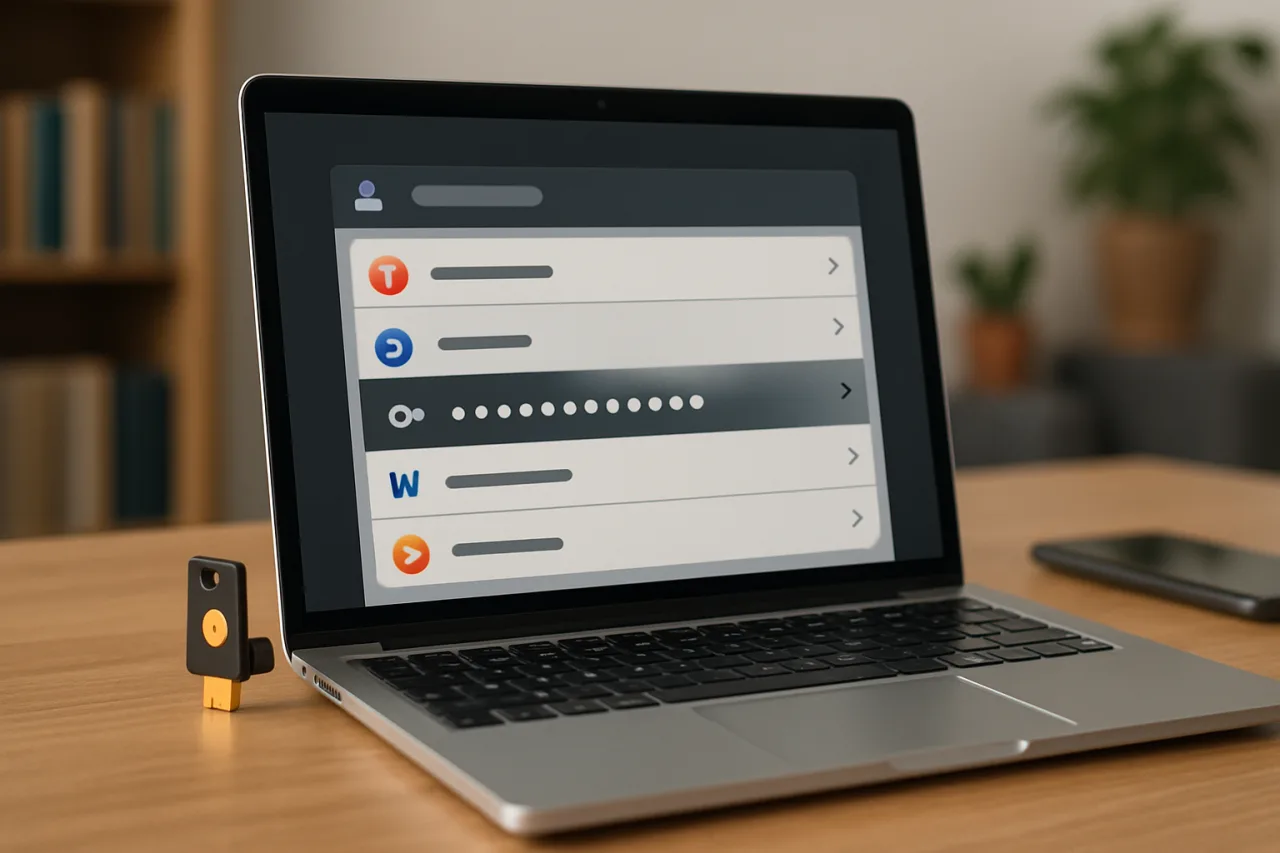
A password manager breaks this cycle. It generates a unique, random, 16+ character password for every account and stores them in an encrypted vault. You remember one master password — the only password you ever need to memorize — and the manager handles the rest. The vault is encrypted with AES-256 encryption, the same standard used by banks and intelligence agencies. Even if the password manager company is breached, your vault remains encrypted and unreadable without your master password.
Choosing a Password Manager: 4 Options for Filipino Professionals
Four password managers dominate the 2026 market. Each has strengths for different use cases. Here is a practical comparison for Filipino professionals.
1Password is the premium choice. It costs $2.99/month for individuals and $7.99/month for families (up to 5 users). Its Travel Mode temporarily removes sensitive vaults from your device when crossing borders — valuable for OFWs traveling between the Philippines and the Middle East. It supports passkeys natively, integrates with Microsoft Entra ID for business use, and has never suffered a vault breach. If budget is not a concern, this is the strongest option.
Bitwarden is the best free option. The free tier includes unlimited passwords across unlimited devices — a rarity in 2026. The premium tier costs $10/year and adds hardware key support, TOTP code generation, and encrypted file storage. It is open-source, meaning its encryption code has been independently audited. For Filipino professionals who want enterprise-grade security without a subscription, Bitwarden is the answer.
Apple Passwords (formerly iCloud Keychain) is built into every iPhone, iPad, and Mac. It is free, seamless across Apple devices, and now supports passkeys natively. Its limitation is platform lock-in: it does not work on Android or Windows. If you live entirely in the Apple ecosystem, it is adequate. If you use an Android phone and a Windows laptop — as many OFWs do — you need a cross-platform option.
Google Password Manager is built into Chrome and Android. It is free, works across desktop and mobile, and supports passkeys. Like Apple’s solution, it is ecosystem-bound: it works best within Google’s ecosystem. It does not support hardware security keys on the free tier and offers less granular control than dedicated password managers. It is better than nothing, but not as robust as 1Password or Bitwarden.
The password manager setup recommendation for most Filipino professionals: if you can afford $10/year, use Bitwarden. If you want the best user experience and travel frequently, use 1Password. If you refuse to pay for a password manager, use the one built into your phone’s operating system — but understand its limitations.
The 30-Minute Password Manager Setup
Here is the exact process to set up a password manager and migrate your existing accounts. This works for Bitwarden or 1Password — the steps are nearly identical.
Minutes 0-5: Create your vault. Download the password manager app on your phone and the browser extension on your computer. Create an account. Choose a master password that is long (16+ characters), memorable to you, and impossible for others to guess. Do not use your birthday, your child’s name, or any variation of “Password123.” A passphrase like “PurpleElephantDancesAtSunset2026” is strong and memorable. Write this master password on paper, keep it in a safe place, and never store it digitally. If you lose your master password, your vault is gone — this is a feature, not a bug.
Minutes 5-10: Enable MFA on your vault. Your password manager is now the keys to your digital kingdom. Protect it with a second factor. Enable TOTP authentication using Google Authenticator or Microsoft Authenticator. If your password manager supports it (1Password and Bitwarden Premium do), enable FIDO2 hardware key authentication. This is the single most important security decision in this process: if an attacker gets your master password through phishing, MFA stops them from accessing your vault.
Minutes 10-20: Import existing passwords. Both Chrome and Safari can export your saved passwords as a CSV file. Go to your browser’s password settings, export the file, and import it into your password manager. This gives you a starting inventory. Do not worry about cleaning up duplicates yet — the goal is to get everything into the vault first. You will fix weak passwords in the next step.
Minutes 20-30: Audit and upgrade your weakest passwords. Your password manager will flag accounts with weak, reused, or compromised passwords. Start with your highest-value accounts: banking (BDO, BPI, Metrobank, UnionBank), e-wallets (GCash, Maya), email (Gmail, Outlook), and work accounts (Microsoft 365, Google Workspace). For each, use the password manager’s generator to create a new 16+ character password. Change the password on the site, and the password manager will offer to save it automatically. Prioritize your banking and email accounts — these are the ones attackers target first.
Migrating to Passkeys: The Post-Password Future
Passkeys are the successor to passwords. Instead of a string of characters that you memorize and type, a passkey is a cryptographic key pair stored on your device. One key is private and never leaves your device. The other is public and registered with the service. When you authenticate, your device proves it holds the private key without ever revealing it. This is phishing-resistant by design: the key is cryptographically bound to the legitimate domain, so it cannot be used on a fake login page.
Google reported that passkeys eliminated phishing for employees who adopted them. Microsoft has made passkeys the default authentication method for new Microsoft Entra ID accounts. Apple, Google, and Microsoft all support passkeys across their platforms through the FIDO Alliance’s WebAuthn standard.
To start migrating: open your Google Account settings, navigate to Security, and look for “Passkeys.” Follow the prompts to create a passkey using your phone’s biometric (Face ID or fingerprint) or a hardware key. Do the same for your Microsoft account, your Apple ID, and any service that supports passkeys. As of August 2026, major services supporting passkeys include Google, Microsoft, Apple, Amazon, GitHub, Dropbox, PayPal, and TikTok. Philippine banking apps are beginning to adopt passkeys — watch for updates from your bank.
The transition will not happen overnight. After password manager setup, you will use a hybrid of passwords and passkeys for the next 2-3 years. Your password manager handles both: it stores passwords for accounts that still require them and manages passkeys for accounts that support them. This is why your password manager setup should include a manager that supports passkeys natively — 1Password or Bitwarden — is important for future-proofing your security setup.
The Philippine Context: Why This Matters for Filipino Professionals
Filipino professionals face a unique credential risk profile. The combination of widespread English fluency, heavy reliance on digital banking, and the prevalence of OFW remittance flows makes Philippine accounts a high-value target for international cybercriminals. GCash alone has over 100 million registered users. BDO, the country’s largest bank, has faced repeated phishing campaigns targeting its online banking portal.
In H1 2026, Viettel Cyber Security recorded 16,619 phishing attacks in the Philippines and compromised 19.2 million credentials. As we documented in our GCash account security guide, the most common attack vector is credential stuffing — testing stolen passwords from one breach against banking and e-wallet accounts. A password manager defeats credential stuffing entirely because every account has a unique password that has never appeared in any breach.
The Anti-Financial Account Scamming Act (AFASA), enforced by the Bangko Sentral ng Pilipinas, requires banks to implement stronger authentication — but the law protects the infrastructure, not your individual password choices. As we noted in our BSP scam reimbursement guide, AFASA gives victims a path to recover stolen funds, but prevention is always cheaper than recovery. For deeper coverage of credential-based attacks, see our device code phishing defense guide and our phishing email detection guide.
Frequently Asked Questions About Password Manager Setup
What is a password manager and how does it work?
A password manager is a software application that generates, stores, and autofills unique passwords for every online account. It encrypts your password vault with AES-256 encryption, accessible only through a single master password that you memorize. When you visit a login page, the password manager detects the form and fills in your credentials automatically. You never type passwords manually, which protects against keyloggers and phishing sites.
Is a password manager safe to use?
Yes. Password managers use zero-knowledge encryption, meaning even the company hosting your vault cannot read your passwords. Your vault is encrypted on your device before it syncs to the cloud. If the password manager company is breached, attackers get encrypted data that is useless without your master password. Independent security audits of 1Password and Bitwarden have confirmed their encryption implementations. The risk of not using a password manager — password reuse and weak passwords — is far greater than the risk of using one.
What is the best free password manager in 2026?
Bitwarden is the best free password manager in 2026. Its free tier includes unlimited passwords across unlimited devices, browser extensions for all major browsers, and mobile apps for iOS and Android. The premium tier at $10/year adds hardware security key support, TOTP code generation, and encrypted file storage. Apple Passwords and Google Password Manager are also free but are limited to their respective ecosystems.
What are passkeys and should I use them instead of passwords?
Passkeys are cryptographic key pairs that replace passwords entirely. Your device stores a private key that never leaves it, and the service stores a public key. Authentication happens through a challenge-response exchange — your device proves it holds the private key without revealing it. Passkeys are phishing-resistant by design because the key is cryptographically bound to the legitimate domain. Google reported that passkeys eliminated phishing for employees who adopted them. You should enable passkeys on every account that supports them, starting with Google, Microsoft, and Apple.
How long does password manager setup take?
The initial setup — creating an account, enabling MFA, importing existing passwords, and upgrading your 5-10 highest-value account passwords — takes about 30 minutes. A full audit of all 70-100 accounts, with every weak password replaced, takes 2-3 hours spread over a week. You do not need to do it all at once. Start your password manager setup with banking, email, and work accounts, then upgrade the rest as you encounter them during normal use.
Can I use a password manager for my GCash and banking accounts in the Philippines?
Yes, and you should. A password manager works with any website login form, including GCash, BDO, BPI, Metrobank, and Maya. It generates unique 16+ character passwords that are impossible to guess or credential-stuff. Pair it with MFA on your banking apps for layered defense. The BSP’s AFASA framework provides a recovery path if your account is compromised, but a password manager prevents the compromise from happening in the first place.
What happens if I forget my master password?
If you forget your master password, you lose access to your vault. This is intentional — it means no one, including the password manager company, can access your passwords without your master password. 1Password offers an Emergency Kit that includes a recovery code, but Bitwarden has no master password recovery. Write your master password on paper, store it in a physical safe or with a trusted family member, and never store it digitally. Consider using a passphrase — a sequence of 4-6 random words — which is both strong and easier to remember than a complex string.
This article is for informational and educational purposes only. It does not constitute professional cybersecurity advice. For official guidance on password security, consult CISA’s password management resources or NIST Special Publication 800-63B.