Key Takeaway
- 🔐 A passkeys guide in one line: your device holds a private key unlocked by your fingerprint or face, the website holds only a public half — nothing phishable ever travels.
- 🎣 Passkeys are phishing-resistant by design: the smishing link that steals passwords has nothing to steal from a login that never types one.
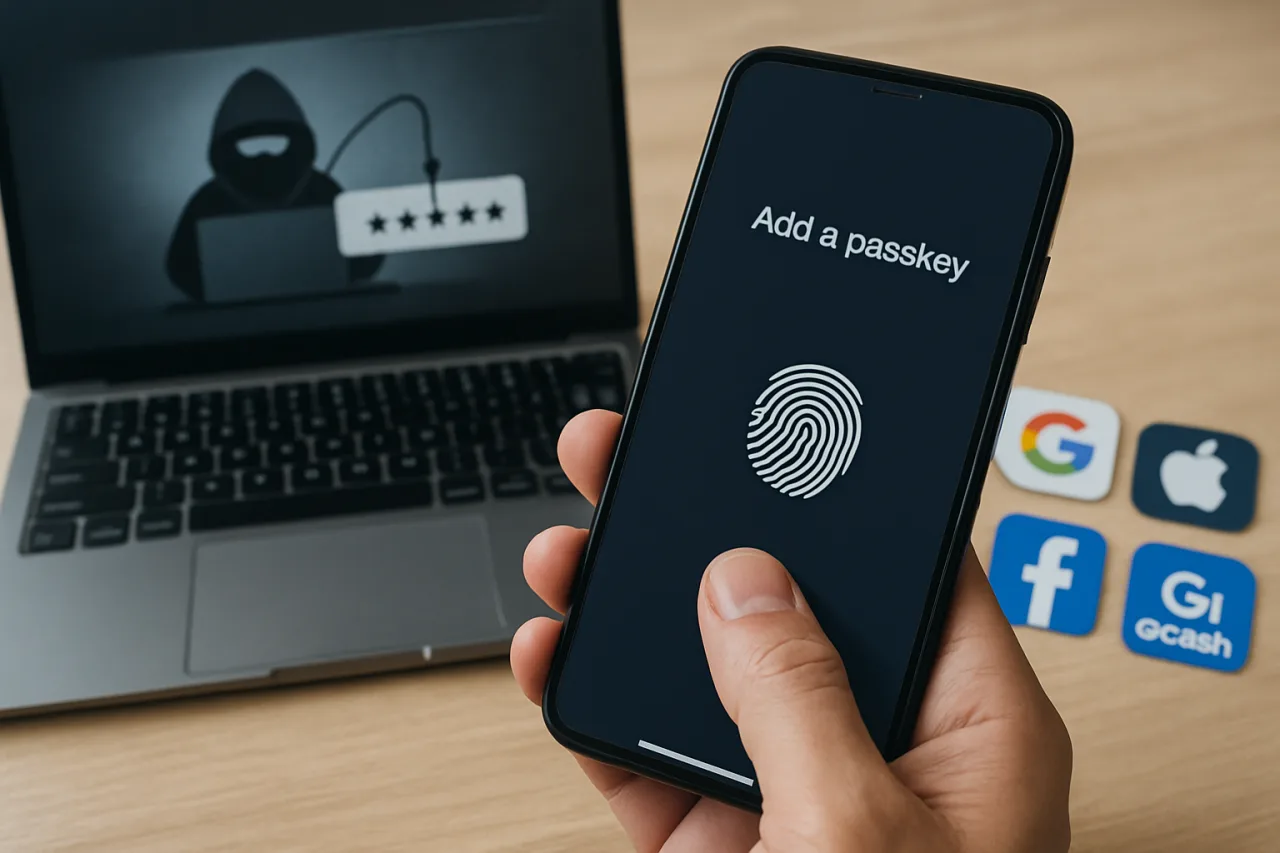
- 📱 Setup takes seconds per account: security settings → “Add a passkey” → confirm with Face ID or fingerprint. Start with your email, always keep one backup method.
- ☁️ Turn on sync first — iCloud Keychain, Google Password Manager, or Microsoft’s manager — so a lost phone does not mean a lost identity.
- 🇵🇭 GCash’s 2026 shift away from SMS authentication follows the same logic: device-bound credentials beat texted codes that SIM swappers intercept.
Every scam wave that hit Filipino phones this year — fake bank texts, cloned voices, the trojan reading every OTP — shares one final target: your password. A passkeys guide matters because the industry finally removed that target. Google called passkeys “the beginning of the end of the password” back on World Password Day 2023, and by 2026 Apple, Google, and Microsoft all sync them, major banks and e-wallets accept them, and the entire phishing economy built on stolen passwords has a shrinking future. This passkeys guide explains what a passkey actually is, why it beats every defense you are currently paying for, and the eight steps to switch your accounts before the scammers notice.
Table of Contents
What a Passkey Actually Is
A passkey is a login credential built on the FIDO2/WebAuthn standard — the closest thing to a physical key your phone has ever held. Instead of a secret string you memorize and type, your device stores a cryptographic key pair. The private key never leaves your phone, laptop, or hardware dongle, and it only unlocks when you present your fingerprint, your face, or your device PIN. The website you log into holds only the public half, which is mathematically useless to anyone who steals it.
Security teams describe the difference in one sentence: a password is a shared secret you type; a passkey is a key pair tied to your device. A password can be guessed, reused across sites, leaked from any of the thousand servers that store it, and phished by any convincing login page. A passkey cannot be guessed, exists on no breach dump, and refuses to work on the phishing site because the cryptographic handshake checks the domain itself. Your thumbprint never left your phone; the login proves you are you without ever transmitting a secret.
Why Hackers Cannot Phish a Passkey
Walk through the scam from our smishing and vishing guide and watch it fail. The text says your account is locked and links to a pixel-perfect fake login page. With a password, the page harvests what you type and the attacker logs in as you within seconds. With a passkey, the fake site’s domain does not match the real one, the cryptographic ceremony aborts, and the attacker receives nothing. There is no code to misdirect, no string to reuse, no shared secret to catch in transit.
The same immunity covers the other 2026 attack classes. Breach dumps contain password hashes — passkeys leave nothing to dump. The Android banking trojan harvests keystrokes and overlays fake login screens — a passkey login requires the device’s biometric ceremony, not a typed string on a screen the trojan controls. And the SIM swap attack in our SIM defense guide dies entirely, because a passkey never sends anything through your SIM.
Synced vs Device-Bound: The Passkeys Guide to Choosing Backup Style
Two flavors exist, and the choice is yours. Synced passkeys back up to your platform’s cloud manager — iCloud Keychain on Apple, Google Password Manager, Microsoft’s manager — and follow you across devices. Lose your phone, sign in on the replacement, keys restored. Device-bound passkeys live on one piece of hardware and never leave it; banks and fintech apps favor them because “the key is physically this device” is the stronger security claim. Most people reading this passkeys guide should run synced passkeys for everyday accounts and treat any device-bound credential (like a bank-issued one) as the crown jewel to protect physically.
Step 1: Turn On Platform Sync First
Before creating anything, make sure your keys will survive a lost phone. On iPhone: Settings → your name → iCloud → Passwords and Keychain → on. On Android/Chrome: Google Password Manager with sync enabled on the account. On Windows: the new Microsoft Password Manager signed into your Microsoft account. This single step separates passkey adoption from passkey tragedy, and every passkeys guide should start here.
Step 2: Start This Passkeys Guide With Your Email Account
Email is the master key in this passkeys guide — password resets for every other account flow through it, which is why attackers target it first. Protecting email with a passkey means the reset chain itself becomes phishing-proof. Gmail, Outlook, and iCloud Mail all support passkeys in 2026; add one there before touching anything else, and the rest of the rollout inherits the protection.
Step 3: Add a Passkey on Google
Go to myaccount.google.com → Security → How you sign in → Passkeys. Choose “Create a passkey,” confirm with your screen lock or biometric, and the key pairs to your device. Repeat the same flow on any other device you use — each device can hold its own passkey for the account, or rely on sync. Google’s rollout made this the most mature flow in any passkeys guide; if your parents use Gmail, this is the five-minute win.
Step 4: Add a Passkey on Apple ID
On iPhone: Settings → your name → Sign-In & Security → Passkeys, or manage at account.apple.com. Apple IDs gain the strongest benefit of any account you own — they gate iCloud backups, iMessage, Find My, and app-store purchases. Confirm with Face ID and the key lands in iCloud Keychain, syncing across your iPhone, iPad, and Mac automatically.
Step 5: Add a Passkey on Facebook
The account that spawns the most impersonation scams in the Philippines deserves the strongest lock in this passkeys guide. Path: Settings → Accounts Center → Password and Security → Passkeys (available on the mobile app). Confirm with your biometric, and Facebook joins the passkey club. The next “recover your hacked Facebook account” search you never have to make starts here — pair it with the recovery steps in our hacked account guide as your safety net.
Step 6: Check What GCash and Your Bank Support
Philippine fintech is moving — a Philippine passkeys guide would be incomplete without it: GCash announced the replacement of SMS authentication with in-app OTP flows through 2026, and device-bound credentials are the logical destination — the same logic that makes SIM-swap-proof logins possible. Open your bank and GCash security settings and look for “passkey,” “biometric login,” or “device binding.” Where biometric login exists, enable it; where a true passkey exists, register it. Until your bank offers one, keep the app-based 2FA and transaction limits from our banking safety guide as the interim wall.
Step 7: Keep One Backup Sign-In Method
Passkeys are strong, not infallible-proof, and any honest passkeys guide says so — a factory reset gone wrong, a cloud account lost, a device dead in a province with no recovery options. Keep exactly one recovery path per account: backup codes printed and stored offline, or a second device with the synced keychain. One backup, written down, beats five passwords reused across sites. Store those backup codes the way our password checklist guide stores master credentials: offline, private, documented.
Step 8: Sweep Your Accounts Over One Week
Migrate in daily batches — the pace that makes this passkeys guide finishable in a week: email and Apple ID first (done above), then banking and e-wallets, then social accounts, then shopping and services. Ten minutes a day clears the top twenty accounts in a week. For each, delete the old password only after the passkey works — and if a service offers no passkey support yet, that is what a password manager is for. The full audit framework lives in our password security checklist.
Frequently Asked Questions
What is a passkey in simple terms?
A passkey is a digital key pair that replaces your password: your device holds the private half (unlocked by your fingerprint, face, or PIN) and the website holds only the public half. Nothing typeable or phishable ever travels, so there is no password for a scammer to steal, guess, or reuse.
Are passkeys really safer than passwords?
Yes, on every axis that matters: passkeys cannot be phished (the cryptographic handshake checks the real domain), cannot leak usefully in breaches (only the public half sits on servers), cannot be reused across sites, and carry built-in two-factor nature (possession of the device plus your biometric). Passwords lose on all four.
What happens if I lose my phone with my passkeys?
With synced passkeys, you recover by signing into your platform account (Google, Apple, Microsoft) on a replacement device and letting the cloud keychain restore — which is why Step 1 (turn on sync) comes first. Without sync, a lost device-bound passkey means using your backup method: recovery codes or a second registered device.
Do passkeys work across Android and iPhone?
Cross-ecosystem support exists in 2026 — you can use a phone’s camera to sign in on another platform’s browser, and third-party password managers sync passkeys across ecosystems. The smoothest experience is staying within one platform’s keychain (iCloud or Google), but the standards guarantee the keys themselves work anywhere WebAuthn is supported.
Can GCash, Maya, and PH banks use passkeys?
Fintech adoption is accelerating — GCash announced its move away from SMS authentication in 2026, and device-bound biometric logins are live in several PH banking apps. Check each app’s security settings for “passkey” or biometric device login; where none exists yet, use app-based 2FA with transaction limits as the interim defense.
Do I still need a password manager if I use passkeys?
Yes, for years — thousands of services lack passkey support, and the manager safely holds those legacy passwords, your backup codes, and passkeys across ecosystems in one vault. Passkeys delete the phishing problem; the manager organizes whatever still needs secrets. Our password checklist guide shows how the two fit together.
Final Word: The Password Era Ends Because You Switch
This passkeys guide closes where the password era ends: passkeys are the first login technology that removes the scam instead of resisting it — no secret to phish, no hash to leak, no SIM to swap. The eight steps in this passkeys guide take a week of ten-minute sessions, starting with the master key (email) and ending with a swept account list. Hackers spent two decades perfecting the theft of things you type; 2026 is the year Filipinos stop typing them. Your thumbprint cannot be texted to a scammer — make it your key.
External sources linked in this article, in order of first mention. Spotted an error or a broken link? Tell us.
Cite this pagePublished Sept 19, 2026 · Updated Oct 9, 2026
Agron, E. (2026, September 19). Hackers Can Phish a Password. They Cannot Phish Your Thumbprint. WorldNgayon. https://worldngayon.com/passkeys-beginners-guide-2026/
Agron, Edmon. “Hackers Can Phish a Password. They Cannot Phish Your Thumbprint.” WorldNgayon, 19 Sept. 2026, worldngayon.com/passkeys-beginners-guide-2026/.
Agron, Edmon. “Hackers Can Phish a Password. They Cannot Phish Your Thumbprint.” WorldNgayon, September 19, 2026. https://worldngayon.com/passkeys-beginners-guide-2026/.
Agron, E. (2026) ‘Hackers Can Phish a Password. They Cannot Phish Your Thumbprint’, WorldNgayon, 19 September. Available at: https://worldngayon.com/passkeys-beginners-guide-2026/.
E. Agron, “Hackers Can Phish a Password. They Cannot Phish Your Thumbprint,” WorldNgayon, Sept. 19, 2026. [Online]. Available: https://worldngayon.com/passkeys-beginners-guide-2026/
@online{agron2026passkeysbeginners,
  author       = {Agron, Edmon},
  title        = {{Hackers Can Phish a Password. They Cannot Phish Your Thumbprint}},
  year         = {2026},
  date         = {2026-09-19},
  organization = {WorldNgayon},
  url          = {https://worldngayon.com/passkeys-beginners-guide-2026/},
  urldate      = {}
}TY - ELEC AU - Agron, Edmon TI - Hackers Can Phish a Password. They Cannot Phish Your Thumbprint T2 - WorldNgayon PY - 2026 DA - 2026/09/19/ UR - https://worldngayon.com/passkeys-beginners-guide-2026/ Y2 - ER -
Cite the version you read; the page may be updated. Zotero and Mendeley can also import this page directly.