Table of Contents
Multi-factor authentication setup is the most effective defense against account takeovers available to every Filipino professional. When enabled, multi-factor authentication setup adds a second verification step to your login — meaning even if an attacker steals your password, they cannot access your account without the second factor. With 228 million credentials exposed in the Philippines in 2025 and 34,839 phishing attacks recorded, passwords alone no longer protect accounts. Completing multi-factor authentication setup on the accounts that matter most — GCash, Maya, Google, Facebook, Microsoft 365, and Philippine banking apps — takes 30 minutes and blocks 99% of automated attacks.
Key Takeaway
- MFA stops 99% of automated account takeovers: According to Microsoft, enabling MFA blocks over 99% of automated credential stuffing attacks. Even if your password is stolen, the attacker cannot access your account without the second factor.
- Three types of MFA: SMS codes (weakest), authenticator apps (recommended), and security keys (strongest). Use an authenticator app whenever possible.
- GCash and Maya already require in-app OTPs: BSP ended SMS OTPs for financial transactions in June 2026. In-app OTPs are stronger because they cannot be intercepted through SIM swapping.
- Setup takes 5-10 minutes per account: The process is similar across platforms — enable MFA in settings, scan a QR code with an authenticator app, and verify with a test code.
- Save your backup codes: Every platform provides backup codes when you enable MFA. Save them somewhere safe — if you lose your phone, these codes are the only way to access your accounts.
The Problem: Why This Matters
A password alone is no longer enough. The 228 million credentials exposed in the Philippines in 2025 are actively traded on the dark web. Attackers test stolen username-password combinations against every major platform — GCash, Gmail, Facebook, banking portals — in automated attacks called credential stuffing. If you reuse a password and it appears in a breach, every account using that password is vulnerable.
Multi-factor authentication breaks this attack. Even if an attacker has your correct username and password, they cannot log in without the second factor — a time-limited code from your phone, a biometric scan, or a physical security key. The NPC cybersecurity incidents data shows that most account takeovers could have been prevented if MFA was enabled.
Three Types of MFA — From Weakest to Strongest
Type 1: SMS Codes (Weakest)
SMS-based MFA sends a 6-digit code to your phone number via text message. You enter the code to complete login.
Why it is weak: SMS messages can be intercepted through SIM swapping — an attacker convinces your telecom provider to transfer your number to their SIM card. Once they have your number, they receive your SMS codes. Globe and Smart have both reported SIM swapping incidents in the Philippines.
When to use it: Only when no other option is available. Some platforms only offer SMS MFA. It is better than no MFA — but upgrade to an authenticator app as soon as the platform supports it.
Type 2: Authenticator Apps (Recommended)
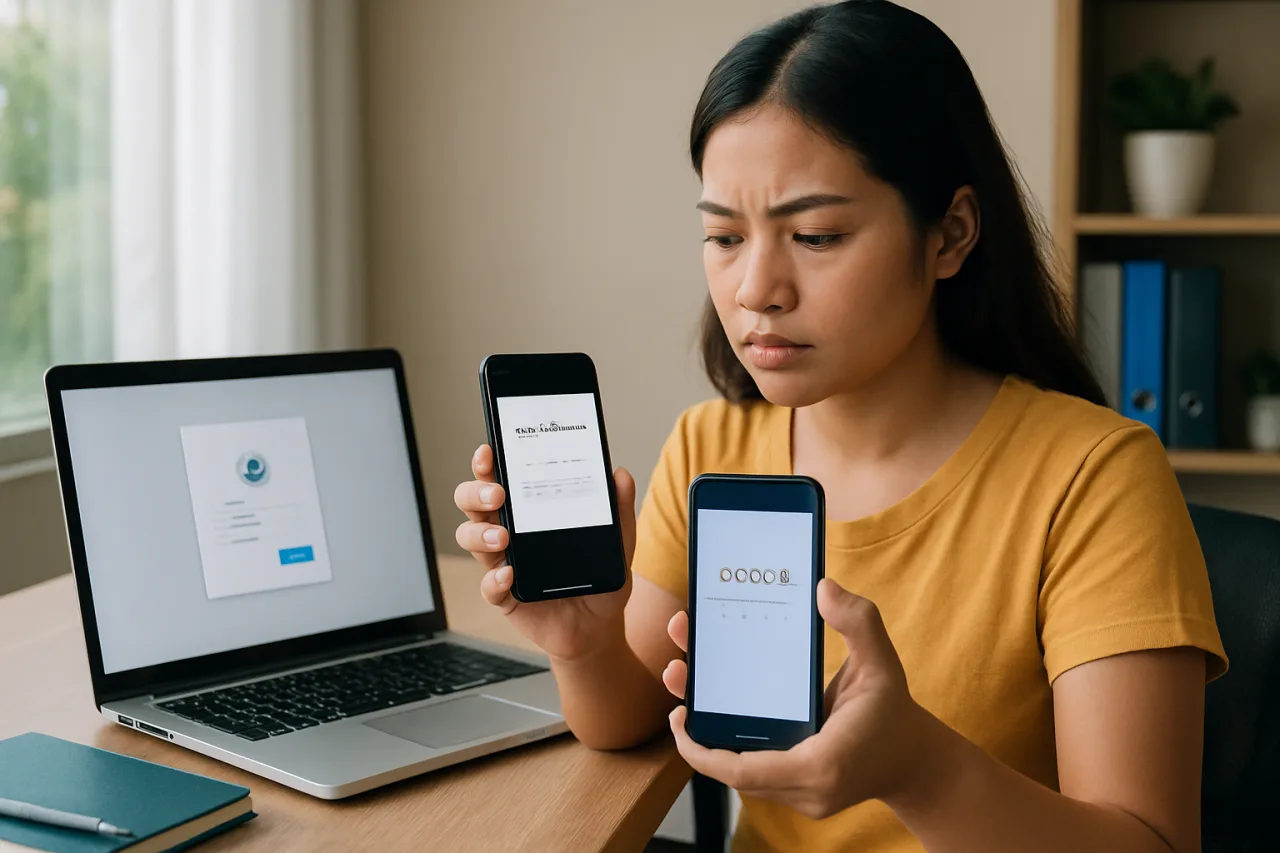
Authenticator apps generate 6-digit codes on your phone that refresh every 30 seconds. No SMS, no phone number, no SIM swapping risk. Popular apps include Google Authenticator, Microsoft Authenticator, and Authy.
Authenticator apps are free, work offline (no internet needed to generate codes), and are not vulnerable to SIM swapping. They are the right level of security for most Filipino professionals. Learn more about MFA best practices at the National Cybersecurity Alliance.
Recommended app: Google Authenticator (free, works on Android and iPhone) or Microsoft Authenticator (free, better for Microsoft 365 users). Authy offers cloud backup of your authenticator codes — useful if you lose your phone.
Type 3: Security Keys (Strongest)
Security keys are physical devices (like a USB stick) that you plug into or tap against your device to verify login. Google Titan and YubiKey are the most common.
Why it is the strongest: Security keys are immune to phishing. Even if you are tricked into entering your password on a fake website, the security key will not authenticate because the domain does not match. No other MFA method offers this protection.
When to use it: For your most valuable accounts — your primary email, your password manager, and banking. A YubiKey costs approximately ₱2,000-₱3,000 and lasts for years.
How to Complete Multi-Factor Authentication Setup: Step by Step
Follow this guide for each account. The process is similar across platforms — enable MFA in security settings, scan a QR code, and verify.
Step 1: Install an Authenticator App
Before setting up MFA on any account, install an authenticator app on your phone. Google Authenticator is available free from Google Play and the App Store.
On Android: Download Google Authenticator from Google Play.
On iPhone: Download Google Authenticator from the App Store.
Open the app. It will be empty — you will add accounts in the following steps.
Why this matters: The authenticator app is your second factor for every account you protect. Install it first so you are ready to scan QR codes as you enable MFA on each platform.
Step 2: Enable MFA on Your Google Account
Your Google account is the most important account to protect — it is the recovery point for many other accounts. If your Gmail is compromised, attackers can reset passwords on every account that uses that email.
Steps:
1. Go to myaccount.google.com > Security
2. Under “Signing in to Google,” click “2-Step Verification”
3. Click “Get Started” and enter your password
4. Select “Authenticator app” as your verification method
5. Scan the QR code with Google Authenticator
6. Enter the 6-digit code from the app to verify
7. Save the backup codes provided — write them on paper
Why this matters: Google handles password resets for most of your other accounts. Protecting Google with MFA protects the entire chain.
Step 3: Enable MFA on Facebook
Facebook is used as a login method for many Philippine apps and websites. If your Facebook is compromised, every app that uses Facebook Login is at risk.
Steps:
1. Open Facebook > Settings & Privacy > Settings
2. Click “Security and Login”
3. Under “Two-Factor Authentication,” click “Edit”
4. Select “Authentication App”
5. Scan the QR code with Google Authenticator
6. Enter the 6-digit code to verify
7. Save the backup codes
Step 4: Enable MFA on GCash
GCash has evolved its security significantly in 2026. The BSP ended SMS OTPs for financial transactions in June 2026, requiring in-app OTPs instead. GCash now generates OTPs within the app itself, making SIM-based interception impossible.
Steps:
1. Open the GCash app
2. Go to Profile > Settings
3. Enable “Face ID” or “Fingerprint” for app login
4. Ensure your GCash app is updated to the latest version
5. Enable in-app OTP notifications (Settings > Security)
6. Verify your registered mobile number is correct
Important: GCash will never ask for your MPIN or OTP via phone, text, or email. If someone asks, it is a scam. Report it immediately.
Step 5: Enable MFA on Maya
Steps:
1. Open the Maya app
2. Go to Profile > Security Settings
3. Enable “Face ID” or “Fingerprint” login
4. Enable in-app OTP for transactions
5. Verify your registered mobile number and email are correct
Maya support: If you encounter issues, contact Maya support via in-app chat or call their hotline at 288 (toll-free from Maya-registered numbers) or (02) 8845-7788.
Step 6: Enable MFA on Microsoft 365
Many BPO companies and Philippine enterprises use Microsoft 365 for email and collaboration. MFA on your work account is often mandatory — but if it is optional, enable it.
Steps:
1. Go to aka.ms/mfasetup
2. Sign in with your work email
3. Select “Authenticator app” as the method
4. Download Microsoft Authenticator (better than Google Authenticator for Microsoft accounts)
5. Scan the QR code
6. Approve a test notification
7. Save backup codes in a secure location
Step 7: Enable MFA on Banking Apps
Most Philippine banking apps already require MFA for transactions — but check that it is enabled for login as well.
BDO Online: Log in to BDO Online Banking > Security Settings > Enable 2FA. BDO sends a One-Time PIN to your registered mobile number. Note: BDO still uses SMS OTP, so ensure your SIM is secured.
BPI Online: Log in to BPI Online > Account Maintenance > Enable BPI Online Security. BPI uses both SMS OTP and device recognition.
Metrobank Online: Log in to Metrobank Online > Security > Enable 2FA via the Metrobank Mobile App.
What This Means for Filipino Professionals
For Filipino professionals, enabling MFA is not just personal protection — it is increasingly a workplace requirement. The cybersecurity guide for Filipinos identifies MFA as one of the top five defenses every professional should implement.
For BPO workers: Many BPO companies now require MFA on all work accounts. If your company provides a Microsoft 365 account, MFA is likely mandatory. Use Microsoft Authenticator for seamless integration. If you handle client data, MFA on your work accounts is part of your compliance obligations.
For OFWs: OFWs manage accounts across multiple countries and platforms. MFA on your email and banking accounts ensures that even if your phone is stolen or your password is compromised abroad, your accounts remain protected. The difference between 2FA and passwords for OFW bank accounts is the difference between safety and financial loss.
For small business owners: If employees access your business accounts (social media, banking, e-commerce), enable MFA on all shared accounts. For G Suite or Microsoft 365 business accounts, enforce MFA for all users through the admin console.
Common Mistakes to Avoid
Mistake 1: Using SMS MFA when an authenticator app is available. SMS codes can be intercepted through SIM swapping. Always choose an authenticator app when the platform offers it. Use SMS only as a fallback.
Mistake 2: Not saving backup codes. Every platform gives you backup codes when you enable MFA. If you lose your phone, these codes are the only way to access your accounts. Write them on paper — not in a digital note.
Mistake 3: Enabling MFA on only one account. Protecting your email but not your banking app leaves half your digital life exposed. Work through the priority list: email, banking, social media, work accounts.
Mistake 4: Using the same authenticator app without a backup. If you use Google Authenticator and lose your phone, you lose all your codes. Authy offers cloud backup. Alternatively, write down the QR codes or setup keys for each account so you can re-add them to a new phone.
Mistake 5: Approving MFA prompts without checking. If you receive an MFA prompt you did not initiate, do not approve it. Someone may have your password and is trying to log in. Deny the prompt and change your password immediately.
Tools and Resources
- Google Authenticator — Free. Android and iPhone. The standard authenticator app.
- Microsoft Authenticator — Free. Android and iPhone. Best for Microsoft 365 users.
- Authy — Free. Android, iPhone, desktop. Cloud backup of authenticator codes. Best if you are worried about losing your phone.
- YubiKey (yubico.com) — ₱2,000-₱3,000. Physical security key. Strongest MFA available. Immune to phishing.
- Have I Been Pwned (haveibeenpwned.com) — Free. Check if your email has appeared in data breaches.
Summary and Next Steps
Multi-factor authentication is the single most effective way to prevent account takeovers. It takes 5-10 minutes per account and blocks 99% of automated attacks. Every Filipino professional should enable it on at least five accounts: email, banking, GCash/Maya, Facebook, and work.
Do these three things today:
- Install Google Authenticator (or Microsoft Authenticator) on your phone.
- Enable MFA on your Google account first — it is the recovery point for everything else. Save your backup codes on paper.
- Work through the priority list: GCash, Maya, banking, Facebook, Microsoft 365. Each takes 5 minutes.
Frequently Asked Questions
What is multi-factor authentication?
Multi-factor authentication (MFA) requires a second verification step in addition to your password when logging in. The second factor can be a code from an authenticator app (something you have), a fingerprint or face scan (something you are), or a physical security key (something you possess). Even if someone steals your password, they cannot access your account without the second factor.
Is MFA the same as 2FA?
Two-factor authentication (2FA) is a type of MFA that uses exactly two factors. MFA is the broader term that includes any number of factors. In practice, most platforms use the terms interchangeably. The setup process and security benefit are the same.
What happens if I lose my phone with my authenticator app?
If you lose your phone, you use backup codes to access your accounts. When you enabled MFA, each platform gave you 8-10 backup codes. Write these on paper and store them safely. If you did not save backup codes, you will need to use each platform’s account recovery process — which is more difficult without MFA access. This is why saving backup codes is non-negotiable.
Should I use SMS or an authenticator app for MFA?
Use an authenticator app whenever possible. SMS codes can be intercepted through SIM swapping — a common attack in the Philippines. Authenticator apps generate codes on your device without SMS, making them immune to SIM-based attacks. Use SMS only when the platform does not offer an authenticator app option.
Can MFA be hacked?
MFA significantly raises the bar for attackers but is not infallible. Sophisticated attackers can use phishing to trick you into entering both your password and MFA code on a fake website. Security keys (like YubiKey) are immune to this attack because they verify the domain. For most Filipino professionals, authenticator app MFA provides strong protection — security keys are recommended for the most sensitive accounts.
This article provides general cybersecurity guidance and does not constitute professional security advice. Platform interfaces and MFA options may change. Always verify current MFA options in each platform’s security settings. Consult your organization’s IT security team for workplace-specific requirements. The author and publisher disclaim any liability for actions taken based on this information.
- staysafeonline.org/articles/passwords — National Cybersecurity Alliance
- play.google.com/store/apps/details?id=com.google.android.apps.authent… — Google Play
External sources linked in this article, in order of first mention. Spotted an error or a broken link? Tell us.
Cite this pagePublished July 22, 2026 · Updated July 23, 2026
Agron, E. (2026, July 22). Multi-Factor Authentication Setup: Complete Guide for Filipinos. WorldNgayon. https://worldngayon.com/multi-factor-authentication-setup/
Agron, Edmon. “Multi-Factor Authentication Setup: Complete Guide for Filipinos.” WorldNgayon, 22 July 2026, worldngayon.com/multi-factor-authentication-setup/.
Agron, Edmon. “Multi-Factor Authentication Setup: Complete Guide for Filipinos.” WorldNgayon, July 22, 2026. https://worldngayon.com/multi-factor-authentication-setup/.
Agron, E. (2026) ‘Multi-Factor Authentication Setup: Complete Guide for Filipinos’, WorldNgayon, 22 July. Available at: https://worldngayon.com/multi-factor-authentication-setup/.
E. Agron, “Multi-Factor Authentication Setup: Complete Guide for Filipinos,” WorldNgayon, July 22, 2026. [Online]. Available: https://worldngayon.com/multi-factor-authentication-setup/
@online{agron2026multifactor,
  author       = {Agron, Edmon},
  title        = {{Multi-Factor Authentication Setup: Complete Guide for Filipinos}},
  year         = {2026},
  date         = {2026-07-22},
  organization = {WorldNgayon},
  url          = {https://worldngayon.com/multi-factor-authentication-setup/},
  urldate      = {}
}TY - ELEC AU - Agron, Edmon TI - Multi-Factor Authentication Setup: Complete Guide for Filipinos T2 - WorldNgayon PY - 2026 DA - 2026/07/22/ UR - https://worldngayon.com/multi-factor-authentication-setup/ Y2 - ER -
Cite the version you read; the page may be updated. Zotero and Mendeley can also import this page directly.