Table of Contents
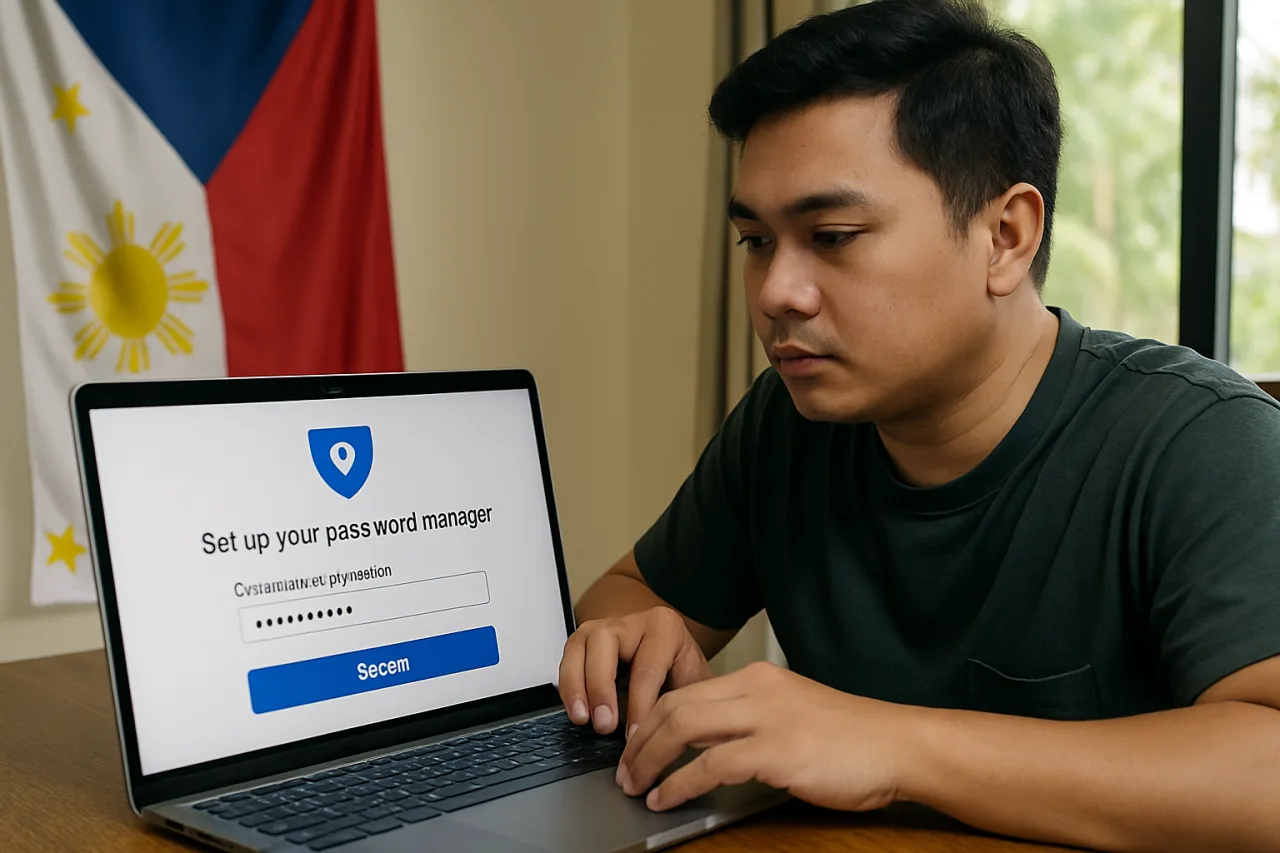
Completing a password manager setup is the single most effective step every Filipino professional can take to protect their digital accounts. With 228 million credentials exposed in the Philippines in 2025 and the average Filipino managing 10-20 digital accounts — GCash, Maya, BDO, BPI, Gmail, Facebook, SSS, PhilHealth, and more — reusing passwords across accounts is the #1 cause of account takeovers. A password manager solves this by creating and storing a unique, strong password for every account. This guide walks you through the complete password manager setup process — step by step, with specific tools that work for Filipino professionals.
Key Takeaway
- A password manager eliminates password reuse: Instead of remembering 20 passwords, you remember one master password. The manager handles the rest — generating, storing, and filling unique passwords for every account.
- Free options work for most professionals: Bitwarden offers a fully featured free tier. Google Password Manager is built into Chrome and Android. You do not need to pay to get protected.
- Setup takes 30 minutes: Choose a manager, create your master password, install the browser extension and mobile app, import your existing passwords, and update weak passwords.
- One master password to rule them all: Your master password is the only password you must remember. Make it long, memorable, and unique — a passphrase of 4-5 words is stronger than a complex 12-character password.
- Pair with MFA for maximum security: A password manager plus multi-factor authentication on your important accounts (GCash, banking, email) is the strongest protection available to individual users.
The Problem: Why This Matters
If you use the same password for your GCash account and your Facebook account, a breach of Facebook gives attackers the password to your GCash. This is called credential stuffing — and it is the most common way Filipino accounts are compromised. The 228 million credentials exposed in the Philippines in 2025 are sold on the dark web, where attackers test them against every major platform. If you reuse passwords, one breach can compromise every account you own.
The NPC cybersecurity incidents data shows 345 reported incidents in 2025 — nearly double 2019’s 183. Many of these started with stolen or reused passwords. The solution is simple in concept: use a different, strong password for every account. The problem is that humans cannot remember 20 different strong passwords. That is what password managers solve.
How to Choose a Password Manager
There are dozens of password managers available. For Filipino professionals, three options cover most needs. Here is how to choose.
Option 1: Bitwarden (Best Free Option)
Cost: Free for personal use. Premium tier at $10/year (approximately ₱580).
What it includes: Unlimited password storage, mobile app, browser extension, password generator, secure notes, and cross-device sync — all in the free tier.
Why we recommend it: Bitwarden is the only fully featured password manager that offers unlimited storage and cross-device sync for free. It is open-source, meaning security researchers can verify its code. The premium tier adds priority support, TOTP authenticator, and encrypted file storage — but most users do not need it.
Website: bitwarden.com
Option 2: Google Password Manager (Easiest Setup)
Cost: Free. Built into Chrome and Android.
What it includes: Password generation, storage, autofill, and breach checking. Works across Chrome on all platforms and Android apps. No separate app needed.
Why we recommend it: If you already use Chrome and Android, Google Password Manager is already on your device. You do not need to install anything new. It also includes Password Checkup, which warns you if any saved passwords appear in known data breaches.
Limitation: It only works within Google’s ecosystem (Chrome and Android). If you use Safari on an iPhone or Firefox on a laptop, you need a different solution.
Website: passwords.google.com
Option 3: 1Password (Best for Professionals and Teams)
Cost: $2.99/month for individuals (approximately ₱175/month). Family plan at $4.99/month for 5 users.
What it includes: Unlimited passwords, apps for all platforms, travel mode (removes sensitive data when crossing borders), watchtower (alerts about breached passwords), and excellent customer support.
Why we recommend it: 1Password has the best user experience of any password manager. The Watchtower feature actively monitors your passwords against known breaches and warns you to change compromised ones. For BPO professionals and teams, 1Password for Business adds shared vaults and administrative controls.
Website: 1password.com
Option 4: NordPass (Best for Nord Security Households)
Cost: Free tier covers unlimited passwords on unlimited devices; premium adds Secure Folders, emergency access, and item sharing. NordPass comes from Nord Security — the team behind NordVPN — and its strengths share that DNA: audited zero-knowledge encryption, XChaCha20, and a clean, fast interface that syncs across phone, laptop, and browser. For readers who already trust the Nord family for their connection, keeping credentials in the same security house simplifies both habit and billing. It earns its place the same way every option here did: strong fundamentals, honest pricing, and no lock-in — importing from Bitwarden or any browser vault takes minutes.
How to Complete Your Password Manager Setup: Step by Step
This guide uses Bitwarden as the example because it is free, works on all platforms, and offers the same setup process as paid alternatives. If you choose Google Password Manager or 1Password, the steps are similar.
Step 1: Create Your Master Password
Your master password is the only password you will need to remember. It must be:
– Long: at least 16 characters
– Memorable: you will type it daily
– Unique: never used for any other account
– Not written down anywhere digital
How to create a strong master password: Use a passphrase — a sequence of 4-5 unrelated words. For example: “correct-horse-battery-staple-lantern” is 35 characters and easy to remember but extremely hard to crack. Avoid famous quotes, song lyrics, or anything that appears on the internet — attackers test those first.
Why this matters: If someone learns your master password, they can access every password in your vault. If you forget it, you lose access to all your passwords. There is no password recovery for master passwords — by design. Write your master password on paper and store it somewhere safe — not on your phone, not in a note app, not in your email.
Step 2: Install the Password Manager
On your computer: Install the browser extension for Chrome, Firefox, Edge, or Safari. The extension is what fills passwords into websites automatically. Without it, you would need to copy and paste passwords manually.
On your phone: Install the mobile app from the App Store (iPhone) or Google Play (Android). On Android, go to Settings > System > Language & input > Autofill service and select Bitwarden. On iPhone, go to Settings > Passwords > AutoFill Passwords and select Bitwarden.
Why this matters: The browser extension and autofill setup are what make a password manager convenient. If it is not convenient, you will stop using it — and go back to reusing passwords. Convenience is not a luxury; it is a security requirement.
Step 3: Import Your Existing Passwords
Before using the password manager for new passwords, import the passwords you already have. Most browsers can export saved passwords as a CSV file.
In Chrome: Go to Settings > Passwords > More actions (three dots) > Export passwords. Save the CSV file. Then go to Bitwarden web vault > Tools > Import data and upload the CSV.
Why this matters: Importing gives you a starting point. Instead of manually entering every password, you import them all at once and then update weak ones as you use them. Delete the CSV file after importing — it contains all your passwords in plain text.
Step 4: Update Weak and Reused Passwords
After importing, you will likely find passwords that are weak, reused, or compromised. Do not try to fix them all at once. Instead, update them as you visit each site.
The process for password manager setup is simple. When you visit a site, let the password manager generate a new, strong password. Save it. The next time you visit, the manager fills it automatically. Over 2-3 weeks of normal usage, most of your important accounts will have unique, strong passwords.
Prioritize these accounts first:
1. GCash and Maya (your money)
2. Banking apps (BDO, BPI, Metrobank)
3. Email accounts (Gmail, Outlook — these are recovery points for everything else)
4. Social media (Facebook, Instagram — used for login to other apps)
5. Government portals (SSS, PhilHealth, Pag-IBIG)
Why this matters: Prioritizing financial and email accounts first means that even if you have not updated everything, your most valuable accounts are protected. Email accounts are especially important because password reset links go to your email — if your email is compromised, every account linked to it is compromised.
Step 5: Enable MFA on Your Password Manager
Your password manager stores the keys to every account you own. Protect it with multi-factor authentication. In Bitwarden, go to Settings > Security > Two-step login and enable an authenticator app (like Google Authenticator or Authy).
Why this matters: If someone steals your master password, MFA prevents them from accessing your vault. Without the second factor (a code from your phone), they cannot open your password manager. This is the one account where MFA is absolutely non-negotiable.
What This Means for Filipino Professionals
For Filipino professionals, a password manager is not just a personal tool — it is a career skill. The cybersecurity guide for Filipinos and OFWs identifies password reuse as a top vulnerability. BPO companies increasingly expect employees to practice good password hygiene as part of their security compliance requirements.
For BPO workers: Many BPO companies provide employees with access to client systems. Using a password manager to store unique passwords for each client system is not just good practice — it may be required by your company’s security policy. Ask your IT team if they provide a company password manager (many use 1Password for Business or Bitwarden Teams).
For OFWs: OFWs often manage accounts across multiple countries — Philippine bank accounts, host-country bank accounts, remittance apps, and government portals. A password manager lets you store all of these securely and access them from any device, anywhere. The GCash and Maya security changes in 2026 make password security more important than ever — BSP ended SMS OTPs in favor of in-app verification, meaning your password is now your primary defense.
For small business owners: If you run a sari-sari store, a freelance practice, or a small business, you likely share accounts with employees or family members. 1Password for Business or Bitwarden Teams lets you share specific passwords with specific people without revealing the password itself. This is far more secure than texting passwords or writing them on a whiteboard.
Common Mistakes to Avoid
Mistake 1: Using a weak master password. Your master password protects everything. If it is “password123” or your birthday, you have no protection. Use a passphrase of 4-5 unrelated words.
Mistake 2: Storing your master password digitally. Never save your master password in a note app, a text file, or your email. Write it on paper and keep it somewhere physically safe. If your phone or laptop is stolen, the thief should not find your master password.
Mistake 3: Not installing the browser extension. Without the browser extension, you will copy and paste passwords manually — which is tedious and leads to abandoning the password manager. Install the extension on every browser you use.
Mistake 4: Forgetting to enable autofill on mobile. On Android and iPhone, you must manually enable the password manager as your autofill provider. If you do not, the mobile app will not fill passwords into apps and websites. Go to Settings and enable it.
Mistake 5: Not enabling MFA on the password manager itself. Your password manager is the keys to your kingdom. If someone gets your master password, they get everything. MFA on the password manager is the single most important security setting you can enable.
Tools and Resources
- Bitwarden (bitwarden.com) — Free. Open-source. Unlimited passwords, cross-device sync. Best free option.
- Google Password Manager (passwords.google.com) — Free. Built into Chrome and Android. Easiest setup if you use Google.
- 1Password (1password.com) — $2.99/month. Best user experience. Watchtower breach monitoring. Best for professionals and teams.
- Google Authenticator — Free. For MFA on your password manager and other accounts.
- Have I Been Pwned (haveibeenpwned.com) — Free. Check if your email has appeared in data breaches.
Summary and Next Steps
A password manager setup is the foundation of personal cybersecurity. It eliminates password reuse, generates strong passwords, and stores them securely. The password manager setup process takes 30 minutes and pays off every day for the rest of your digital life.
Do these three things today:
- Create a Bitwarden account (or set up Google Password Manager if you use Chrome). Choose a strong master passphrase.
- Install the browser extension on your computer and enable autofill on your phone. Import your existing passwords.
- Enable MFA on your password manager account. Then start updating weak passwords — beginning with GCash, your bank, and your email.
Frequently Asked Questions
Is it safe to put all my passwords in one place?
Yes, if the password manager uses strong encryption. Bitwarden, 1Password, and Google Password Manager all use AES-256 encryption — the same standard used by banks and governments. Your passwords are encrypted on your device before they reach the company’s servers. Even if the company’s servers are breached, your passwords remain encrypted without your master password. The risk of not using a password manager (password reuse, weak passwords, credentials written on sticky notes) is far greater than the risk of using one.
What happens if I forget my master password?
You lose access to all stored passwords. Password managers do not store your master password — by design, there is no password recovery. This is why you should write your master password on paper and keep it somewhere safe. If you forget it, you will need to reset passwords on each account manually by using each website’s “forgot password” feature.
Should I use a free or paid password manager?
For most Filipino professionals, a free password manager is sufficient. Bitwarden’s free tier offers unlimited passwords and cross-device sync — the two features that matter most. Google Password Manager is free and built into Chrome and Android. Paid options like 1Password offer better user experience, breach monitoring, and team sharing features. Start with a free option and upgrade only if you need the extras.
Can I use a password manager on my phone?
Yes. All major password managers have mobile apps for both Android and iPhone. After installing the app, you must enable it as your autofill provider in your phone’s settings. Once enabled, the password manager will fill passwords into apps and websites automatically — just like on your computer.
What is the difference between a password manager and MFA?
A password manager protects your passwords. MFA protects your accounts by requiring a second verification step (like a code from your phone) in addition to your password. They work together: the password manager ensures you have a unique password for every account, and MFA ensures that even if a password is stolen, the attacker still cannot access the account without the second factor. For maximum security, use both.
This article provides general cybersecurity guidance and does not constitute professional security advice. Password manager features and pricing may change. Always verify current features and pricing on the official product websites before making decisions. The author and publisher disclaim any liability for actions taken based on this information.
Disclosure: WorldNgayon may earn a commission if you purchase through links in this article. Full details on our disclaimer page.
External sources linked in this article, in order of first mention. Spotted an error or a broken link? Tell us.
Cite this pagePublished July 22, 2026 · Updated Sept 16, 2026
Agron, E. (2026, July 22). Password Manager Setup: Complete Step-by-Step Guide. WorldNgayon. https://worldngayon.com/password-manager-setup-guide-2026/
Agron, Edmon. “Password Manager Setup: Complete Step-by-Step Guide.” WorldNgayon, 22 July 2026, worldngayon.com/password-manager-setup-guide-2026/.
Agron, Edmon. “Password Manager Setup: Complete Step-by-Step Guide.” WorldNgayon, July 22, 2026. https://worldngayon.com/password-manager-setup-guide-2026/.
Agron, E. (2026) ‘Password Manager Setup: Complete Step-by-Step Guide’, WorldNgayon, 22 July. Available at: https://worldngayon.com/password-manager-setup-guide-2026/.
E. Agron, “Password Manager Setup: Complete Step-by-Step Guide,” WorldNgayon, July 22, 2026. [Online]. Available: https://worldngayon.com/password-manager-setup-guide-2026/
@online{agron2026passwordmanager,
  author       = {Agron, Edmon},
  title        = {{Password Manager Setup: Complete Step-by-Step Guide}},
  year         = {2026},
  date         = {2026-07-22},
  organization = {WorldNgayon},
  url          = {https://worldngayon.com/password-manager-setup-guide-2026/},
  urldate      = {}
}TY - ELEC AU - Agron, Edmon TI - Password Manager Setup: Complete Step-by-Step Guide T2 - WorldNgayon PY - 2026 DA - 2026/07/22/ UR - https://worldngayon.com/password-manager-setup-guide-2026/ Y2 - ER -
Cite the version you read; the page may be updated. Zotero and Mendeley can also import this page directly.