
Table of Contents
Key Takeaway
- 🔒 Device encryption turns a stolen drive into unreadable scramble: a thief can remove the storage chip and still recover nothing without your password or PIN.
- 🖥️ Recent computers are often covered already: Windows 11 (starting with version 24H2) turns on device encryption on capable new PCs when you sign in with a Microsoft account, and macOS 26 (Tahoe) turns on FileVault by default.
- 📱 Phones have been encrypted by default for years: every iPhone and every phone released with Android 10 or later encrypts its storage out of the box, so your passcode is the real door.
- ⚠️ Encryption stops theft, not everything: it holds the line while the device is off or locked, but malware running as you, phishing, and cloud copies all walk straight past it.
- ✅ Tonight’s move: run the ten-minute check below on each machine, confirm every recovery key is stored away from the device, and switch on stolen-device protection on your phone.
The FBI received more than 1 million internet-crime complaints and counted over $20 billion in reported losses in its 2025 Internet Crime Report, and a large share of that trail starts with one ordinary event: someone’s laptop or phone ended up in the wrong hands. CISA warns that a stolen device holding unencrypted data is a full data breach in miniature, not just lost hardware. Device encryption is the control that decides which of the two you actually experienced. When device encryption is on, the thief holds an unreadable brick of scramble; when it is off, the thief holds your files, your saved logins, and often every account that stayed signed in. This guide explains, in plain English, what BitLocker, FileVault and phone encryption actually protect, what they never stop, and the ten-minute check that tells you where you stand tonight.
What Device Encryption Actually Does
Device encryption is the process of scrambling everything stored on your laptop or phone so the bytes mean nothing without the right key. Encryption protects data at rest, which is an EFF encryption guide term for information sitting on a device, as opposed to data moving over a network. While your device is powered off and the drive is removed, the data on it is nothing but noise. That is the core promise of device encryption, and no other setting in your operating system makes the same one.
There is a warning inside that same EFF guide worth repeating: locking your device with a lock screen does not always mean full-disk encryption is on. The two sound like the same thing and are not. A lock screen is a door in front of the files; encryption is the scramble of the files themselves. On some systems, without full-disk encryption, a person who bypasses the lock screen, or who pulls the storage out and connects it to another computer, reads everything directly because the files were never scrambled in the first place.
CISA’s guidance on protecting the data stored on your devices sorts the work into three parts: system encryption for the computer itself, drive encryption for removable media such as external drives and thumb drives, and file encryption for individual documents. The same page notes that all modern system encryption is built on the Advanced Encryption Standard (AES), the algorithm the NSA authorizes for protecting sensitive government data, and that AES-128 works faster than AES-256 on older, slower machines with no practical loss of protection. In practice nearly everything in this guide uses AES without you choosing anything, which is a good outcome: the defaults are strong.
One more plain-English idea you need before the per-OS sections: the key. Encryption works by a lock-and-key system, and the key has to live somewhere. On laptops that place is usually a TPM, a small security chip that releases the disk key only when the machine’s boot environment looks unchanged and unmodified. On phones, the key is wrapped around your passcode inside the phone’s secure hardware, which is why the passcode matters so much. You never handle the raw key; you just need the unlock code, and the hardware does the rest.
Windows: BitLocker and the Device Encryption Toggle
Windows ships two flavors of full-disk encryption, and the names confuse almost everyone. BitLocker Drive Encryption is the full-featured version, available on Windows Pro, Enterprise and Education, with manual control over every drive, external disks included. Device encryption is the simplified version, built into every edition including Windows 11 Home, that BitLocker itself powers under the hood. Microsoft’s own Device Encryption in Windows page describes it plainly: when you first sign in to a device with a Microsoft account or a work or school account, device encryption turns on automatically, and the recovery key attaches to that account.
The automatic version used to depend on strict hardware requirements, and Microsoft loosened them. Starting with Windows 11 version 24H2, a new PC only needs a TPM 1.2 or 2.0 chip and secure boot enabled for automatic device encryption, per the BitLocker automatic device encryption documentation. In plain terms: most Windows laptops and desktops sold in the last two to three years with a Microsoft account login are already scrambling their drives, whether you ever clicked anything or not. Older machines, and machines set up with a local account instead of a Microsoft or school account, are exactly where the toggle gets missed. The check is below; do not assume.
The check, step by step (the artifact you came for):
- Open Settings → Privacy & security → Device encryption. A toggle reading “On” means you are covered; a missing toggle or a note about missing hardware means the machine cannot meet the requirements.
- On Windows Pro, the broader switch sits at Control Panel → BitLocker Drive Encryption, where each drive, external drives included, shows whether BitLocker protection is on.
- A working example, verified from Microsoft’s own tooling: run
manage-bde -status C:in a Command Prompt and read the Protection Status line. “Protection On” is your green light, and the same screen shows the encryption percentage and method.
Then do the recovery-key step, because a locked drive with no key is a data-loss event you created yourself. The BitLocker recovery key is a 48-digit number, and Microsoft’s recovery key guide is blunt about two things: Microsoft Support cannot retrieve, provide or recreate a lost key, and the key must never be stored on the encrypted drive itself, in the same bag as the laptop, or in the same room as it if you print it. The safe places the same page names are your Microsoft account’s recovery key library, a OneDrive Personal Vault, a printed copy kept somewhere secure away from the machine, or a USB stick stored separately. For work machines, the key usually sits with your IT department, and one question to them, “where is my BitLocker key backed up,” closes this in a minute.
One deeper cut for the technically curious, because this guide promised the whole truth: on most business laptops, the TPM releases the disk key at boot automatically, with no password asked. Security researchers, including Compass Security’s 2024 analysis of practical BitLocker bypasses, have demonstrated that an attacker with the laptop in hand and modest hardware skill can sniff that key as it travels between the TPM chip and the processor. Microsoft documents the countermeasure: require a pre-boot PIN so the key is only released when you type something only you know. This attack class needs physical possession, tooling and time; a pickpocket with no soldering iron is not doing it on a train. But if your laptop holds business data worth that much effort, turning on the BitLocker PIN is a checkbox in the same BitLocker Drive Encryption screen, and it closes the hole.
Mac: FileVault and the Secure Enclave
Apple’s Mac story splits by chip generation, and Apple’s FileVault guide states the rule in one sentence: if you have a Mac with Apple silicon or the Apple T2 Security Chip, your data is encrypted automatically, and turning on FileVault provides the extra guard of keeping someone from decrypting or reaching your data without entering your login password. On an older Intel Mac without the T2 chip, FileVault is not on anywhere until you turn it on yourself. That older-machine case is precisely the one to check first in a household that mixes generations of Macs.
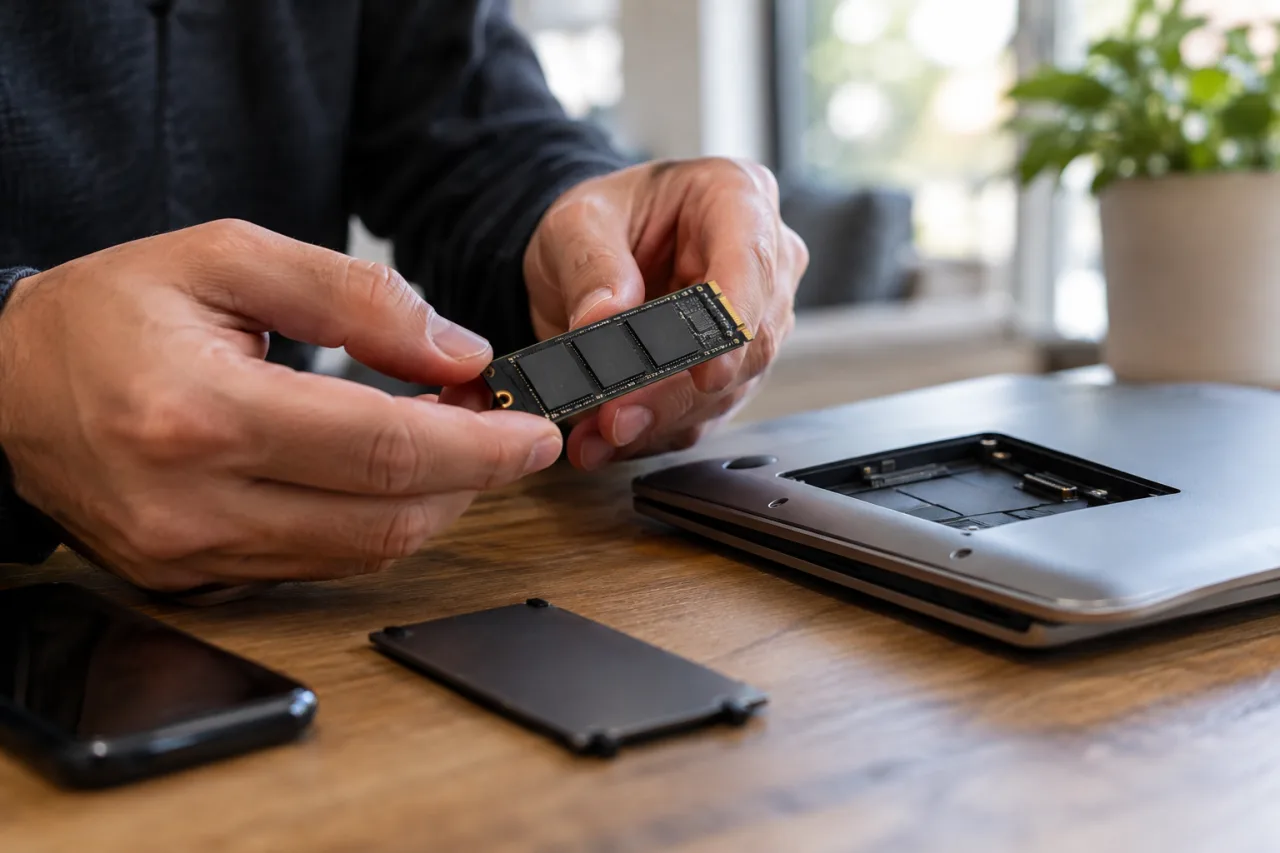
The newest generation of Macs has already moved the default. Apple’s platform security documentation for FileVault records that on a Mac with macOS 26 Tahoe or later, FileVault is turned on by default, with users able to opt out. The same page gives the strongest one-line description of what this protection buys: without valid login credentials or a cryptographic recovery key, the internal volumes remain encrypted even if the physical storage device is removed and connected to another computer. A stolen Mac is a brick of ciphertext, not a folder of your life.
Turning it on and keeping yourself out of the ditch:
- Open Apple menu → System Settings → Privacy & Security → FileVault, and click Turn On FileVault.
- Choose how the disk unlocks if you ever forget your password: iCloud account (convenient, one less thing to lose) or a recovery key (independent of iCloud, but you keep it safe).
- If you pick the recovery key, Apple stores it in the Passwords app and repeats the same warning Microsoft does: the key must live somewhere other than the encrypted disk, and never in the desk drawer next to the Mac.
- Apple’s warning deserves its own sentence: turn on FileVault, then lose both your password and the recovery key, and your files and settings are lost forever. This is the one gate where being careful matters more than being fast.
FileVault also changes small moments you will actually notice. After it is on, waking the Mac from sleep and leaving the screensaver requires your password, so the awake-Mac gap narrows too. That connection between encryption and screen locking is real security design, and it is why FileVault users get meaningfully more protection than Mac owners who rely on a lock screen alone.
Phones: Encrypted by Default, Guarded by Your Passcode
Phone encryption has already finished the job laptops are still working on. Apple encrypts the contents of every modern iPhone by default, and the EFF’s iPhone encryption guide notes the legal-world consequence Apple reports in its own law-enforcement guidance: with a passcode enabled, Apple cannot extract typically sought data, because Apple does not hold the encryption key. There is no toggle for the core encryption, because there is nothing to turn off; your job on an iPhone is the passcode, not the encryption setting.
The passcode matters because it is wrapped around the encryption keys inside the Secure Enclave, a dedicated security chip that never shares its keys with the main processor. Apple’s own documentation for the Secure Enclave confirms a number worth knowing by heart: when the passcode attempt limit is exceeded, for example 10 attempts on iPhone, the passcode-protected data is erased completely. That is brute-force protection with teeth, and it is why a phone locked with even a modest PIN resists a stranger far better than most laptops of the 2010s did.
Android reached the same default from the other direction. The Android file-based encryption requirements state that all devices launching with Android 10 or higher must use file-based encryption out of the box, with most devices doing so since Android 6.0, and Google’s compatibility rules require encryption to be enabled by default before your setup flow even hands you the device. Your personal data sits in credential-encrypted storage whose key is bound to your lockscreen credential, meaning the screen lock is not decoration; it is the key holder. The action item for an Android owner is therefore the lock itself: Settings → Security & privacy → screen lock, and EFF’s recommendation is 8 to 12 random characters rather than a 4-digit PIN.
Two iPhone features built on this foundation deserve enabling, both in Settings → Face ID & Passcode. Apple’s Stolen Device Protection addresses a scenario encryption alone does not: a thief who watched you type your passcode. It adds biometric requirements and security delays before anyone can change your passcode, your Apple Account password, or other critical settings, so a known passcode stops being a skeleton key. The less visible one is the inactivity reboot that Apple shipped in iOS 18.1: an iPhone left locked and untouched for 72 hours restarts itself into the state where all data is fully protected and far harder to extract, a change widely documented in security reporting in November 2024 when forensic teams noticed its effects. Reporting in October 2026 says forensics vendors claim workarounds for that reboot state. For a daily user the lesson is short: the wall is real and it is being tested from both sides, and your passcode strength decides how much of that matters.
For the millions of Filipinos working abroad, this section is not an abstraction. A worker’s phone in Riyadh, Dubai or Hong Kong routinely holds the bank app, the e-wallets, the remittance receipts, and the work email in a single pocket. Device encryption plus a long passcode plus stolen-device protection moves a street theft from “my money and my company’s accounts are in a stranger’s hands” to “I lost a gadget.” That is one of the largest single security upgrades you can buy for free.
The Powered-Off Rule: When Device Encryption Protects You
Here is the boundary the institutional guides bury, stated plainly. The strongest guarantee device encryption ever gives you is while the device is powered off. Apple’s FileVault documentation says the volumes stay encrypted even if the storage is pulled and mounted elsewhere; Microsoft’s design keeps the drive unreadable until a key is released at boot. A shut-down machine is a safe of scrambled metal. Everything weaker is a gradient, and knowing the gradient is the entire skill.
| Device state | What a thief with the hardware can reach |
|---|---|
| Powered off | Nothing. The storage is unreadable without the key; pulling the disk out and attaching it elsewhere still yields ciphertext. |
| Locked (screen off, still on) | A phone in this state keeps most data protected until the next correct passcode; research teams can still work at its data through tooling and bugs, which is why the 72-hour reboot exists. A locked laptop resists casual hands, but the session lives in memory. |
| Awake and logged in | Everything you could reach. Encryption is idle in this state; whoever controls the session reads the files, runs the emails, opens the bank tabs. |
| Malware present | Whatever encryption does not matter. Malicious software acting with your permissions copies, encrypts or deletes data no matter how strong the disk scrambling is. |
Two named risks sit inside the locked column, and both are handled the same practical way. First, a running system holds decrypted material in memory, and the EFF guide states plainly that a sophisticated adversary could attempt attacks that read those memory traces. Second, a laptop asleep in a bag is a stronger target than a laptop shut down, because a sleep state keeps parts of the working key available. CISA’s physical security guidance for protecting your digital devices turns this into three habits: lock the screen when you step away, set the auto-lock to trigger sooner, and take the device with you rather than trusting a hotel room or a parked car where most devices are taken. For the genuinely high-stakes trip, the border, the checked bag, the laptop left in a dorm over a break, the move is one click: shut it down. A shut-down encrypted laptop is the strongest state consumer encryption offers.
The same rule explains why the TPM research above is a footnote rather than a headline. That attack needs the laptop in hand, open, and boots of controlled firmware plus hardware probing; a powered-off BitLocker machine with a pre-boot PIN demands a skill and time budget street crime does not have. The powered-off rule, plus the PIN, covers you against the realistic enemy.
What Device Encryption Never Stops
The fastest way to be disappointed in any security control is to expect it to do another control’s job. Device encryption protects data at rest, and that is a short, powerful list. Here is the plain list of doors it does not close.
- Malware running while you are logged in. Ransomware and info-stealers work with your permissions, so they read, copy and encrypt your files with the same access you have. Disk scrambling is invisible to them because you already unlocked it. This is what updated antivirus and Defender-style protection exists for, and these controls stack; neither substitutes for the other.
- Phishing and stolen passwords. If a criminal tricks you into a login page or buys your password from a breach, they log in as you, on their device, and disk encryption never enters the story. Multi-factor authentication is the paired control here.
- Your cloud copies. Device encryption scrambles the laptop; it says nothing about the same files resting in iCloud, Google Drive or OneDrive. Those services keep their own protection levels, and the practical review lives in our cloud storage security comparison. Apple users who want the provider unable to read iCloud data can switch on Advanced Data Protection, accepting the trade-off that Apple cannot help with account recovery afterwards.
- Someone who knows your passcode. A shoulder-surfer, a coerced unlock, a shared family device: encryption hands over the keys to whoever holds the PIN. Apple’s Stolen Device Protection exists precisely to shrink what a known passcode can do.
- External media and cameras. Your laptop’s drive gains no shadow over a plain thumb drive, an SD card, or most digital cameras. EFF’s guidance is to encrypt external drives separately or stop carrying sensitive data on them, and CISA counts removable media among the first things to encrypt.
- Hardware recovery versus data protection. “Find my device” can ring, lock, locate or wipe a stolen phone, which is valuable, but it is tracking and recovery, not the encryption that keeps contents sealed before a wipe lands.
The disposal case deserves its clearest statement, because it is the one people get wrong when selling hardware. Deleting files is not erasing them; CISA notes that deleted data often remains recoverable, and recommends encrypting devices precisely so that deleted data, and everything else, is beyond reach before a device leaves your hands. Modern phones make this simple: on an encrypted iPhone or Android phone, the factory reset destroys the keys, and what is left without keys is unreadable. Our guide to wiping a phone before selling walks that step by step, including the legacy phones where the encryption assumption is weaker.
Your Ten-Minute Check Tonight
CISA’s Project Upskill teaching materials put the sequence in the right order: back up first, save the recovery key safely, and only then switch encryption on. Backing up first matters because the rare failure mode is losing access to your own data, and the 3-2-1 backup rule already covers that in twenty minutes. Then work the list, machine by machine:
- Windows: Settings → Privacy & security → Device encryption, and confirm the toggle reads On. On Pro, check each drive under Control Panel → BitLocker Drive Encryption. Verify with
manage-bde -status C:, then open your Microsoft account and confirm the 48-digit recovery key is listed and reachable from a second device. - Mac: System Settings → Privacy & Security → FileVault. On Apple silicon or a T2 Mac, expect it to be on or one click away; on macOS 26 Tahoe and later, the default is already on. Older Intel Macs may need the full turn-on. Pick your unlock method, and if you chose the recovery key, store it away from the Mac.
- iPhone: nothing to switch for encryption itself; instead make the passcode long (a custom alphanumeric code beats a 6-digit PIN), confirm the 10-attempt erase is active by simply not disabling it, and turn on Stolen Device Protection under Face ID & Passcode.
- Android: Settings → Security & privacy → screen lock; switch from 4-digit PIN or pattern to a passcode you can memorize, 8 characters or more. Devices launched with Android 10 or later are already encrypted.
- External drives: if any carry personal or client data, encrypt them in place (BitLocker To Go on Windows; encrypted disk images or APFS options on Mac, or a vendor tool), or retire them from the bag entirely.
One closing point about what this whole routine cannot fix: your home network is a separate door. A stolen device is one threat, a hijacked router reading every unencrypted connection is another, and our ten-minute home router lockdown takes care of that box blinking in the corner. Encryption at rest and a hardened router at home together close both ends of your data’s daily trip.
FAQ
Is device encryption the same as my lock screen password?
No. The lock screen is a door in front of your files; device encryption is the scrambling of the files themselves. EFF’s encryption guidance warns specifically that a password-protected lock screen does not always mean full-disk encryption is enabled, which is why each OS above gets its own settings path to check rather than a promise to trust.
Will device encryption slow down my computer or phone?
Negligibly on anything modern. Phones and recent laptops carry hardware built for this work; Apple’s FileVault works through the same silicon handling its storage, and Windows measures the difference in the noise. CISA’s only performance caveat applies to old, slow machines, where it suggests AES-128 for smoother running with no practical loss of protection.
My laptop is new. Do I still need to do anything?
Yes: verify, and back up the key. Microsoft turns device encryption on automatically when you sign in with a Microsoft or school account, but machines set up with a local account, devices flagged for missing hardware requirements, and older installs can all still be off. Apple has made FileVault the default from macOS 26 (Tahoe) onward, yet a household with an older Intel Mac still carries an unencrypted machine under that roof. The verification click is the whole job.
What happens if I lose my device encryption recovery key?
On Windows, losing it risks permanent data loss; Microsoft Support states plainly that it cannot retrieve, provide or recreate a lost BitLocker recovery key. On a Mac, Apple’s warning is stronger: forget your password and lose the recovery key, and your files and settings are lost forever. This is why CISA lists safe recovery-key storage as a step in its own right, taken before you switch encryption on.
Does device encryption protect me from hackers, viruses or ransomware?
Not while you are using the device. Encryption guards data at rest, and malware that runs with your permissions reads and locks your files no matter how the disk is scrambled. Keep updates, antivirus and multi-factor authentication doing that part of the work, and let encryption win the theft fight it was built for.
Does encryption erase my data when I sell or give away my phone?
It does the crucial half. On an encrypted iPhone or a modern Android phone, the factory reset destroys the encryption keys, leaving nothing readable even if some storage residue survives. On older or unencrypted devices, residue can be recovered, which is why the proper wipe guide matters before any sale. CISA recommends encrypting devices so that their deleted data is beyond reach regardless.
- Official ic3.gov/AnnualReport/Reports/2025_IC3Report.pdf — 2025 Internet Crime Report
- ssd.eff.org/module/what-should-i-know-about-encryption — EFF encryption guide
- Official cisa.gov/resources-tools/training/how-protect-data-stored-your-devices — protecting the data stored on your devices
- support.microsoft.com/en-us/windows/security/encryption/device-encryp… — Device Encryption in Windows
- learn.microsoft.com/en-us/windows-hardware/design/device-experiences/… — BitLocker automatic device encryption documentation
- support.microsoft.com/en-us/windows/security/encryption/back-up-your-… — Microsoft’s recovery key guide
- blog.compass-security.com/2024/02/microsoft-bitlocker-bypasses-are-pr…
- support.apple.com/guide/mac-help/protect-data-on-your-mac-with-fileva… — Apple’s FileVault guide
- support.apple.com/guide/security/volume-encryption-with-filevault-sec… — platform security documentation for FileVault
- ssd.eff.org/module/how-encrypt-your-iphone — EFF’s iPhone encryption guide
- support.apple.com/guide/security/the-secure-enclave-sec59b0b31ff/web — Secure Enclave
- source.android.com/docs/security/features/encryption/file-based — Android file-based encryption requirements
- support.apple.com/en-us/120340 — Apple’s Stolen Device Protection
- macrumors.com/2024/11/14/ios-18-3-day-iphone-reboot — security reporting in November 2024
- Official cisa.gov/resources-tools/training/protect-physical-security-your-digi… — protecting your digital devices
External sources linked in this article, in order of first mention. Spotted an error or a broken link? Tell us.
Cite this pagePublished Nov 24, 2026
Agron, E. (2026, November 24). Device Encryption Explained: What BitLocker, FileVault and Phones Actually Protect. WorldNgayon. https://worldngayon.com/device-encryption-explained/
Agron, Edmon. “Device Encryption Explained: What BitLocker, FileVault and Phones Actually Protect.” WorldNgayon, 24 Nov. 2026, worldngayon.com/device-encryption-explained/.
Agron, Edmon. “Device Encryption Explained: What BitLocker, FileVault and Phones Actually Protect.” WorldNgayon, November 24, 2026. https://worldngayon.com/device-encryption-explained/.
Agron, E. (2026) ‘Device Encryption Explained: What BitLocker, FileVault and Phones Actually Protect’, WorldNgayon, 24 November. Available at: https://worldngayon.com/device-encryption-explained/.
E. Agron, “Device Encryption Explained: What BitLocker, FileVault and Phones Actually Protect,” WorldNgayon, Nov. 24, 2026. [Online]. Available: https://worldngayon.com/device-encryption-explained/
@online{agron2026deviceencryption,
  author       = {Agron, Edmon},
  title        = {{Device Encryption Explained: What BitLocker, FileVault and Phones Actually Protect}},
  year         = {2026},
  date         = {2026-11-24},
  organization = {WorldNgayon},
  url          = {https://worldngayon.com/device-encryption-explained/},
  urldate      = {}
}TY - ELEC AU - Agron, Edmon TI - Device Encryption Explained: What BitLocker, FileVault and Phones Actually Protect T2 - WorldNgayon PY - 2026 DA - 2026/11/24/ UR - https://worldngayon.com/device-encryption-explained/ Y2 - ER -
Cite the version you read; the page may be updated. Zotero and Mendeley can also import this page directly.