

Table of Contents
Key Takeaway
- ☁️ Cloud storage security: cloud storage security across Google Drive, OneDrive and Dropbox starts from a shared, verified floor: every mainstream provider encrypts files in transit and at rest, so the headline “safest” claim lives in the details, not the labels.
- 🔑 The real difference is key custody: all three mainstream services hold management keys to your data, meaning none of them is zero-knowledge by default; only zero-knowledge providers like Proton Drive design the system so the provider mathematically cannot read your files.
- 🛡️ The layers differ by design: OneDrive adds Personal Vault as a step-up verification zone, Dropbox now documents an end-to-end encryption option on its own security page, and Google’s encryption is documented in its Workspace whitepaper.
- 📱 Account hygiene beats brand choice: two-factor or passkey login, a clean connected-devices list, and deliberately set sharing defaults protect your files in any of the three clouds more than switching vendors would.
- 💾 Backup law still applies: the 3-2-1 rule treats even the best cloud as one copy, and the free setup behind that rule is documented in ours, so a hacked account is an inconvenience instead of a data-loss event.
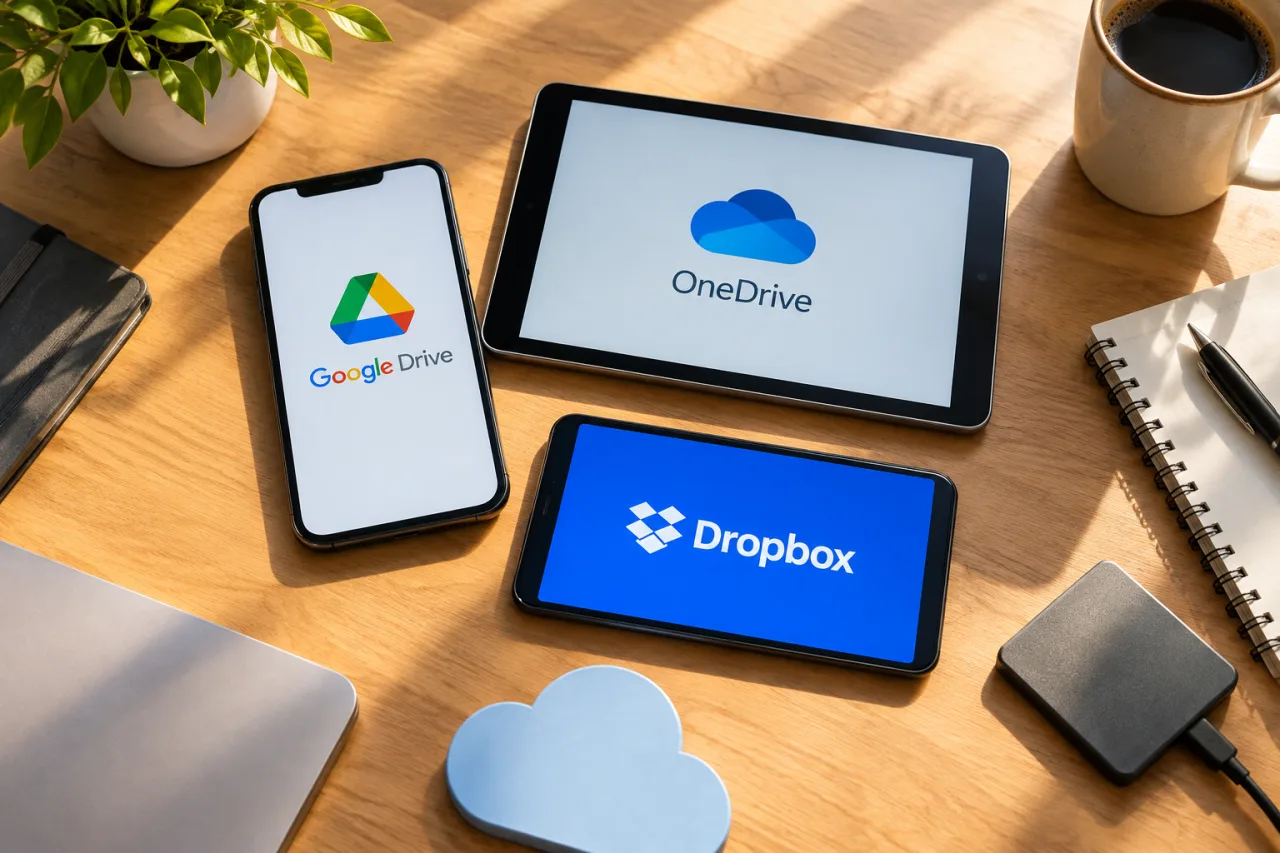
Family photos in Drive, client contracts in Dropbox, tax records in OneDrive, and the same quiet question under all of them: which of these clouds can actually hurt you, and which one deserves the most sensitive folder you own? The marketing pages promise safety in near-identical words, and an honest cloud storage security answer requires reading what each platform publishes about its own engineering. On the fundamentals, the three providers are closer than most comparisons claim. What separates them is key custody, the identity layer around your login, and the specific vault features each one built for the files you care about most. This guide compares the three on exactly that verified terrain, names the zero-knowledge alternative for readers who want a harder guarantee, and walks the fifteen-minute hardening pass that beats any brand switch.
Cloud Storage Security: What All Three Do the Same First
Start with the parity layer, because it is real and it is the reason none of the three is “unsafe” in the naive sense. Google’s encryption documentation describes encryption in transit as data moves between you and its servers and encryption at rest as the files sit on disks, per its published Workspace encryption whitepaper. Microsoft’s Learn documentation, in its data encryption page for OneDrive and SharePoint, describes the same two layers on its infrastructure. Dropbox’s own security architecture page states the same design: encrypted connections, encrypted storage. This is cloud storage security table stakes in 2026, and any comparison that stops here is marketing, not analysis. Two-factor authentication is the second parity layer: all three support it natively, and all three support passkeys or equivalent phishing-resistant sign-ins now that device-bound credentials have spread across consumer platforms. The meaningful comparison begins after this common floor.
Where the Three Actually Differ: Custody, Vaults and Scope
The first cloud storage security difference is who holds the keys. None of Drive, OneDrive or Dropbox is zero-knowledge by default: the provider holds management keys for the at-rest encryption, which is what enables their server-side features, previews, search and recovery, and it is also what means a provider-side compromise or a legal process over the provider’s keys reaches the content. Google’s docs describe client-side encryption as an available enterprise layer for Workspace domains; Dropbox now documents an end-to-end encryption capability on its own feature pages, introduced for teams; Microsoft describes customer-managed key options for enterprise tenants. For the individual user on consumer plans, the honest statement is that all three providers can technically read your stored files, and all three document the controls around that reality.
The second difference is the special vault each platform built for cloud storage security at the folder level. OneDrive’s Personal Vault is the most explicit design: a folder inside OneDrive guarded by a second, step-up identity check, with files that auto-lock when idle, a design Microsoft documents on its Personal Vault page. It is a strong feature for passports, tax documents and scans, and it works on the personal and paid plans most households already run. Dropbox’s recent end-to-end encryption option points the same direction: files that Dropbox itself cannot decrypt, scoped per its documentation. Google’s consumer Drive has no single equivalent vault; its layered answer is enterprise client-side encryption for Workspace editions plus granular sharing controls everywhere else. The third difference is administrative: OneDrive inherits the Microsoft 365 tenant controls, Drive inherits Google Workspace’s sharing governance, and Dropbox carries team-scoped management on its business tiers. Choose the vault and the governance you will actually maintain, because cloud storage security lives in the controls you exercise, not the ones you buy.
The Zero-Knowledge Alternative, and Its Honest Trade
If the requirement is stronger than “the provider promises not to look,” the design standard is zero-knowledge encryption, where files encrypt on your device before upload with keys derived from credentials the provider never receives. Proton Drive is the reference implementation among the consumer-friendly options, and its security model page describes exactly that architecture, end-to-end client-side encryption with keys held only by its users. The trade is feature honesty: zero-knowledge means server-side search, preview and some collaboration conveniences become limited or impossible, because the provider’s servers genuinely cannot see what it stores. For password-protected document archives, contracts, and identity papers, that trade is usually worth it. For the family media library or the shared work folder, the mainstream three, hardened properly, remain the more practical homes, and pairing, mainstream cloud for daily work plus a zero-knowledge vault for the sensitive drawer, is a design more households should copy than switch.
The Fifteen-Minute Hardening Pass Any Cloud Needs
The cloud storage security hardening pass outperforms vendor shopping, and it runs in the same order regardless of provider. First, upgrade the sign-in: enable two-factor or register a passkey, which our passkeys guide covers for users across Southeast Asian platforms, and treat the cloud account as a crown-jewel login, on par with banking. Second, prune the account: open the connected-devices list, sign out the laptops that no longer exist, and remove third-party app grants you cannot name from memory. Third, set the sharing defaults: turn link sharing off by default where the provider allows it, expiration dates into anything shared, and viewer-only as the default role. Fourth, audit the vault or archive: move the identity folder, the tax folder and the contracts folder into the protected zone, whatever your provider calls it. Fifth, verify the backup story with the 3-2-1 backup rule guide, because a hardened cloud is still one copy, and the 20-minute free setup we documented makes the second and third copies real. Finally, check the malware angle: cloud mirrors the files it is given, the free check our infostealer malware guide walks catches the device-side infections that poison what gets uploaded, and the session-level exposure of browser-stored clouds is exactly what our browser update guide keeps current.
Who Should Use Which Cloud
| Reader type | Better fit | The verified reason |
|---|---|---|
| Household with sensitive personal documents | OneDrive with Personal Vault | Step-up verification vault on plans you already run |
| Freelancer swapping large client files | Dropbox or Drive, hardened | Mature sharing governance plus Dropbox’s documented E2EE option |
| Google-first family and work life | Drive, hardened | Documented transit and at-rest encryption, Workspace CSE above |
| Reader who needs provider-blind storage | Proton Drive as the sensitive drawer | Zero-knowledge model, provider cannot read content |
| Anywhere mixed files, mixed trust | Mainstream cloud + zero-knowledge drawer | Practical split of daily and sensitive files |
The Sign-In Layer: What 2FA and Passkeys Look Like in Each Cloud
The strongest cloud storage security upgrade any of the three clouds accepts is the same: replace the password-plus-code flow with a phishing-resistant credential. All three support passkey or authenticator-based two-factor sign-in on personal accounts, and the platforms’ identity systems treat the storage account as a high-value login, which is exactly how you should treat it. Practice follows a short list: register at least two factors so a lost phone cannot lock you out of your own archive, store the recovery codes offline rather than in the same cloud, and prefer a passkey where your browser and devices support one, because a credential bound to your device cannot be typed into a scammer’s fake login page. In shared-plan households, cloud storage security inherits the weakest account, so give each adult the same treatment, since one weak mailbox in a family plan exposes the shared folders that plan connects. The fifteen minutes this takes applies to every provider equally, which is another reason the cloud storage security comparison begins after the sign-in layer instead of at it.
Version History: the Ransomware Defense Hiding in Plain Sight
Every mainstream cloud carries version history, and almost nobody uses it until they need it. When ransomware encrypts a synced folder on a laptop, the sync client faithfully uploads the encrypted files, which is why the attack works, but the platforms keep prior versions, and Dropbox’s version history window, OneDrive’s rollbacks and Drive’s version controls each allow restoring before the corruption arrived. Test the restore path once while nothing is wrong, because the panic version of that click is unreliable. Pair the test with the retention reality: free tiers keep versions for limited windows, and the paid tiers extend them, so a small business’s most productive ten dollars a month may be the tier that lengthens version history rather than the tier that adds space. This is the quiet argument for keeping the sensitive drawer inside a platform whose versioning you have actually exercised, and it is one more way the cloud storage security decision is a recovery-first decision wearing a prevention costume.
Migrating the Sensitive Drawer in One Evening
Households that decide to split their files finish the cloud storage security upgrade, mainstream cloud for daily work, zero-knowledge vault for the sensitive set, in one honest evening. List the folders that fit the sensitive definition: passports and IDs, contracts, tax returns, medical scans, keys and recovery codes. Copy them local first, then upload once into the vault, verify the download opens cleanly, delete the old shared copies, and empty the trash everywhere so stale copies do not linger in either service. Update the family’s shared list so nobody goes looking for the old paths, and write the new locations into the household’s document checklist, the same habit our online-accounts guide recommends for death-planning papers, because an archive nobody can find protects nobody. The evening ends with the daily workflows untouched and the identity papers sitting behind real zero-knowledge math, which is the whole point of the exercise.
Frequently Asked Questions
Which cloud is hacked least, Google Drive, OneDrive or Dropbox?
No published metric makes one mainstream provider provably the safest, and all three document encryption in transit and at rest. Account compromise, weak recovery paths and phishing happen on every platform, which is why the sign-in layer and sharing defaults matter more than the logo on the folder.
Do Google Drive, OneDrive and Dropbox have zero-knowledge encryption?
No, not on their consumer defaults: each provider holds management keys, with enterprise client-side or end-to-end options documented on paid tiers. Only zero-knowledge providers such as Proton Drive design the storage so the provider mathematically cannot read your files.
Is OneDrive’s Personal Vault actually more secure?
It is a meaningful step-up layer: a second identity check guards the vault and files auto-lock when idle, per Microsoft’s documentation. It protects the most sensitive folder strongly while leaving the rest of the account working normally.
What can I safely store in the cloud?
Everything with a good backup story and sharing hygiene, from photos and work files to scanned IDs, provided the account uses strong sign-in and the sensitive folder sits in a protected vault or a zero-knowledge drawer.
Does encrypting files myself before uploading work?
Yes, that is old advice that still functions: archive tools can encrypt a file to a passphrase before upload, and the provider stores a blob it cannot read. The cost is convenience, previews and search stop working for those files, so it suits small, important archives rather than whole libraries.
What happens if my cloud account gets hacked?
Speed decides the damage: change the password, revoke sessions and connected apps, check sharing and the trash or version history for tampering, then restore clean copies from your second and third backups, which is the recovery the 3-2-1 rule exists for.
- services.google.com/fh/files/misc/google-workspace-encryption-whitepa… — published Workspace encryption whitepaper
- learn.microsoft.com/en-us/purview/data-encryption-in-odb-and-spo — data encryption page for OneDrive and SharePoint
- help.dropbox.com/security/how-security-works — security architecture page
- proton.me/blog/protondrive-security
External sources linked in this article, in order of first mention. Spotted an error or a broken link? Tell us.
Cite this pagePublished Nov 18, 2026
Agron, E. (2026, November 18). Cloud Storage Security: How Google Drive, OneDrive and Dropbox Actually Compare. WorldNgayon. https://worldngayon.com/cloud-storage-security-comparison/
Agron, Edmon. “Cloud Storage Security: How Google Drive, OneDrive and Dropbox Actually Compare.” WorldNgayon, 18 Nov. 2026, worldngayon.com/cloud-storage-security-comparison/.
Agron, Edmon. “Cloud Storage Security: How Google Drive, OneDrive and Dropbox Actually Compare.” WorldNgayon, November 18, 2026. https://worldngayon.com/cloud-storage-security-comparison/.
Agron, E. (2026) ‘Cloud Storage Security: How Google Drive, OneDrive and Dropbox Actually Compare’, WorldNgayon, 18 November. Available at: https://worldngayon.com/cloud-storage-security-comparison/.
E. Agron, “Cloud Storage Security: How Google Drive, OneDrive and Dropbox Actually Compare,” WorldNgayon, Nov. 18, 2026. [Online]. Available: https://worldngayon.com/cloud-storage-security-comparison/
@online{agron2026cloudstorage,
  author       = {Agron, Edmon},
  title        = {{Cloud Storage Security: How Google Drive, OneDrive and Dropbox Actually Compare}},
  year         = {2026},
  date         = {2026-11-18},
  organization = {WorldNgayon},
  url          = {https://worldngayon.com/cloud-storage-security-comparison/},
  urldate      = {}
}TY - ELEC AU - Agron, Edmon TI - Cloud Storage Security: How Google Drive, OneDrive and Dropbox Actually Compare T2 - WorldNgayon PY - 2026 DA - 2026/11/18/ UR - https://worldngayon.com/cloud-storage-security-comparison/ Y2 - ER -
Cite the version you read; the page may be updated. Zotero and Mendeley can also import this page directly.