Key Takeaway
- 🧠 What ChatGPT memory is: ChatGPT memory is the personalization system that lets your assistant remember across conversations — preferences you state and details it picks up from chats and connected sources — so you stop repeating yourself every session.
- 🎚️ The controls, located: Settings → Personalization → Memory; there you manage the system, view and delete specific memories, refresh the memory summary, switch between the improved and legacy systems, and disable it entirely — plus Temporary Chat mode for conversations that neither use nor create memories.
- 🔀 ChatGPT memory vs custom instructions: custom instructions are the direct guidance YOU write (what it should know, how it should respond); memory is what develops across conversations and sources — use both: explicit rules in custom instructions, evolving context in memory.
- 🔐 The privacy discipline: memory takes what you share — sensitive details can appear in it; deleting an original chat does not delete a saved memory; a Business/Enterprise/Edu/Healthcare workspace’s chats are not used for model training by default; review Sources, and use temporary chats for anything you would not put in a record.
- ⚖️ When to turn it off: shared devices, client-confidential work, regulated data, or any context where cross-session memory creates risk; when ON, run the monthly memory review — five minutes that keeps the assistant useful and the record clean.
ChatGPT memory is the feature that turned the assistant from a goldfish into a coworker: tell it once that you prefer bulleted meeting notes, that your name is “Jun,” that your budget lives on a spreadsheet — and it carries those details into every later conversation. But memory also collects what you never meant to teach it, which is why the settings matter more than the capability. This piece walks the whole feature: how it works, where every control lives, the two-layer system (memory vs custom instructions) that makes it reliable, the privacy discipline that keeps sensitive details out, and the honest cases for turning it off.
Table of Contents
Why this guide now: memory graduated from a 2024 experiment to the default personalization layer — free users have it, the improved system replaced the original saved-memories model, and connected apps now feed it. The gap between “memory on, unmanaged” and “memory on, managed” is a data-hygiene question every professional needs answered once and reviewed monthly.
What ChatGPT memory is — and where the controls live
The definition: when enabled, ChatGPT memory lets the assistant remember relevant preferences and details from your chats and other connected sources, so conversations can pick up where earlier ones left off. Two behaviors define it: explicit memory (“remember that my team prefers status memos with deadlines first”) and implicit memory (ChatGPT notices useful details your chats reveal and may save them without a direct command). Memory is NOT a transcript: the help documentation is explicit that it does not retain every detail of every conversation — it decides what matters for later responses, and its summary may omit details.
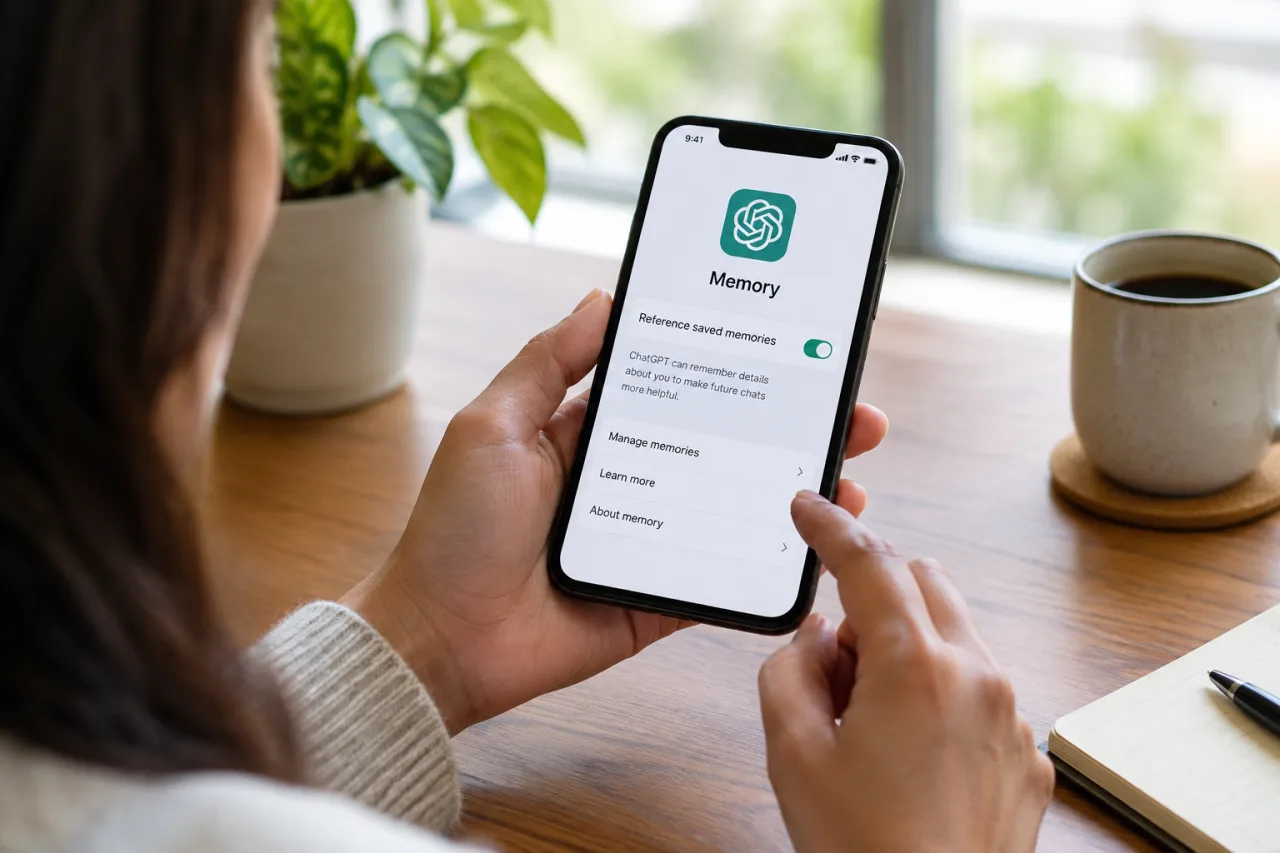
The ChatGPT memory controls, located: Settings → Personalization → Memory. Depending on plan, region and workspace, the controls include Memory (on/off), Reference saved memories, Reference chat history, Memory summary (with Manage → Refresh), Manage/Saved memories (view and delete individual entries, clear all), and the improved-vs-legacy switch (Settings → Memory → Saved memories → “Try improved memory” moves you forward; the same menu reverts to legacy). Temporary Chat — the new-chat toggle — runs a conversation that neither uses nor creates memories for personalization.
How memory works: the sources it draws from
The source list, by plan and region: saved memories — the explicit entries you tell it to keep (“remember I am vegetarian when recommending recipes”); the modern system manages them automatically — updating, combining, removing as asked — while the legacy system lists them individually for manual control. Reference chat history — the setting that lets ChatGPT draw on your past conversations for context, separate from saved memories. Connected apps — on plans where enabled, sources can include content from connected apps (the Gmail-class integrations): memory can draw on what those apps share with the session — the reason Source review matters: it shows what feeds personalization. Files you upload — content from shared files can feed the session context that memory’s systems read from.
The failure modes to know: memory is selective (relevance-driven — it may drop details it judges irrelevant, which is exactly why critical facts belong in custom instructions, not implied across chats); memory is stateful across time (a detail remembered in January still shapes a June answer until removed); and memory interacts with roommates — a shared device’s ChatGPT carries one memory for everyone who uses it (the case for turning it off below).
The settings walkthrough: review, forget, refresh, switch
Review (the five-minute hygiene pass): Settings → Personalization → Memory → open the memory list (Manage). Read what it remembers; delete entries that are stale, sensitive, or wrong — individually, or clear all. The monthly pass matters because implicit memory accumulates quietly. Ask it what it remembers: “What do you remember about me?” — the verbal inventory (compare against the settings list; use both). Forget by conversation: “Forget what I said about my salary” — instructs removal of specific details; verify in Manage that the entry left. Refresh the summary: the memory summary is a rolling high-level view — Manage → the triple-dot menu → Refresh, when you want it current. Turn it off: the Memory toggle (Settings → Personalization → Memory); while off, it neither uses nor creates memories — existing saved memories remain stored (delete them if the goal is a clean record). Temporary Chat: the per-session switch that excludes the conversation from memory entirely — use it for anything you would not want in tomorrow’s context.
The 30-day shadow: deleted saved memories may be retained up to 30 days in a log for safety and debugging — memory deletion is not instant erasure; for high-privacy contexts, the discipline is prevention (temporary chat, minimal sharing) rather than post-hoc deletion.
ChatGPT memory vs custom instructions: the two-layer system
| Layer | What it holds | Who controls it | Best use |
| Custom instructions | Direct, written guidance: what ChatGPT should know, how it should respond | You — fully, explicitly | Stable rules: tone, role, format, boundaries |
| Memory (saved + implicit) | Details that develop across conversations and sources | Shared — the model proposes, you review | Evolving context: preferences, projects, relationships |
| Reference chat history | Past conversations as retrievable context | You toggle; the model reads | Continuity: multi-week projects |
| Temporary chat | Nothing — the session is excluded both ways | You, per session | Sensitive one-offs, shared devices |
The working rule: rules in custom instructions, context in memory. A rule hidden in a chat note (“by the way, always cite sources”) will someday fall out of the summary — the same fact in custom instructions never does. The layered pattern is the reliability upgrade most users never make: our prompt-engineering techniques guide carries the instruction-writing half of the pair. Gemini’s and Claude’s personalization layers run the same shape — the platform comparison below sorts the differences.
The privacy discipline: what to share, what never
The never-share class: government ID numbers, full financial credentials, medical specifics beyond general wellness topics, and anything covered by an employer’s data policy — this is the same boundary our ChatGPT account-security guide applies to the account layer. The gray class — share with intent: work projects, family details, schedules — useful context worth remembering; run them through the monthly review. The safe class: preferences, formats, tone — memory’s bread and butter, zero risk. The sensitive-information rule on record: OpenAI’s systems aim to avoid proactively saving sensitive details (health, for example) unless you ask — but the mechanism is model judgment, not a hard gate: the discipline (don’t type it, or use temporary chat) outruns the feature’s filters. Workspace truth: ChatGPT Business, Enterprise, Edu and Healthcare workspaces do not train models on your content by default — consumer plans’ training settings live in Data controls; check yours once.
When to turn memory off — the honest case
Memory on, managed, is the right default for personal use. Turn it OFF when: the device is shared (family or workplace machines — one memory serving several people quietly contaminates both directions); the work is client-confidential or regulated (client lists, HR matters, legal specifics — per-work policies on shadow-AI lines apply; temporary chat per session is the alternative when zero memory is too blunt); you are the subject of the problem, not the user (evaluating what ChatGPT knows about someone else — memory review is the tool, off is the state); or memory keeps introducing noise (stale details poisoning fresh tasks faster than the hygiene pass clears them — some workloads simply run better unpersonalized). The middle path: keep memory ON for the personal account, OFF on the shared one, Temporary Chat for the sensitive middle — three switches, five minutes, the whole risk management.
Memory across the assistants: the platform comparison
The ChatGPT memory landscape, honestly: the personalization layer converged across assistants — each major one now carries some memory-plus-controls shape. ChatGPT: saved memories + reference chat history + memory summary + connected app sources (the richest control set). Gemini: its own personalization system tied to Google account context — more integration with what you already use. Claude: memory scoped to Projects — cleaner for work separation, lighter for personal continuity. The practical comparison rule: the best memory system is the one whose audit path you trust — the settings you can inspect matter more than the features the launch posts tout. Our three-assistant comparison carries the full capability table; the memory row belongs to whichever platform’s controls you will actually run.
WorldNgayon Insight: memory is a feature you manage, not a mystery
The discourse around assistant memory swings between awe and dread; the operating truth is mundane — it is a database the vendor lets you curate, with rules, audits and an off switch. The discipline that makes it safe is the same one this site applies to every tool: know what it stores (review monthly), bound what it keeps (share by intent), and control the exceptions (temporary chat, per-session). The teams and professionals who treat memory that way get the compounding usefulness without the creeping record; the ones who never open the settings inherit whatever the model’s judgment preserved. Five minutes a month is the whole price of the good version of this feature.
What this means for work, money and the Philippines
Budgets: memory costs nothing and saves real money — every context re-explained is minutes billed to your evening; set the custom-instructions layer once and let memory carry the rest. Careers: the interview-ready skill is configuration — “how do you set up an assistant to be useful without leaking?” is now a real workplace question; the layered answer (custom instructions for rules, memory for context, temporary chat for exceptions) is the answer that lands. For Filipino professionals and OFWs: the practical stack is family-aware — personal memory on your own device (the budgeting style, the kids’ school details, the family’s remittance rhythm in the money-minute prompts), memory OFF on the household’s shared PC, and Temporary Chat for the payroll questions you would not leave in a record. The feature’s promise — an assistant that knows you — is worth having, on rules you set.
Verdict: memory on, with rules, beats memory off in fear
ChatGPT memory, settled: it draws from saved memories, chat history and connected sources; every control lives in Settings → Personalization → Memory; custom instructions carry your rules while memory carries your context; sensitive details stay out by discipline, not by hope; and the off switch plus Temporary Chat cover the honest exceptions. Manage it in five minutes a month and it is the best feature in the product; leave it unmanaged and it remembers exactly what you never meant to teach. Memory on — with rules.
Sources on the record: .
Sources on the record: the OpenAI memory FAQ (jina-verified) · the OpenAI memory announcement.
A note on the memory-summary feature rounds out the walkthrough: the summary is a rolling, machine-written view of what the system has picked up – a convenience layer over the raw entries. Treat it as a dashboard, not a database: it may omit details the raw list keeps, and refreshing it regenerates the view without changing the underlying memories. The audit that matters remains the entry-level Manage list – read the entries themselves at least monthly, delete what is stale or sensitive, and let the summary stay ornamental. Users who audit the dashboard instead of the entries inherit the summary’s blind spots.
Financial Disclaimer
This article is editorial analysis of publicly reported technical and market information, not investment or financial advice, and no outcome is promised. Model behaviors, detectors and workflows change with each release; verify with the named sources. Technology markets carry substantial risk.
- help.openai.com/en/articles/8590148-memory-faq — the OpenAI memory FAQ (jina-verified)
- openai.com/blog/memory-and-new-controls-for-chatgpt — the OpenAI memory announcement
External sources linked in this article, in order of first mention. Spotted an error or a broken link? Tell us.
Cite this pagePublished Oct 29, 2026
Agron, E. (2026, October 29). ChatGPT Memory Explained: How It Works, the Settings and When to Turn It Off. WorldNgayon. https://worldngayon.com/chatgpt-memory/
Agron, Edmon. “ChatGPT Memory Explained: How It Works, the Settings and When to Turn It Off.” WorldNgayon, 29 Oct. 2026, worldngayon.com/chatgpt-memory/.
Agron, Edmon. “ChatGPT Memory Explained: How It Works, the Settings and When to Turn It Off.” WorldNgayon, October 29, 2026. https://worldngayon.com/chatgpt-memory/.
Agron, E. (2026) ‘ChatGPT Memory Explained: How It Works, the Settings and When to Turn It Off’, WorldNgayon, 29 October. Available at: https://worldngayon.com/chatgpt-memory/.
E. Agron, “ChatGPT Memory Explained: How It Works, the Settings and When to Turn It Off,” WorldNgayon, Oct. 29, 2026. [Online]. Available: https://worldngayon.com/chatgpt-memory/
@online{agron2026chatgptmemory,
  author       = {Agron, Edmon},
  title        = {{ChatGPT Memory Explained: How It Works, the Settings and When to Turn It Off}},
  year         = {2026},
  date         = {2026-10-29},
  organization = {WorldNgayon},
  url          = {https://worldngayon.com/chatgpt-memory/},
  urldate      = {}
}TY - ELEC AU - Agron, Edmon TI - ChatGPT Memory Explained: How It Works, the Settings and When to Turn It Off T2 - WorldNgayon PY - 2026 DA - 2026/10/29/ UR - https://worldngayon.com/chatgpt-memory/ Y2 - ER -
Cite the version you read; the page may be updated. Zotero and Mendeley can also import this page directly.