Key Takeaway
- 🛡️ Built-In Armor: Windows 11 kernel protection — officially Kernel-mode Hardware-enforced Stack Protection — uses your CPU’s shadow stacks to stop return-oriented programming exploits before they execute.
- ✅ 5-Minute Setup: The feature takes five minutes to switch on through Windows Security, provided your PC meets the hardware requirements.
- 🎮 Gamer Warning: Some anti-cheat drivers conflict with enforcement mode — Microsoft ships a compatibility option precisely for that, explained below.
- 🔑 Prerequisite First: Memory integrity (HVCI) and virtualization-based security must be enabled first, and Windows 11 22H2 or newer is required.
Most Windows users harden their machines the same way: a good browser, updates on time, a password manager, and a quiet hope that nothing kernel-level ever goes wrong. Windows 11 kernel protection deserves better than hope. Windows 11 kernel protection has been sitting inside Windows Security for years on modern hardware, and it neutralizes an entire class of attacks — return-oriented programming, stack buffer overflows, the memory-corruption techniques that premium exploit kits sell for six figures — using nothing more than a CPU feature most people never knew their processor had. Turning it on takes five minutes. This guide walks through the entire process, the prerequisites that trip people up, and the gaming conflict that makes some users turn it back off.
What Windows 11 Kernel Protection Actually Does
Modern Windows exploits rarely smash through the front door. Instead, they hijack the return addresses that programs constantly write to the stack — the memory structure that tracks which function called which. By redirecting those returns, an attacker chains together small fragments of legitimate code into a malicious sequence. The defense, long standardized by Intel as CET (Control-flow Enforcement Technology) and mirrored by AMD’s Shadow Stacks, is elegantly simple: the processor keeps a hidden, write-protected copy of every return address, and the moment the return address the program is about to jump to does not match the shadow copy, the CPU kills the operation before anything executes.
Windows 11 kernel protection extends that guarantee to the most privileged layer of the operating system. As Microsoft’s documentation explains, the feature uses those hardware shadow stacks to verify return addresses in kernel code, blocking the return-oriented programming techniques attackers use to hijack the Windows kernel and run malicious code with total system authority. When a security researcher demonstrates a Windows exploit at a conference, a meaningful share of the modern work is defeating exactly this class of protection — which is why enabling it moves real attack cost, not imaginary attack cost.
Prerequisites: Check These Before Enabling Kernel Protection
Windows will quietly refuse or misbehave if the hardware and software foundations are missing, so verify the list below first. It takes less time than the setup itself.
- Windows 11 22H2 or newer. Open Settings → System → About and check the Windows specifications version. Older builds do not expose the toggle through Windows Security.
- Current Windows Security app. The feature requires app version 1000.25330.0.9000 or newer — check under Settings → Windows Security → App settings if the toggle appears greyed out.
- Compatible CPU. Intel processors need 11th Gen Core mobile or newer with CET; AMD needs Zen 3 or newer with shadow stack support. Anything bought in roughly the last four years qualifies.
- Virtualization-based security already on. Kernel-mode protection builds on VBS and Hypervisor-enforced Code Integrity (HVCI). On most modern machines both are on by default — confirm in Core isolation details, where Memory integrity should read “On.”
One more prerequisite has no checkbox: driver compatibility. When you first flip the switch, Windows scans every loaded kernel driver for conflicts, and problematic software — older anti-virus filters, some virtual drive tools, certain anti-cheat drivers — gets flagged. Windows 11 24H2 began enabling this protection more aggressively by default precisely because the driver ecosystem caught up; if your machine is older and burdened with legacy software, expect a warning list instead of a clean activation.
How to Enable Windows 11 Kernel Protection in 5 Minutes
The setup itself is a short walk through Windows Security — no command line, no registry editing for the standard path.
- Open Windows Security. Click the Start button, type “Windows Security,” and press Enter.
- Go to Device security. In the left pane of the app, select the Device security icon.
- Open Core isolation details. Click the “Core isolation details” link under the Core isolation section.
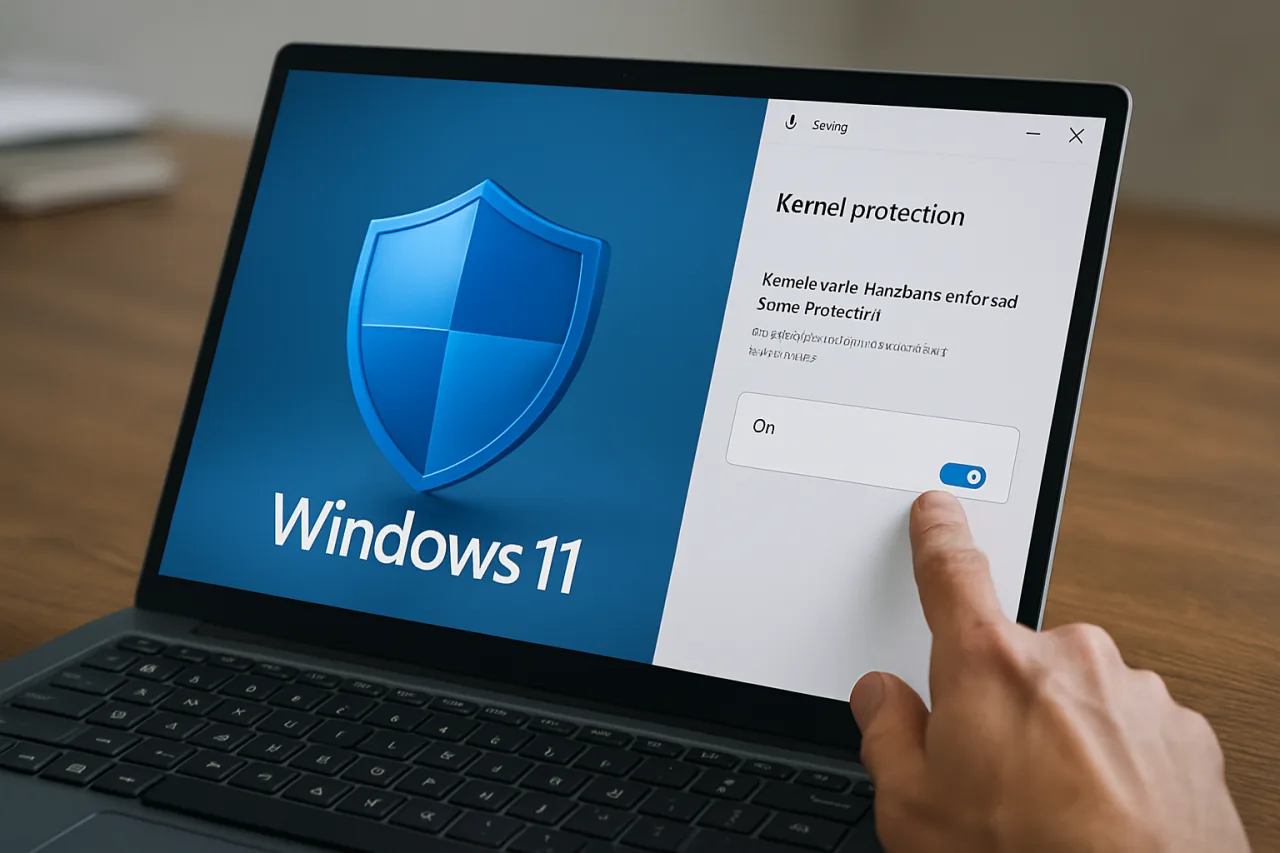
- Flip Windows 11 kernel protection to On. The toggle sits directly beneath the Memory integrity control. Windows will immediately begin scanning loaded drivers for compatibility.
- Restart when prompted. The shadow stack instrumentation for the kernel activates at boot, so the protection is not live until the machine restarts.
If the toggle is missing entirely, the Group Policy path covers managed machines and feature-updated installs: open the Local Group Policy Editor, navigate to Computer Configuration → Administrative Templates → System → Device Guard, confirm “Turn on Virtualization Based Security” is Enabled, and under its Options set Windows 11 kernel protection to “Enabled in enforcement mode.” Enforcement mode is the setting that matters — a weaker “enabled without enforcement” mode logs violations but does not block them, which is useful for testing compatibility and useless as a security boundary.
Verifying That Windows 11 Kernel Protection Is Actually Running
An enabled toggle is not proof of protection, and gamers and power users in particular should verify the state after their first reboot. Windows occasionally rolls a setting back after a major driver update, and a silently disabled defense is worse than a missing one because nobody looks for what they believe is already running. Microsoft ships a small PowerShell check for exactly this purpose.
- Open PowerShell as administrator. Right-click Start and choose Terminal (Admin).
- Run the verification command:
Get-ProcessMitigation -Systemand look for the Windows 11 kernel protection entry. - Confirm the state. The output should show the feature ON in enforcement mode. A listing of incompatible drivers, if any remain, appears in the same output — each one is a candidate for updating or removing.
- Reboot and re-check once. After the restart, run the command again; the setting persisting across reboot confirms activation is complete.
If a driver you depend on appears on the incompatible list, you have two honest options: update the software and hope the vendor has shipped a compatible build, or leave kernel protection enabled and let Windows manage that driver in compatibility mode. Removing the protection entirely to keep one old utility running is the kind of trade that looks harmless until you remember what kernel-level compromise means — every password, every session token, every file on the machine belongs to the attacker the moment they get there.
The Gamer Conflict: Anti-Cheat, EasyAntiCheat, and Kernel Protection
The most common reason users disable Windows 11 kernel protection is not malware — it is games. Anti-cheat systems like EasyAntiCheat install kernel drivers that historically clashed with memory integrity and shadow stack enforcement, producing launch failures or in-game crashes in titles users had paid for. Microsoft Q&A threads document the aftermath: players discovering that re-enabling protection after a game update broke it again, and no clean UI for exempting a single driver.
The practical playbook is straightforward. First, update the game and its anti-cheat component — vendors have been shipping compatible drivers throughout 2025 and 2026 precisely because Microsoft turned these features on by default in newer builds. Second, check whether the game runs under enforcement mode before touching settings; many titles now coexist with kernel protection without any action. Third, if a specific title genuinely cannot start, leave kernel protection on and drop the game’s launcher into compatibility exceptions only where the vendor officially supports it — or accept running that one game on a standard user account with the protection active in user-mode. What you should never do is turn off Memory integrity stack-wide because one game had a bad week; the kernel boundary protects everything else you do, including the browser sessions where most real-world account theft begins.
This balancing act between hardware security and software compatibility is now a permanent condition of PC ownership. The users who win are the ones who verify, update, and re-verify instead of flipping big switches off. The same philosophy runs through our earlier guides on the 12-step cybersecurity checklist for remote workers and on choosing a VPN that respects your traffic — security features only protect you when they are actually switched on, and the verification step is where most people stop too early.
Why Kernel Protection Matters More in 2026
The threat context has sharpened throughout 2026, and the direction of travel matters more than any single incident. Exploit kits that once targeted browsers now hunt kernel weaknesses, because whoever controls the kernel controls the security software watching the screen. The economics reward whoever reaches that layer first, and defenders get there by turning on the protections that already exist.
The threat context has sharpened. Ransomware crews and infostealer operators increasingly purchase kernel-level exploit chains rather than developing them, and bring-your-own-vulnerable-driver attacks — where malware loads a legitimately signed but flawed driver to gain kernel access — became so common that Microsoft started blocking known-flawed drivers by default as part of its wider Windows security architecture. Windows 11 kernel protection narrows a different door: even when attackers find a memory corruption bug, the corrupted return address fails the shadow stack check before their code runs. Defense in depth is not a slogan here; it is the arithmetic of making attacks expensive enough that automated campaigns move on to softer machines.
For Filipino users the stakes are concrete. The banking trojans documented in our ToxicPanda Android malware report target phones, but the same criminal economy runs Windows-based operations — the office computer that holds the family business records, the freelance workstation with client data and payment platforms, the gaming PC with saved payment methods. Hardening the free defenses Microsoft already built into the machine costs five minutes and nothing else. Few security upgrades in the world offer that exchange rate, and even fewer sit one restart away from active.
Frequently Asked Questions About Windows 11 Kernel Protection
What is Kernel-mode Hardware-enforced Stack Protection in Windows 11?
It is a Windows Security feature that uses CPU shadow stacks — Intel CET or AMD shadow stack hardware — to protect return addresses in kernel code. When an exploit tries to hijack control flow through stack corruption, the hardware detects the mismatch with the protected shadow copy and blocks the attack before malicious code executes.
Will enabling kernel protection slow down my PC?
The performance cost of shadow stack checks is measured in fractions of a percent on modern CPUs — the silicon does the verification natively.
Users occasionally report boot-time driver scans after enabling, but day-to-day workload impact is effectively invisible in benchmarks and everyday use.
Why can’t I find the kernel protection toggle in Windows Security?
The toggle requires Windows 11 22H2 or newer, an updated Windows Security app, and hardware that supports Intel CET or AMD shadow stacks.
If your machine fails any prerequisite, the control may be absent or greyed out. Install pending Windows updates first, then check Core isolation details again.
Is kernel protection the same as Memory integrity?
No — they are separate toggles in the same Core isolation screen. Memory integrity (HVCI) validates kernel drivers and code integrity before they load; Kernel-mode Hardware-enforced Stack Protection verifies return addresses at runtime using hardware shadow stacks. Microsoft recommends enabling both, and kernel protection depends on virtualization-based security being active underneath.
Does kernel protection break games and anti-cheat software?
Modern anti-cheat builds from EasyAntiCheat, BattlEye, and Vanguard have largely adapted to core isolation features, and most current titles run normally with kernel protection enabled. If a specific older title fails to launch, update the game first; as a last resort, manage that one title through vendor compatibility options rather than disabling system-wide protection.
Should I enable enforcement mode or leave it off?
Enforcement mode is the only configuration that blocks attacks — the alternative only logs violations. For a normal user’s daily-driver machine, enforcement mode with a verified driver compatibility pass is the correct setting. IT administrators rolling it out across a fleet typically test without enforcement first, then switch to enforcement once incompatible drivers are resolved.
Financial Disclaimer: This guide provides general security information based on Microsoft’s published documentation and independent verification. It is not professional IT consulting; readers should confirm compatibility with their own hardware and software before changing system security settings.
- learn.microsoft.com/en-us/windows-server/security/kernel-mode-hardwar… — Microsoft’s documentation explains
- learn.microsoft.com/en-us/windows/security — Windows security architecture
External sources linked in this article, in order of first mention. Spotted an error or a broken link? Tell us.
Cite this pagePublished Aug 29, 2026 · Updated Sept 3, 2026
Agron, E. (2026, August 29). Windows 11’s Kernel Protection Takes 5 Minutes to Enable — Here’s the Exact Setup. WorldNgayon. https://worldngayon.com/windows-11-kernel-protection-2026/
Agron, Edmon. “Windows 11’s Kernel Protection Takes 5 Minutes to Enable — Here’s the Exact Setup.” WorldNgayon, 29 Aug. 2026, worldngayon.com/windows-11-kernel-protection-2026/.
Agron, Edmon. “Windows 11’s Kernel Protection Takes 5 Minutes to Enable — Here’s the Exact Setup.” WorldNgayon, August 29, 2026. https://worldngayon.com/windows-11-kernel-protection-2026/.
Agron, E. (2026) ‘Windows 11’s Kernel Protection Takes 5 Minutes to Enable — Here’s the Exact Setup’, WorldNgayon, 29 August. Available at: https://worldngayon.com/windows-11-kernel-protection-2026/.
E. Agron, “Windows 11’s Kernel Protection Takes 5 Minutes to Enable — Here’s the Exact Setup,” WorldNgayon, Aug. 29, 2026. [Online]. Available: https://worldngayon.com/windows-11-kernel-protection-2026/
@online{agron2026windows11,
  author       = {Agron, Edmon},
  title        = {{Windows 11’s Kernel Protection Takes 5 Minutes to Enable — Here’s the Exact Setup}},
  year         = {2026},
  date         = {2026-08-29},
  organization = {WorldNgayon},
  url          = {https://worldngayon.com/windows-11-kernel-protection-2026/},
  urldate      = {}
}TY - ELEC AU - Agron, Edmon TI - Windows 11’s Kernel Protection Takes 5 Minutes to Enable — Here’s the Exact Setup T2 - WorldNgayon PY - 2026 DA - 2026/08/29/ UR - https://worldngayon.com/windows-11-kernel-protection-2026/ Y2 - ER -
Cite the version you read; the page may be updated. Zotero and Mendeley can also import this page directly.