Table of Contents
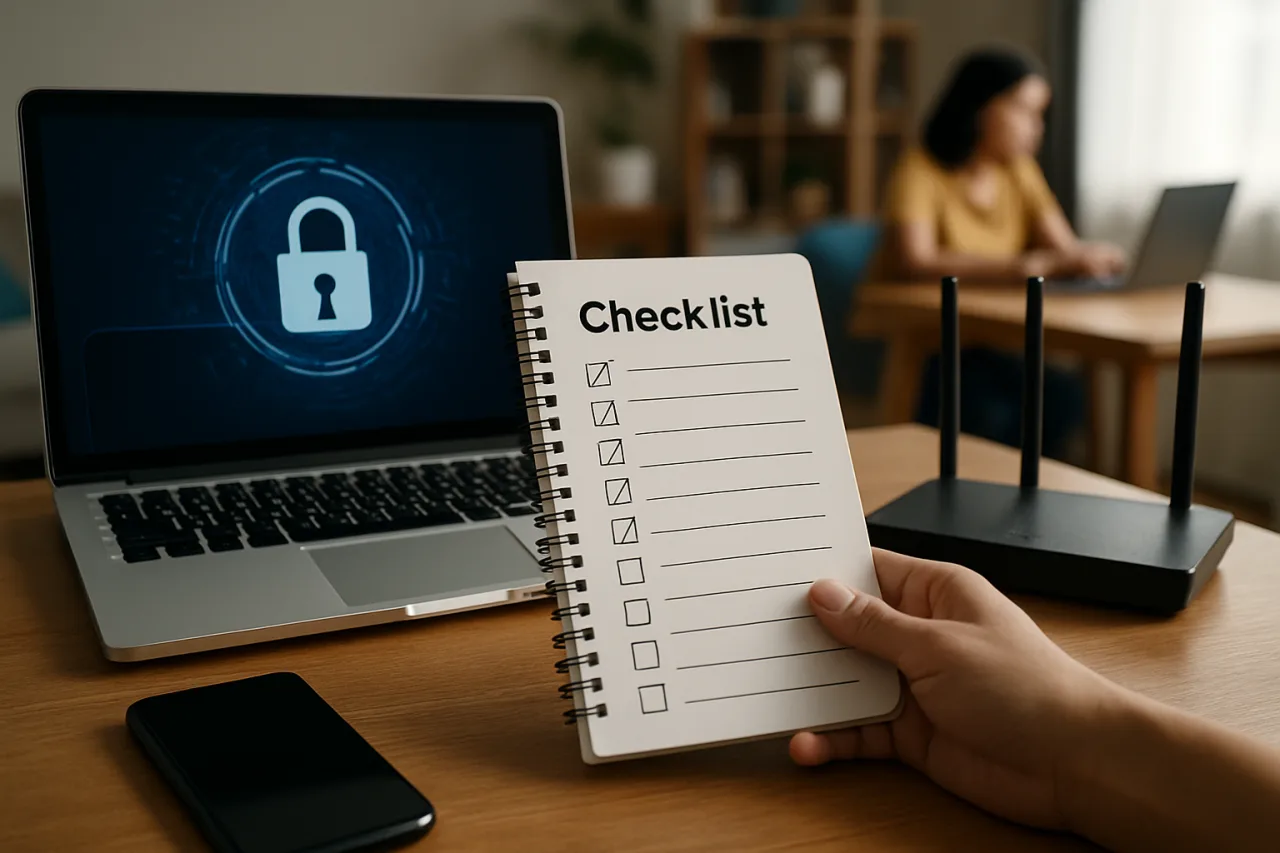
A cybersecurity checklist is no longer optional for Filipino professionals — it is the difference between keeping your job and losing it. This cybersecurity checklist gives you 12 specific actions to secure your work environment. With BPO companies, tech startups, and enterprises across the Philippines embracing hybrid and remote work, the home has become the new office. But home networks, personal devices, and shared spaces create security gaps that office IT departments never had to worry about. The NPC cybersecurity incidents data shows 345 reported incidents in 2025 — nearly double 2019. If you work from home, in a co-working space, or from a coffee shop, this cybersecurity checklist is your starting point.
Key Takeaway
- 12 items, 3 priority levels: This cybersecurity checklist for remote workers covers network security, device security, account security, physical security, and incident response — organized by priority so you can start with the most critical actions.
- Home WiFi is your first attack surface: If your router uses the default password, every device on your network is vulnerable. Change the admin password and enable WPA3 encryption.
- Personal devices accessing work data need protection: If you use a personal laptop or phone for work, it must meet the same security standards as a company device — antivirus, updates, encryption, and screen lock.
- Public WiFi is not safe — use a VPN: Working from a coffee shop on PLDT, Globe, or Smart public WiFi exposes your traffic to anyone on the same network. A VPN encrypts your connection.
- Physical security matters: Lock your screen when you step away. Use a privacy screen in public. Do not discuss confidential work information where others can hear.
The Problem: Why This Matters
Remote work in the Philippines accelerated dramatically since 2020. BPO companies adopted work-from-home models. Tech startups operate fully remote. Large enterprises allow hybrid arrangements. But the security infrastructure of a corporate office — firewalls, VPN gateways, managed devices, IT support on-site — does not exist at home.
The cybersecurity guide for Filipinos documents the rising threat: 7,914 phishing incidents in early 2026, 228 million credentials exposed in 2025, and 100% of Philippine organizations experiencing supply chain cybersecurity incidents. Remote workers are the weakest link in this chain — and attackers know it. A phishing email that reaches a corporate office might be caught by the company’s email filter. The same email reaching a remote worker’s personal Gmail has no such protection.
The Cybersecurity Checklist: 12 Items
Priority 1: Critical — Do These Today
Item 1: Change Your Home WiFi Admin Password
Most home routers from PLDT, Globe, and Smart come with default admin credentials printed on the bottom. If you have never changed the admin password, anyone on your network can log in to your router and redirect your traffic. Change the admin password to a strong, unique passphrase. Also change the WiFi password to something unique — not the default printed on the router.
How to do it: Type your router’s IP address (usually 192.168.1.1 for PLDT, 192.168.254.1 for Globe) into your browser. Log in with the default credentials. Change both the admin password and the WiFi password under wireless settings. Enable WPA3 or WPA2-AES encryption if available.
Why it matters: Your home WiFi is the gateway to every device in your home — laptop, phone, smart TV, security cameras. If the router is compromised, everything is compromised.
Item 2: Enable Device Encryption
If your laptop is stolen, encryption prevents the thief from accessing your files — even if they remove the hard drive.
On Windows: Go to Settings > Privacy & Security > Device Encryption > Turn on. (BitLocker is available on Windows Pro and Enterprise.)
On Mac: Go to System Settings > Privacy & Security > FileVault > Turn On.
On Android: Go to Settings > Security > Encryption & credentials. Most modern Android phones are encrypted by default.
On iPhone: iPhones are encrypted by default when you set a passcode. Ensure Face ID or Touch ID is enabled.
Why it matters: A stolen laptop with encryption is a hardware loss. A stolen laptop without encryption is a data breach — your company’s data, your clients’ data, and your personal information.
Item 3: Enable MFA on All Work Accounts
Complete the multi-factor authentication setup on your email, Microsoft 365, Slack, Zoom, and any other work platform. If your company provides a VPN, use it every time you connect.
Why it matters: If a remote worker’s email is compromised, attackers can access company systems, client data, and internal communications. MFA blocks 99% of automated account takeovers.
Priority 2: Important — Do This Week
Item 4: Install a VPN for Public WiFi
If you work from coffee shops, airports, or co-working spaces, a VPN encrypts your internet traffic so others on the same network cannot intercept it.
Recommended VPNs: NordVPN, ExpressVPN, or ProtonVPN (free tier available). Avoid free VPNs from unknown providers — they may sell your data.
Why it matters: Public WiFi networks at Starbucks, Coffee Bean, or any cafe in Metro Manila are shared. Anyone on the same network can see unencrypted traffic — including login credentials for work platforms. A VPN encrypts everything between your device and the VPN server.
Item 5: Update All Software and Operating Systems
Updates are not just new features — they include security patches for vulnerabilities that attackers actively exploit. Outdated software is one of the most common entry points for cyberattacks.
How to do it: Run updates on your laptop, phone, and all apps. Enable automatic updates. Check for updates monthly. Pay special attention to: your operating system, browser, Zoom/Teams/Slack, and antivirus software.
Why it matters: The supply chain cybersecurity crisis means vulnerabilities in third-party software can be used to attack your company through your device. Patched software closes these gaps.
Item 6: Install Antivirus and Enable Firewall
Windows Defender and macOS built-in security are sufficient for most users. Ensure they are enabled. If you want additional protection, Bitdefender or Kaspersky offer free or affordable options.
Windows: Go to Settings > Privacy & Security > Windows Security. Ensure Virus & Threat Protection and Firewall are both enabled.
Mac: Go to System Settings > Network > Firewall > Turn On.
Why it matters: Antivirus detects and blocks malware from phishing emails, malicious downloads, and compromised websites. The firewall blocks unauthorized connections to your device.
Item 7: Secure Your Phone
If you receive work emails or access work platforms on your phone, the phone is a work device — and needs work-grade security.
Steps: Enable Face ID or fingerprint unlock. Set an auto-lock to 30 seconds. Do not install apps from outside the official App Store or Google Play. Do not click links in SMS messages — phishing applies to text messages too. Use a screen lock and keep your phone updated.
Priority 3: Best Practice — Do This Month
Item 8: Set Up Automatic Backups
Ransomware and hardware failures can destroy your files. Backups ensure you can recover without paying a ransom.
How to do it: Use Google Drive, OneDrive, or iCloud for automatic cloud backup of important files. For larger files, use an external hard drive with automatic backup software (Time Machine on Mac, File History on Windows). Test your backups monthly — a backup you have never restored is a backup you cannot trust.
Item 9: Create a Dedicated Work Profile
If you use a personal laptop for work, create a separate user account for work. This separates work data from personal data and limits the damage if your personal browsing leads to a malware infection.
Windows: Settings > Accounts > Family & other users > Add someone else to this PC.
Mac: System Settings > Users & Groups > Add Account.
Item 10: Use a Privacy Screen in Public
A privacy screen filter prevents people sitting next to you from seeing your screen. Essential for working in cafes, airports, and co-working spaces. Available on Shopee and Lazada for ₱300-₱800 depending on laptop size.
Item 11: Lock Your Screen Every Time You Step Away
Set your screen to lock automatically after 2-5 minutes of inactivity. Manually lock with Windows+L (Windows) or Control+Command+Q (Mac) when you step away — even at home.
Item 12: Know How to Report an Incident
If you suspect a security incident — a phishing email, a suspicious login, a lost device — know exactly who to contact and how. Save your company’s IT security hotline, your IT team’s email, and the cybersecurity incident response procedure. The National Privacy Commission requires breach notification within 5 days of discovery. Report incidents within hours, not days — faster reporting means faster response.
What This Means for Filipino Professionals
For Filipino professionals working remotely — whether for a BPO company, a startup, or as a freelancer — this cybersecurity checklist is not just personal protection. It is increasingly a condition of employment.
For BPO remote workers: BPO companies that allow work-from-home typically require specific security configurations: company-provided VPN, endpoint security software, and restricted personal device use. Follow your company’s security policy — violating it can lead to termination. If your company does not provide clear guidelines, ask for them. The IT-BPM industry’s shift to AI-enabled work means security requirements are getting stricter, not more lenient.
For freelancers: You are your own IT department. No company will protect your devices for you — and no company will pay you for downtime caused by a security incident. Invest 2 hours to complete this checklist. The cost of not doing it (ransomware, data loss, client breach) is far higher than the cost of a VPN subscription and 30 minutes of setup.
For OFWs working remotely: If you manage Philippine accounts from abroad, the security risks multiply — you are on foreign networks, using unfamiliar WiFi, and potentially on devices that do not meet Philippine security standards. Complete this checklist before you start working abroad, and review it whenever you change devices or networks.
Common Mistakes to Avoid
Mistake 1: Using the same laptop for personal and work without separation. Personal browsing, gaming, and downloading create malware risks that can spread to work files. Create a separate user account or use a separate device for work.
Mistake 2: Trusting public WiFi without a VPN. Even password-protected WiFi at a hotel or cafe is shared with everyone connected. Use a VPN on any network you do not control.
Mistake 3: Not testing backups. A backup that has never been restored may be corrupted, incomplete, or encrypted in a way you cannot access. Test your backup by restoring a file once a month.
Mistake 4: Delaying incident reporting. If you click a phishing link or lose a device, report it immediately. Companies have hours, not days, to respond to security incidents. Hiding an incident out of fear makes it worse — every hour of delay gives attackers more time to exploit the breach.
Home networks are targeted because attackers know they are less secure than corporate networks. Your home router, your smart TV, and your phone are all targets. The US Cybersecurity and Infrastructure Security Agency (CISA) recommends the same four basic security practices: enable MFA, use strong passwords, update software, and recognize phishing.
Tools and Resources
- ProtonVPN (protonvpn.com) — Free tier with unlimited data. Best free VPN option. Swiss-based with strong privacy laws.
- Bitdefender Antivirus Free (bitdefender.com) — Free antivirus for Windows. Lightweight and effective.
- Google Drive / OneDrive — Cloud backup. 15GB free on Google, 5GB free on OneDrive.
- Have I Been Pwned (haveibeenpwned.com) — Free. Check if your email has appeared in data breaches.
- NPC Incident Report (npc.gov.ph) — Report cybersecurity incidents to the National Privacy Commission.
Summary and Next Steps
This cybersecurity checklist covers 12 items across 3 priority levels. You do not need to do everything at once — but you need to start with Priority 1 today.
Do these three things today:
- Change your home WiFi admin password and WiFi password. Enable WPA3 or WPA2-AES encryption.
- Enable device encryption on your laptop and screen lock on your phone.
- Enable MFA on your email and work accounts. Save backup codes on paper.
Do these this week:
- Install a VPN for public WiFi use.
- Run all software and OS updates. Enable automatic updates.
- Install or verify antivirus and firewall.
Do these this month:
- Set up automatic backups (cloud + external drive).
- Create a dedicated work profile on your computer.
- Buy a privacy screen if you work in public spaces.
Frequently Asked Questions
Why do remote workers need a cybersecurity checklist?
Remote workers face security risks that office workers do not: home WiFi with default passwords, personal devices accessing work data, public WiFi exposure, and no on-site IT support. The NPC recorded 345 cybersecurity incidents in 2025, and remote workers are the most common entry point. A cybersecurity checklist provides the specific, actionable steps needed to close these gaps.
Is home WiFi safe for remote work?
Home WiFi is safe if you change the default admin password, use a strong WiFi password, and enable WPA3 or WPA2-AES encryption. If you have never changed your router’s admin password (usually printed on the bottom of the device), your network is vulnerable. Change it immediately.
Do I need a VPN if I only work from home?
If you only work from home on your own secured WiFi, a VPN is less critical — but still recommended if your company provides one. If you ever work from coffee shops, airports, hotels, or co-working spaces, a VPN is essential. Public WiFi networks are shared, and anyone on the same network can intercept unencrypted traffic.
Can I use a personal laptop for remote work?
Yes, if your company allows it and you follow security best practices: enable device encryption, install antivirus, keep software updated, create a separate work user account, and enable MFA on all work accounts. Some companies require a company-managed device — check your employer’s policy before using a personal laptop for work.
What should I do if I suspect a security incident while working remotely?
Report it immediately to your company’s IT security team. If personal accounts are involved, change passwords, enable MFA, and monitor for unauthorized transactions. If sensitive data may have been exposed, report to the NPC through their Data Breach Notification Management System within 5 days. Do not try to fix it yourself or hide the incident — faster reporting means faster response and less damage.
This article provides general cybersecurity guidance and does not constitute professional security advice. Company security policies may vary — always follow your employer’s specific guidelines. Consult your organization’s IT security team for workplace-specific requirements and incident response procedures. The author and publisher disclaim any liability for actions taken based on this information.
Disclosure: WorldNgayon may earn a commission if you purchase through links in this article. Full details on our disclaimer page.
- Official npc.gov.ph — National Privacy Commission
- Official cisa.gov/secure-our-world/secure-our-world — US Cybersecurity and Infrastructure Security Agency (CISA)
External sources linked in this article, in order of first mention. Spotted an error or a broken link? Tell us.
Cite this pagePublished July 22, 2026 · Updated Sept 16, 2026
Agron, E. (2026, July 22). Cybersecurity Checklist for Remote Workers: 12 Essential Steps. WorldNgayon. https://worldngayon.com/cybersecurity-checklist-2026/
Agron, Edmon. “Cybersecurity Checklist for Remote Workers: 12 Essential Steps.” WorldNgayon, 22 July 2026, worldngayon.com/cybersecurity-checklist-2026/.
Agron, Edmon. “Cybersecurity Checklist for Remote Workers: 12 Essential Steps.” WorldNgayon, July 22, 2026. https://worldngayon.com/cybersecurity-checklist-2026/.
Agron, E. (2026) ‘Cybersecurity Checklist for Remote Workers: 12 Essential Steps’, WorldNgayon, 22 July. Available at: https://worldngayon.com/cybersecurity-checklist-2026/.
E. Agron, “Cybersecurity Checklist for Remote Workers: 12 Essential Steps,” WorldNgayon, July 22, 2026. [Online]. Available: https://worldngayon.com/cybersecurity-checklist-2026/
@online{agron2026cybersecuritychecklist,
  author       = {Agron, Edmon},
  title        = {{Cybersecurity Checklist for Remote Workers: 12 Essential Steps}},
  year         = {2026},
  date         = {2026-07-22},
  organization = {WorldNgayon},
  url          = {https://worldngayon.com/cybersecurity-checklist-2026/},
  urldate      = {}
}TY - ELEC AU - Agron, Edmon TI - Cybersecurity Checklist for Remote Workers: 12 Essential Steps T2 - WorldNgayon PY - 2026 DA - 2026/07/22/ UR - https://worldngayon.com/cybersecurity-checklist-2026/ Y2 - ER -
Cite the version you read; the page may be updated. Zotero and Mendeley can also import this page directly.