
Table of Contents
Key Takeaway

- 📊 The tracking is normal, not fringe: a review of personal inboxes found two in three emails carried a spy pixel, even after spam was excluded (email provider Hey’s study, via the BBC).
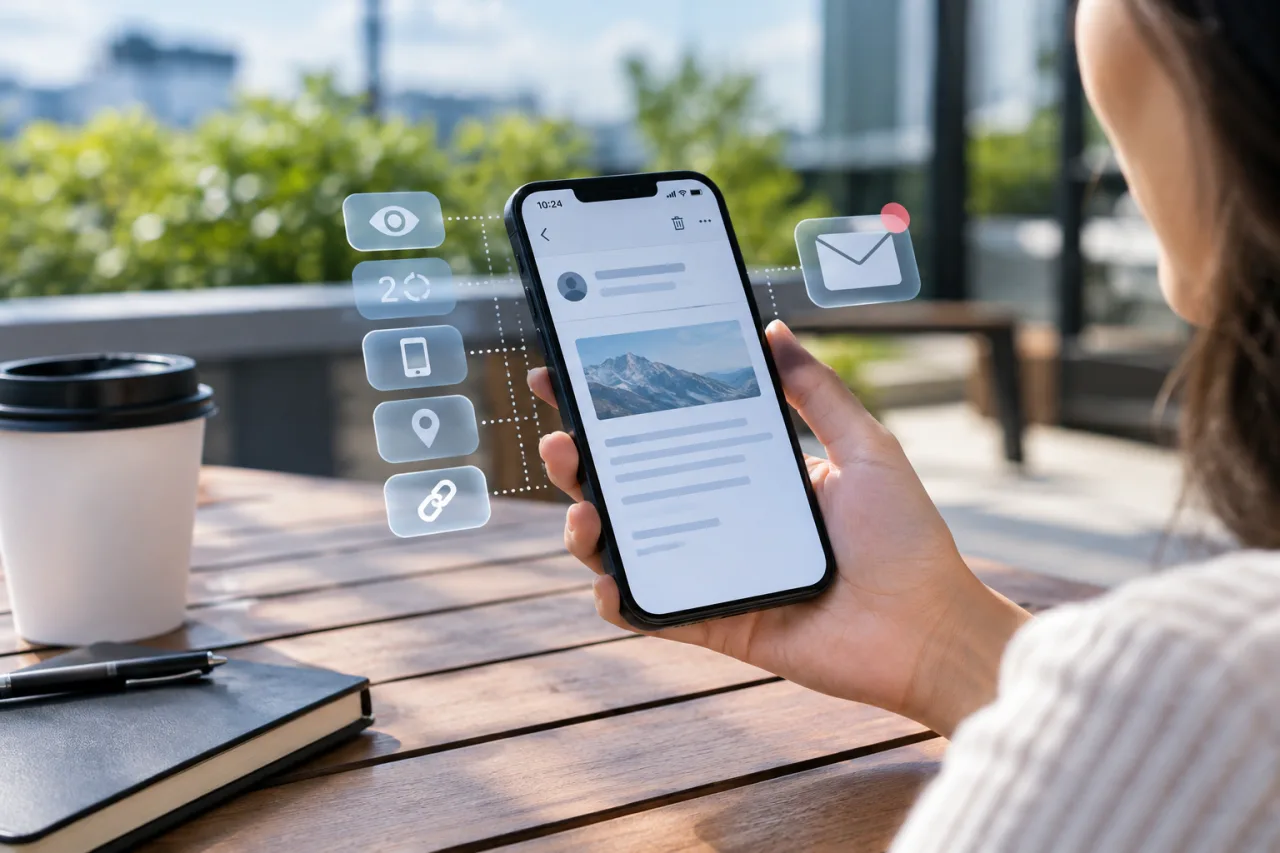
- 🔍 What reports back: email tracking pixels log when you opened a message, how many times, the device and mail client, plus IP-derived location and every link you clicked.
- ✉️ Read receipts are different: they ask permission, work only in specific systems (Gmail grants them to work and school accounts, never personal), and deliver a written notice instead of a silent ping.
- 🛡️ The defaults already changed: Apple routes image loads through two relays so your IP never reaches the sender, Gmail strips location data at its proxy, and Outlook mobile blocks external images by default.
- ⚙️ The off switch exists everywhere: ask-before-load in Gmail settings, Protect Mail Activity in Apple Mail, Block External Images in Outlook — one settings pass ends the silent reporting.
That newsletter you half-remember opening once? Its sender may hold a file about you: the exact minute you opened it, the device you used, the city your network sits in, and which of its four links you clicked. None of that required your permission, and none of it looked like anything at the moment it happened. Email tracking pixels are the invisible reporting layer of the modern inbox, and they are far more common than most people assume: when email provider Hey audited personal inboxes in 2021, two in three emails carried a tracking pixel, according to the BBC’s report on the study.
What a Tracking Pixel Actually Reports
The mechanism is simple enough to explain in one sentence: a tracking pixel is a tiny, invisible image reference whose loading server records every request. When your mail app fetches that remote image, the sender’s server answers the request — and writes a row: this recipient, this message, this timestamp, this user agent, this network. Repeat opens append rows. Nobody sees the image, because it is usually a one-by-one transparent square.
The row is rich. Typical logs include the open time to the minute, the number of opens, the device and operating system, the mail client, an approximate city or country derived from the IP address, and sometimes whether the mail was forwarded. Clicks on any link inside the message are tracked separately through redirect URLs, and they carry the strongest signal of all, because a click is an action, not an accident of rendering. Microsoft’s own Support documentation describes these images plainly: “sometimes called Web Beacons, they can be used to track whether someone has read an email.”
One nuance matters at the technical level: email tracking pixels report when remote content loads, never when the message is merely received or read as plain text. That difference is exactly where every defense below operates.
Read Receipts vs Email Tracking: Two Different Machines
| Read receipt | Tracking pixel | |
|---|---|---|
| Consent | Visible request; reader chooses to send it | Silent; fires without asking |
| Mechanism | An email reply with timestamp, generated by the reader’s own system | A remote image load logged by the sender’s server |
| Availability | Rare by design. Gmail docs: only work and school accounts, never personal @gmail.com | Universal: any sender can embed one |
| What it reveals | That you opened it, by your choice | Opens, timing, device, client, approximate location, link clicks |
The naming confusion is understandable: both answer the same human question, “did my email get read?” But the ethics and the mechanics differ completely. A read receipt is a message your own mail system sends back with the time and date of the open, per Google’s documentation, and Gmail deliberately restricts it to managed work and school accounts. The pixel has no such gate: it is the default quiet path, which is why it became the industry standard and the receipt stayed the exception.
What Gmail, Outlook and Apple Mail Do Today
The three big clients take three different postures, and each one changes what the sender learns.
Gmail loads images by default, through a scanner. Google’s Help pages state that images display automatically when mail arrives, and that Google scans them first — for malware, yes, but the scan also breaks the classic pixel payload in two ways: senders cannot set or read browser cookies through the image, and they cannot use image loading to obtain information about your computer or location. Google is equally candid about the residue: senders may still know that you opened the message, because the image load happens even if the details are masked. In effect your open survives stripped of your location and device specifics.
Outlook blocks external images by default in its mobile apps. Microsoft’s documentation for the Block External Images setting says the feature stops remote content from loading in the reading pane to “help protect your privacy and prevent tracking via web beacons.” Embedded pictures, the ones attached inside the message, are not affected, and composing behaves normally. This keeps a large share of the world’s opens dark unless the reader allows pictures.
Apple Mail takes the hardest line. Apple’s Mail Privacy Protection legal page states the problem directly: senders can learn when and how many times you opened mail, whether you forwarded it, and your IP address. Protect Mail Activity then changes the game: it downloads remote content in the background regardless of whether you ever open the message, and it routes those downloads through two separate relays run by different entities — one sees the request without your IP, the other sees your IP without the content. Apple’s description of the design is blunt: no single party can connect the person to the content, so location-based profiling through pixels is dead in Apple Mail. The same design also corrupts open timing, since the pixel fires when Apple prefetches, not when you read.
The composite picture: a sender asking “who opened my email and where were they?” gets In any comparison of read receipts vs email tracking pixels, that is the composite picture: a truthful record from Outlook users who clicked “show images,” a sanitized open from Gmail, and a systematically confused record from Apple Mail users whose opens the sender cannot localize at all.
The Limits: What Trackers Still See
The defenses above are strong, but four reporting channels survive every email tracking pixel blocker. Here is what still gets through, so you treat it as deliberate signal rather than ambient spying.
- Link clicks. Redirect URLs fire when you click, not when an image loads. Clicking any link reports the click, the time and the network, regardless of image settings.
- Gmail opens with images on. Google’s proxy masks the details but the open event itself still lands.
- Replies and forwards. Those are normal messages or forwarding events, and they carry their own signals a pixel can read.
- The old-fashioned tell. If your reply quotes the original message, the sender knows exactly which part you read about.
So the goal of the protections is proportionate: turn blanket silent reporting off, accept that clicking a link is a voluntary signal, and keep in mind that replying is its own receipt.
How to Stop Email Tracking Pixels in Each Client
Gmail (web): click the gear icon, choose See all settings, scroll to Images, select “Ask before displaying external images,” and click Save Changes at the bottom of the page. From then on, images load only in messages where you tap “Display images below.” The trade: senders stop learning opens entirely until you choose to display content.
Apple Mail (iPhone, iPad, Mac, iCloud): confirm Protect Mail Activity is on. On iPhone or iPad: Settings, Apps, Mail, Privacy Protection. On Mac: Mail settings, Privacy. On iCloud.com: Settings, Privacy & Security. Keep it on so image loads ride Apple’s relays, and leave “Hide IP Address” active. If you deliberately turn the feature off, the IP relay protection stays available as a separate toggle, per Apple’s documentation.
Outlook: on mobile the Block External Images setting ships on; check it under settings for the reading pane, and remember embedded attachments load normally. In classic Outlook on Windows, the automatic picture download settings under Trust Center let you block external content per account or sender. New Outlook and the web client keep external images off until each sender is trusted.
Everywhere: use the “hide my email”-class alias features for newsletter signups, prefer plain-text reading when a sender looks untrustworthy, and treat every link click as a deliberate broadcast. Browser trackers are a separate battlefield: our browser fingerprinting guide covers the tracking that incognito never stops. The same goes for the metadata your photos carry, what private browsing actually does, and the five-step secure email account checklist for hardening the account itself.
Why Senders Track Anyway
Most tracking is commercial bookkeeping, not surveillance: a marketer wants to know whether the Tuesday campaign outperformed the Friday one, and whether people clicked at all. Newsletter platforms expose opens and clicks as core metrics, and the email tracking pixels powering those numbers are embedded in campaign templates by default. The ethical edge cases sit with recruiters, debt collectors, ex-partners and stalkers, for whom the log answers a different question: “is anyone home, and where?” For anyone with an adversarial ex or a sensitive job, the settings above are not a nicety — they are how reading an email stops being a public event. Lawful-intercept rules and privacy statutes like GDPR have squeezed the worst of location-level tracking in covered markets, but the pixel itself is not banned, and consent often hides inside a privacy policy nobody reads.
The One-Setting Pass That Ends Silent Reporting
- Gmail: Ask before displaying external images > Save Changes
- Apple Mail: Protect Mail Activity ON (Settings > Apps > Mail > Privacy Protection on iOS; Mail > Settings > Privacy on Mac)
- Outlook: Block External Images ON; read embedded-attachment mail as usual
- Links: assume every click reports; copy sensitive URLs into a browser after checking the domain instead
- New senders: read in plain text or block images until you decide the sender is worth the signal
Run this pass once and the silent layer of your inbox goes quiet: opens stop reporting, location reporting dies entirely, and only your deliberate choices — clicking, replying, forwarding — say anything at all.
FAQ
Can someone see if I opened their email?
With a tracking pixel, yes, in most inboxes: the open logs when the remote image loads. Gmail masks your location and device around that event, Outlook mobile blocks the load entirely unless you allow images, and Apple Mail fires the pixel when Apple prefetches, not when you actually read, so the timing and location it reports are wrong by design.
What is the difference between a read receipt and email tracking pixels?
A read receipt is an explicit request your mail client answers by sending a timestamped notice, and Gmail grants it only to work and school accounts. Email tracking pixels are silent remote images any sender can embed, logging opens, timing, device and approximate location without asking.
How do I stop email tracking pixels in Gmail?
Settings > See all settings > Images > “Ask before displaying external images” > Save Changes. Images then load only where you choose, and opens stop reporting until you display content. Gmail’s scanning still prevents location reporting through image loads.
Does Apple Mail hide my IP address from email senders?
Yes, when Protect Mail Activity or Hide IP Address is on. Apple routes remote content through two relays operated by different entities so no single party can connect your IP to the content you receive, per Apple’s Mail Privacy Protection documentation.
Can tracking pixels see my location?
Directly through Gmail’s proxy, no: Google states senders cannot use image loading to obtain location information. Through other clients without a proxy or relay, yes, approximately: the IP the pixel’s server sees resolves to a city or region.
Do email tracking pixels survive spam filters?
Mostly yes, because they ride inside ordinary images and are not malware. A 2021 review of personal inboxes found two in three emails carried one even after spam was excluded, which is why the client-level controls above are the practical defense.
The Bottom Line
Read receipts ask. Tracking pixels do not. Between Gmail’s scanning proxy, Apple’s two-relay masking and Outlook’s default block, the inbox of 2026 has quietly moved the privacy line in the reader’s favor: email tracking pixels still work wherever images load freely, and stop working wherever you take ten minutes to switch them off — but only if you know the settings exist. Fifteen minutes with the checklist above, and your mail reports back exactly one thing: what you choose to tell it deliberately.
- bbc.com/news/technology-56071437 — the BBC’s report on the study
- support.microsoft.com/en-us/outlook/what-is-block-external-images-in-… — Microsoft’s own Support documentation
- support.google.com/mail/answer/9413651?hl=en — Google’s documentation
- support.google.com/mail/answer/145919?hl=en — Google’s Help pages
- apple.com/legal/privacy/data/en/mail-privacy-protection — Apple’s Mail Privacy Protection legal page
External sources linked in this article, in order of first mention. Spotted an error or a broken link? Tell us.
Cite this pagePublished Nov 25, 2026
Agron, E. (2026, November 25). Read Receipts vs Email Tracking: What Your Inbox Reports Back. WorldNgayon. https://worldngayon.com/email-tracking-pixels-explained/
Agron, Edmon. “Read Receipts vs Email Tracking: What Your Inbox Reports Back.” WorldNgayon, 25 Nov. 2026, worldngayon.com/email-tracking-pixels-explained/.
Agron, Edmon. “Read Receipts vs Email Tracking: What Your Inbox Reports Back.” WorldNgayon, November 25, 2026. https://worldngayon.com/email-tracking-pixels-explained/.
Agron, E. (2026) ‘Read Receipts vs Email Tracking: What Your Inbox Reports Back’, WorldNgayon, 25 November. Available at: https://worldngayon.com/email-tracking-pixels-explained/.
E. Agron, “Read Receipts vs Email Tracking: What Your Inbox Reports Back,” WorldNgayon, Nov. 25, 2026. [Online]. Available: https://worldngayon.com/email-tracking-pixels-explained/
@online{agron2026emailtracking,
  author       = {Agron, Edmon},
  title        = {{Read Receipts vs Email Tracking: What Your Inbox Reports Back}},
  year         = {2026},
  date         = {2026-11-25},
  organization = {WorldNgayon},
  url          = {https://worldngayon.com/email-tracking-pixels-explained/},
  urldate      = {}
}TY - ELEC AU - Agron, Edmon TI - Read Receipts vs Email Tracking: What Your Inbox Reports Back T2 - WorldNgayon PY - 2026 DA - 2026/11/25/ UR - https://worldngayon.com/email-tracking-pixels-explained/ Y2 - ER -
Cite the version you read; the page may be updated. Zotero and Mendeley can also import this page directly.