Key Takeaway
- 🧭 A browser hijacker is software on your machine, not just a browsing quirk: the swapped search engine, the new homepage, and the redirects come from a program or extension that must be uninstalled — deleting a bookmark changes nothing.
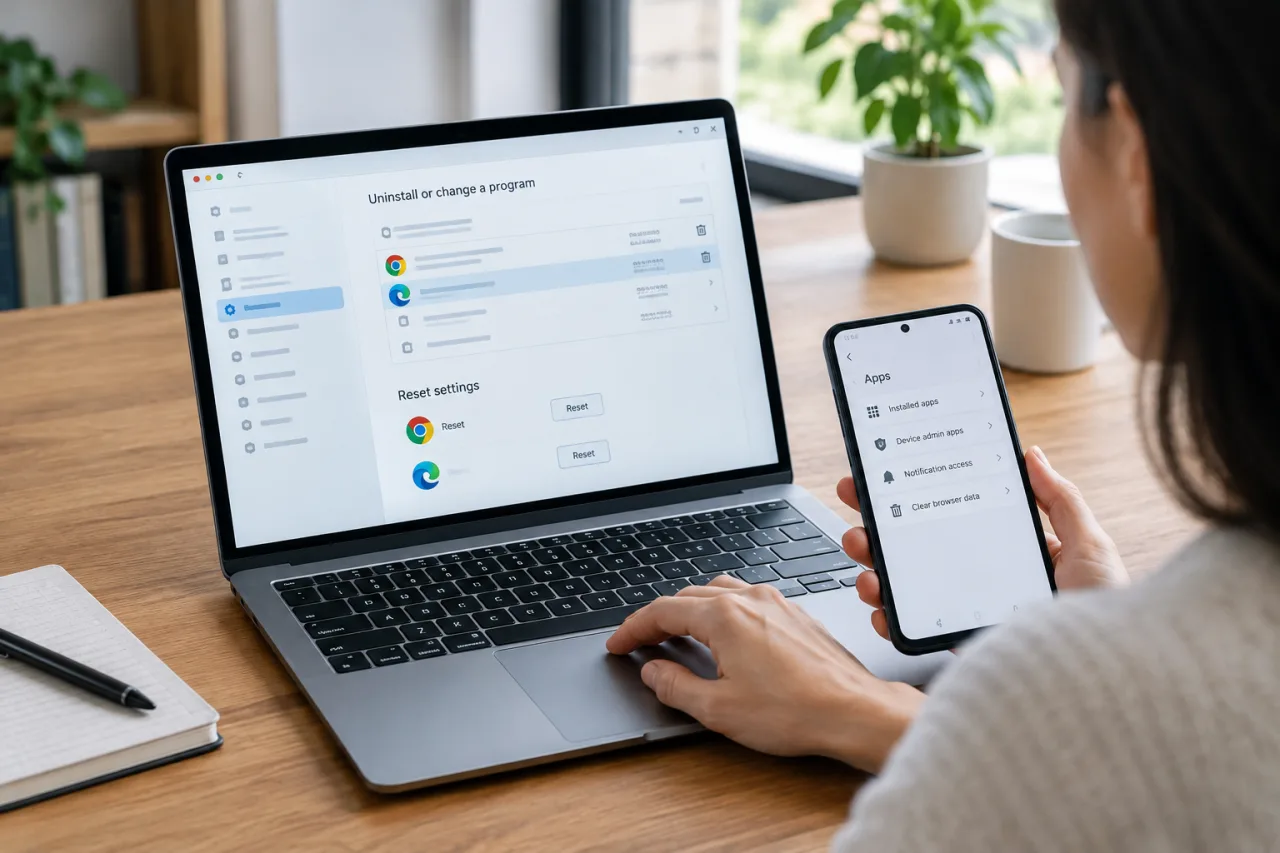
- 🧹 The verified order is uninstall → reset: remove the offending program by install date, then reset the browser to factory defaults (Chrome and Edge both carry a one-click reset) — the Which? consumer guide and university support desks publish the same sequence.
- 📵 Android runs a parallel lane: app list + device-admin revocation + browser data clear; an uninstall button that is greyed out means an admin privilege is holding it open.
- 🔔 Revoke the notification grants: hijackers survive on “Allow notifications” permissions — site settings → Notifications → Block ends the pop-up loop that persists after every other cleanup.
- 🕵️ Scan after you clean: a full antivirus sweep catches the companions the hijacker shipped with, and the extension list + startup pages check catches what the reset missed.
Table of Contents
A browser hijacker removal job begins with a confession the hijacker never makes: your search results, homepage, and redirects changed because software changed them — typically a free download’s “bonus offer,” a fake update, or an extension riding a bundle install. The good news is methodical: the consumer guides from Which? and the malware reviewers converge on the same removal order, and every browser carries a built-in reset that undoes the settings damage in one click. This guide runs the full cleanup across Chrome, Edge, and Android — uninstall, reset, extension sweep, notification revocation, search-engine review, and the after-scan — with the prevention habits that stop the reinstall wave that usually follows an incomplete removal.
Browser Hijacker Signs: What You Are Actually Looking At
Browser hijacker signs share one fingerprint: persistence. your homepage or search engine changes and stays changed; searches route through an unfamiliar engine or a redirect domain; new tabs open to junk pages; toolbars and extensions appear that you never installed; notification spam arrives for sites you never visited; the browser slows and settings “revert” after you fix them. The cause is almost always an unwanted program (the PUP family — “potentially unwanted programs”) installed alongside a free tool through the “Recommended” install path nobody reads, or a browser extension that quietly took over the search and notification settings. The critical distinction for the cleanup: some of this lives in the browser (extensions, settings), some in Windows or Android itself (programs, admin privileges) — and a removal that stops at the browser level leaves the other half in place, which is why the hijack keeps returning.
Windows Cleanup: Uninstall First, Then Reset
- Sort your programs by install date. Windows: Start → Control Panel → Programs → Uninstall a program, sorted by “Installed On” — the recent entries around the day the hijacking started are the suspects. Research any unfamiliar name before uninstalling; the Which? guide names common offenders (Wave Browser, OneBrowser and friends) that reinstall themselves if left.
- Uninstall the suspect program and restart the machine when it finishes.
- Run a full antivirus scan for the companions — the hijacker installer rarely travels alone.
- Reset the browser to defaults. Chrome: three dots → Settings → Reset settings → Restore settings to their original defaults. Edge: three dots → Settings → Reset settings → Restore to default values. The reset clears the hijacked homepage, search engine, and startup pages in one pass.
- Rebuild by hand: set your real homepage and search engine (verify the engine list — remove entries you didn’t add, per the university support-desk checklist), keep only extensions you installed on purpose, and review the startup pages list.
- Revoke hijacker notifications: Settings → Privacy and security → Site settings → Notifications — block the sites that “notify” you about prize pages and fake updates; the grant is the loop that survives everything else.
Android Cleanup: The Parallel Lane
Browser hijacker removal on Android runs a parallel lane with one twist. Settings → Apps: sort or scan for unfamiliar or recently installed entries — the anti-malware guides flag names containing “Browser,” “Cleaner,” “Launcher,” or “Search Tool” as the usual suspects. Tap the suspect: if Uninstall is greyed out, open Settings → Security → Device admin apps and revoke admin access first, then uninstall. On stubborn cases, force-stop the app and Clear data/cache before removal. Then clean the browser itself: Chrome → three dots → Settings → Site settings → Notifications, block the granters; clear browsing data; and reset Chrome settings from the same menu when the engine or homepage survives. Finish with the same discipline as Windows: restart, full mobile-security scan where one runs, and review app permissions quarterly — the hijacker’s return ticket is always the next careless install.
Browser Hijacker Removal: What the Reset Does Not Fix
- DNS or proxy tampering at the system level. If redirects survive the reset and the uninstall, check network adapter settings for a proxy or DNS the program inserted — the system-level redirect survives browser-level resets by design.
- Sync contamination. A hijacked profile that syncs extensions and settings through a Google or Microsoft account re-imports the junk to every device on the account — check the sync lists (extensions, settings) on the account dashboard and remove unfamiliar entries before re-syncing.
- Scheduled tasks and startup entries. The Windows Task Scheduler sometimes carries an “updater” the hijacker wrote — review startup apps and scheduled tasks for entries matching the uninstalled program’s name.
- The reinstallation vector itself. Whatever free download delivered the hijacker still lives on the machine or in your bookmarks — removing the vector is what prevents wave two, and our malware-settings guide covers the Android-side security settings guide.
Build and Browser Habits That End the Reinstall Loop
- Custom install, every time. The “Recommended” path is where bundled hijackers ride; the custom path shows the checkboxes that decline them — the one habit the FTC’s and consumer guides’ prevention advice circles back to.
- Extensions from store pages only, sparingly. Every extension has the rights to change your search — the count you don’t recognize is the risk surface; our AI-browser-hijacking settings guide covers the deeper audit lane.
- Keep the browser and OS updated. Hijacker families ride unpatched browser bugs too — the same update discipline the Kremlin banking-malware breakdown documents for the exploit-class threats.
- Ad-blocker + safe browsing on. Fewer ad-network hops means fewer redirect chains that end on fake update pages — the delivery layer for the next install.
- Verify downloads at the source. The official site for every tool — typed by hand, not from a search-result ad — because the ads above the results are the hijacker industry’s favorite storefront.
Frequently Asked Questions
Browser Hijacker Removal — Where Do I Even Start?
Windows: Control Panel → Programs, sort by install date, uninstall the unfamiliar recent program, restart; then Chrome/Edge Settings → Reset settings → restore defaults; then remove unknown extensions, revoke hijacked notification grants, and verify the search-engine list. Android: Settings → Apps (revoke device-admin access first if Uninstall is greyed), clear the browser’s data, and block its notifications. The order matters because the browser reset alone reverts as soon as the program runs again.
My hijacked search engine keeps coming back after every cleanup — why?
Because something outside the browser is reapplying it: the unremoved Windows/Android program, a still-granted admin privilege, a synced profile re-importing the settings, or a scheduled task. Check the sync lists, startup entries, and device-admin apps, then uninstall by install date again — the hijacker that survives is the one that found the layer you skipped.
Is a browser hijacker dangerous, or just annoying?
Both halves are real. The annoyance is the visible layer, but hijackers monetize by observing and redirecting: searches, clicked links, and sometimes form data route through infrastructure the operator profits from — which is why a full scan and password rotation from a clean device are part of the response, not optional extras. A browser hijacker is a compromise event by definition, not a cosmetic one.
Which browser hijacker removal tool should I buy?
The honest answer: the built-in tools do the removal. The browser reset, the program uninstaller, and Windows Security’s full scan (or the mobile scanner you already run) clear the standard hijacker without a purchase. Paid AV suites bundle convenience and support — worth it for households that want scheduled sweeps — but no paid tool substitutes for the uninstall-and-reset sequence, because settings-level hijacks die by reset, not by scan.
How does a browser hijacker get installed in the first place?
Three doors: bundled “Recommended” installs that carry opt-out checkboxes, fake update or error pages that offer a download, and extensions granted during a rushed sign-in. Each door closes the same way — custom installs, downloads typed from the vendor’s own site, and an extension list reviewed monthly. a browser hijacker prevention routine is one decision ahead of the install, which is why the cleanup guide ends with habits rather than tools.
Financial Disclaimer
This article provides general cybersecurity guidance and does not constitute professional security or financial advice. Removal paths, menu names, and threat families change over time and vary by browser version; verify every step against official vendor documentation before acting. The author and publisher disclaim any liability for actions taken based on this information.