Table of Contents
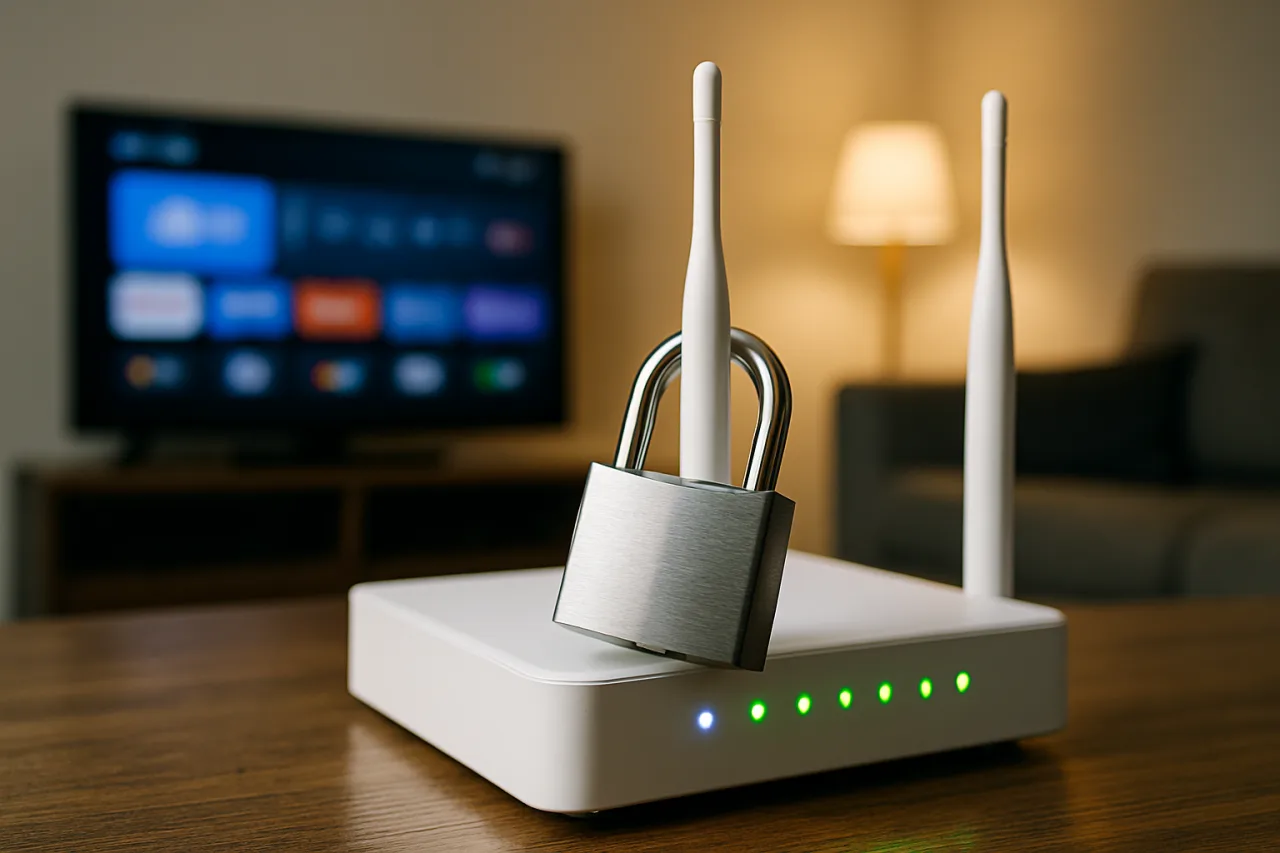
Router security is the forgotten front door of every Filipino household’s digital life: the box blinking in the corner guards every device you own, was configured once by the installer years ago, and is running credentials and firmware that predate every breach you’ve read about this year. Attackers know this. The MikroTik SSH chain our router exploit coverage documented, the botnets scanning residential IP ranges daily, the neighbors piggybacking on your bandwidth — all of it enters through the same unguarded door. This guide walks through the seven-step router security hardening that takes under an hour, protects every device simultaneously (including the smart TV nobody updates), and — with the NordVPN router installation — extends VPN protection to the whole household through one configuration.
Related: Router Password Change: the Ten-Minute Home Router Lockdown Everyone Skips
Key Takeaway
- 🚪 The stakes: Your router guards every device; its factory credentials and year-old firmware are the most exploited attack surface in the home.
- 🛠️ The fix: Seven steps — admin credentials, WPA3, firmware, guest network, remote management off, DNS, router-level VPN — under one hour.
- 🏠 The multiplier: One hardened router protects every device at once — the phones, the TV, the consoles, and the lola’s tablet nobody patches.
- 🔐 The bonus layer: Installing NordVPN on the router encrypts the entire household’s traffic through one connection — devices that can’t run VPNs get protected anyway.
Nobody’s laptop gets hacked through the neighbor’s laptop. Everything comes through the router. It is the single device through which 100% of household traffic flows, yet it is the device with the oldest password, the oldest firmware, and the least attention in every family’s security routine. The router security gap is not a knowledge gap — it is an ownership gap: everyone assumes someone else set it up properly, and the installer’s default became a decade-old fact. This guide hands that ownership back, one router security setting at a time.
Why Router Security Is the Household’s Weakest Link
Three structural reasons. First, firmware ages silently: unlike phones, routers rarely nag you to update, and many consumer models stop receiving patches years before the hardware dies — leaving known exploits permanently open on devices that still work perfectly. Second, defaults survive: admin/admin, admin/password, and the ISP sticker password persist for years because nobody logs into the router between outages. Third, the threat is automated: botnets scan residential IP ranges continuously for default credentials and unpatched firmware, and the Mirai-descended malware families conscript routers precisely because they are numerous, always-on, and unattended. The household router is, statistically, the most likely compromised device you own — and the only one that can see everything else.
The 7-Step Router Security Hardening
The router security hardening below works in order; the whole sequence takes under an hour and needs no technical background beyond the patience to read each screen.
- Replace the admin credentials. Log into the router (usually 192.168.1.1 or 192.168.0.1), find the administration settings, and set a unique username and a long passphrase — different from your Wi-Fi password. This single step defeats the majority of automated router compromises.
- Upgrade the Wi-Fi encryption to WPA3 (or WPA2-AES at minimum). Under wireless settings, set security to WPA3-Personal; if older devices can’t connect, WPA2/WPA3 mixed mode is the fallback. WEP and “open” networks are not configurations — they are invitations.
- Update the firmware — and set a reminder to do it quarterly. Firmware updates patch the exploits botnets actually use. The check lives in administration/system settings; if the model no longer receives updates, that is the signal to budget for a replacement — a router is a five-year device, not a forever device.
- Enable the guest network and put visitors on it. Guest isolation means a visitor’s compromised phone cannot see your family’s devices and printers. Name it something honest, give it its own password, and rotate it occasionally.
- Turn off remote administration and UPnP. Remote management (accessing router settings from outside the home) is a standing invitation unless you specifically need it; UPnP lets any device punch holes through your firewall without asking. Both are off-by-default in a hardened home.
- Set trustworthy DNS. Switching DNS to a filtering resolver (the options are documented in provider setup pages) blocks known malicious domains for every device at once — the cheapest content-level protection that exists.
- Install a VPN at the router level. This is the step that turns router security into household security: a NordVPN subscription supports router installation, and once configured, every device behind the router — including the smart TV, the consoles, and anything that cannot run a VPN app — routes through the encrypted tunnel automatically. Nord’s documented setup supports the major router platforms, and the 30-day money-back window covers the experiment. [VD — capability per vendor documentation]
The Router-Level VPN: Why It Beats Per-Device Apps
The honest trade analysis. Per-device VPN apps offer per-app flexibility (split tunneling, location switching on the fly) but depend on every device actually having the app, being logged in, and being switched on — a discipline problem in any household with teenagers or a lola with a tablet. The router-level installation flips the default: protection becomes the network’s default state, and no device can forget to be safe. The costs: one configuration covers one location (take the laptop to a café and it’s back to the app), some speed overhead applies to everything, and setup requires following the provider’s router guide carefully. The balanced play for most Filipino households: router installation for the home — where the devices are numerous and the discipline is scarce — plus the app on the phones for outside-the-home coverage. Together they close the gap the per-device-only model leaves open, which is exactly the gap the whole-household framing exists to solve.
What Hardened Router Security Actually Prevents
Router security steps only make sense when connected to the threats they neutralize, because the mapping is satisfying. Admin credential replacement defeats the credential botnets — the automated scans that log into factory panels within hours of a router coming online. WPA3 ends the offline password-cracking path that older encryption permitted. Firmware updates close the specific CVEs that router worms exploit — the MikroTik-class chain attacks our coverage documented. Guest isolation contains the visitor’s compromised device instead of letting it roam your LAN. UPnP-off closes the backdoor-by-default path that malware abuses to expose home devices to the internet. Filtering DNS blocks the malicious domains before any device — patched or not — reaches them, and the DNS-level habits connect directly to the safe-browsing practices in our public Wi-Fi security guide. And the router-level VPN encrypts traffic on the network so that even a device you forgot to protect leaks nothing usable. Seven steps, seven different attack paths closed. The household that completes them is defended at a level most enterprises would recognize.
A word about the people inside the hardened network, because router security fails socially before it fails technically. The best configuration on earth does not survive a teenager who “just quickly” turns off the guest isolation to let a friend’s console connect, or a family member who hands out the Wi-Fi password to every visitor because refusing feels rude. The fix is the same reframe our scam-defense coverage applies to family finance: make the rules impersonal and pre-agreed. The guest network exists precisely so saying “the guests connect there” is not an accusation — it is the system working as designed. Write the household’s one-line policy (“guests use guest net, family never shares admin”) and tape it inside the router cabinet door. Boring, visible, and remarkably effective — the router’s own documentation becomes the household’s excuse to stay safe.
And a word about the hardware itself, because hardening an ancient router is polishing a lock for a paper door. If the current router is more than five years old, no longer receives firmware updates, or was provided free by the ISP at sign-up, the seven steps still help — but the ceiling is low. The current generation of consumer routers ships with WPA3, automatic firmware updates, and native VPN client support, and mid-range models now cost less than a month of the family’s internet bill. The rational upgrade path for most households: harden what you have this weekend, run it through one quarterly firmware check, and budget for replacement the moment the manufacturer’s update page goes quiet. The router is the one device in the home where age is a security liability measured in exploits, not just in speed.
Finally, calendar the review. Router security is not a one-time project; it is a quarterly habit of fifteen minutes — firmware check, client-list glance, password rotation on the guest network, and a look at the admin panel’s logs for unfamiliar entries. Put it on the same cycle as the family’s other maintenance rhythms: the aircon filter, the water refills, the car’s oil. The households that treat router security as seasonal maintenance never meet the botnets, because the botnets are looking for the households that set the router up once in 2019 and never looked back. An hour today, fifteen minutes a quarter — that is the entire price of taking your household’s most exposed device off the criminal to-do list.
The Sari-Sari and Home-Business Angle
For the millions of Philippine micro-businesses running on home connections, router security is business continuity: for the online seller, the print shop, the e-loading station. A router security failure means a compromised shop: redirected customers, hijacked pages, a payment QR swapped for a scammer’s. The seven steps above cost an hour and zero pesos; the alternative costs the business its reviews and the family its income while the compromise is untangled. The 2026 threat data makes the router security stakes concrete — with credentials and small-business systems squarely in criminals’ crosshairs per the national threat reports our Philippines threat landscape coverage analyzed — and the router is where a one-person business buys enterprise-grade defense at consumer prices. There is no smaller investment with a larger security return.
Frequently Asked Questions About Router Security
How often should I update my router’s firmware?
Check quarterly, update immediately when available. Most consumer routers hide the check in administration settings; if the manufacturer no longer publishes updates for your model, plan a replacement — a router without firmware support is a door that no longer locks.
Is WPA3 really necessary if I have a strong password?
WPA3 is not about password length — it fixes the offline cracking vulnerability that lets attackers capture a handshake and brute-force it at leisure. A long password on WPA2 is better than a short one, but WPA3 (or WPA2/WPA3 mixed mode for older devices) removes the entire attack class. Set it to mixed mode and every device stays connected.
Can I install a VPN on any router?
No — the router must support VPN client configuration, which most mid-range and newer models do. NordVPN documents the supported setups and provides step-by-step router configuration guides. If your router cannot run it, options include upgrading the router or running the VPN app on individual devices instead.
Does a router VPN slow down the internet?
Some overhead is inherent — encryption adds latency — but modern protocols on decent hardware make it barely noticeable on typical Philippine broadband plans. If raw speed matters more than protection on specific devices, run the VPN per-device on those instead of network-wide, keeping the router tunnel for the always-on devices.
What is the first thing to change on a new router?
The admin credentials, before anything else — new routers often ship with default admin passwords that scanners know. Then WPA3, then firmware (new routers often ship with months-old firmware). The first fifteen minutes with any new router should be a hardening session, not a speed test.
How do I know if my router has already been compromised?
The signs: unknown devices in the client list, DNS settings or admin password you didn’t change, redirected websites, and unexplained slowdowns that survive reboots. If in doubt, factory-reset the router, apply all seven hardening steps, and update firmware — a full reset with fresh credentials clears every known consumer-router compromise.
Disclosure: WorldNgayon may earn a commission if you purchase through links in this article. Full details on our disclaimer page.
Financial Disclaimer
This article is published for general information and cybersecurity education. It is not professional security consulting. Router interfaces, features, and VPN support vary by manufacturer and model; verify current capabilities in your device’s documentation and the provider’s official setup guides before making changes.
Cite this pagePublished Sept 17, 2026 · Updated Oct 27, 2026
Agron, E. (2026, September 17). The Box Blinking in the Corner Guards Everything You Own — 7 Router Security Steps That Close Its Open Door. WorldNgayon. https://worldngayon.com/router-security-hardening/
Agron, Edmon. “The Box Blinking in the Corner Guards Everything You Own — 7 Router Security Steps That Close Its Open Door.” WorldNgayon, 17 Sept. 2026, worldngayon.com/router-security-hardening/.
Agron, Edmon. “The Box Blinking in the Corner Guards Everything You Own — 7 Router Security Steps That Close Its Open Door.” WorldNgayon, September 17, 2026. https://worldngayon.com/router-security-hardening/.
Agron, E. (2026) ‘The Box Blinking in the Corner Guards Everything You Own — 7 Router Security Steps That Close Its Open Door’, WorldNgayon, 17 September. Available at: https://worldngayon.com/router-security-hardening/.
E. Agron, “The Box Blinking in the Corner Guards Everything You Own — 7 Router Security Steps That Close Its Open Door,” WorldNgayon, Sept. 17, 2026. [Online]. Available: https://worldngayon.com/router-security-hardening/
@online{agron2026routersecurity,
  author       = {Agron, Edmon},
  title        = {{The Box Blinking in the Corner Guards Everything You Own — 7 Router Security Steps That Close Its Open Door}},
  year         = {2026},
  date         = {2026-09-17},
  organization = {WorldNgayon},
  url          = {https://worldngayon.com/router-security-hardening/},
  urldate      = {}
}TY - ELEC AU - Agron, Edmon TI - The Box Blinking in the Corner Guards Everything You Own — 7 Router Security Steps That Close Its Open Door T2 - WorldNgayon PY - 2026 DA - 2026/09/17/ UR - https://worldngayon.com/router-security-hardening/ Y2 - ER -
Cite the version you read; the page may be updated. Zotero and Mendeley can also import this page directly.