Table of Contents
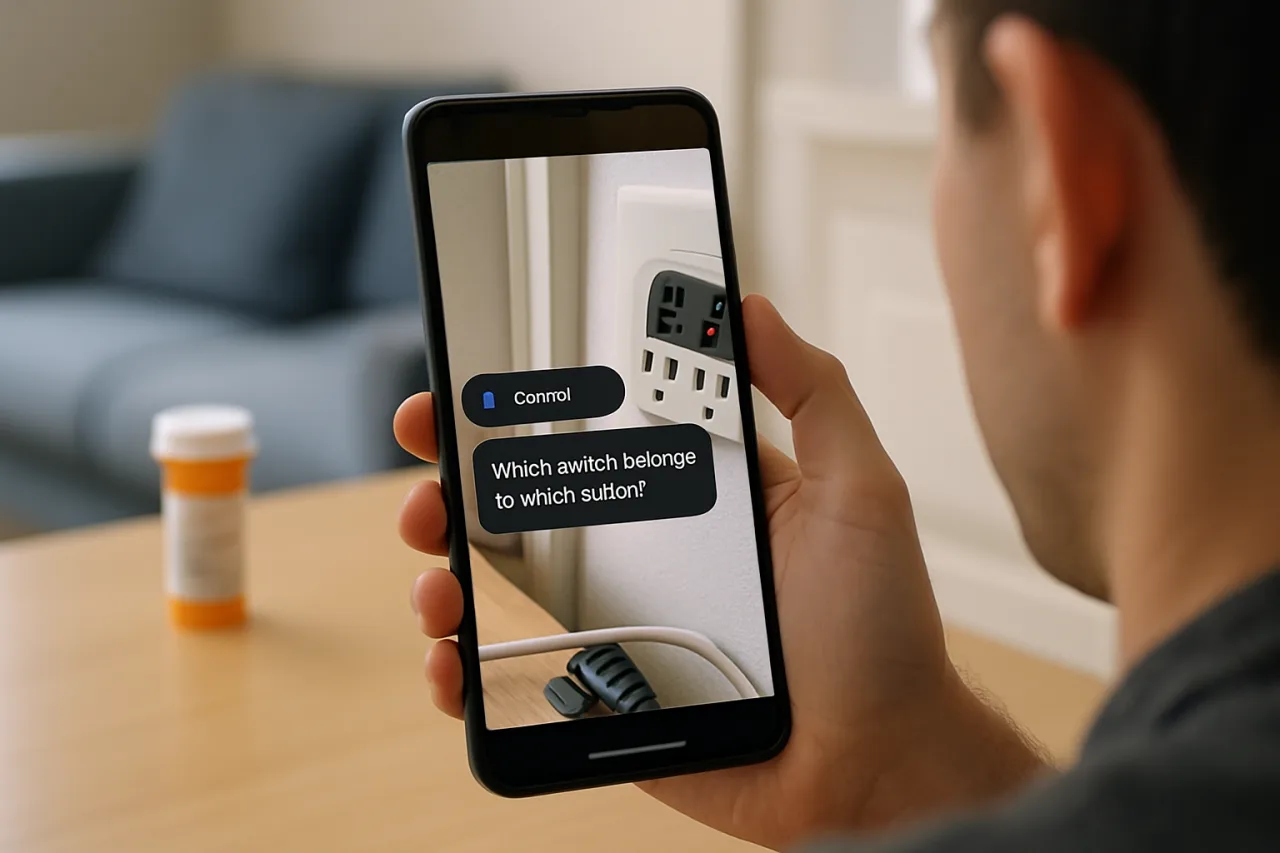
Gemini Guided Vision turns your phone’s camera into a conversation: point it at a medicine label in dim light and ask what the dosage actually says, hold it over a power strip and ask which switch belongs to which outlet, and the assistant describes what it sees — then coaches you when the framing drifts. Gemini Guided Vision arrived in Google’s September 2026 Android Drop alongside a Find Hub that remembers where you left your passport, and together they mark the quarter’s clearest shift in how phones work: the camera is no longer just for taking pictures, and the assistant is no longer just for typing. This guide walks through enabling and actually using Gemini Guided Vision, the Remembered Items feature, and the rest of the drop — plus the privacy toggles you should set before the first conversation with your own camera.
Key Takeaway
- 📸 Guided Vision: Gemini Live now describes what your camera sees and coaches framing — on Android 9+ devices where Gemini is available.
- 🗺️ Remembered Items: Tell Gemini where you put the passport; Find Hub (Android 16+) stores it with an optional photo for later recall.
- 🚗 Motion Assist: Auto-activates when travel is detected — Android 17+ — with a Quick Settings tile for manual use.
- 🔐 The setup that matters: Review camera permissions and what Gemini retains BEFORE first use — the features are only as private as the toggles you set.
The September 2026 Android Drop is the release where Google stopped treating the assistant as a text box and started treating it as a pair of eyes. That is a bigger shift than any single feature list suggests. A camera that answers questions changes who reaches for it — the low-vision user reading a menu, the traveler decoding a transit sign, the homeowner tracing which breaker kills the flickering light. This guide covers what shipped, how to turn each piece on, where each one fails honestly, and the privacy review that should come first.
What Actually Shipped in the September 2026 Drop
Five features, verified across Google’s rollout notes, 9to5Google’s drop coverage, and Android Authority’s feature review: Gemini Live Guided Vision, which shares your camera feed and speaks descriptions of what it sees — with voice feedback when your framing is off (“pan left,” “move closer”) — rolling out to Android 9+ where Gemini is available, accessible via the Accessibility shortcut or TalkBack menu. Find Hub Remembered, which lets Android 16+ users tell Gemini where they placed untracked items — “remember my passport is in the bedroom drawer” — storing the location (and an optional photo) in a new Find Hub tab. Motion Assist, which surfaces driving-detection helpers and a Quick Settings tile on Android 17+. Keep integration in Google Messages, for list collaboration inside chat threads. And the usual chat personalization upgrades riding along. The headline pair for most readers is the first two: the camera that talks back, and the memory that finds your things.
Enabling Gemini Guided Vision: The Three-Minute Setup
The setup is short but has one gate worth pausing at. Step one: update Gemini and Google Play services — Guided Vision rides in app updates, not OS patches, so even Android 9 devices on older system builds get it. Step two: open Gemini Live and start a conversation to enable Gemini Guided Vision; the camera icon appears in the input row once the feature reaches your account (rollout is staged, so absence today is not absence forever). Step three: grant camera access — this is the gate — and read what the permission actually asks. Step four: for the accessibility-grade experience, enable Guided Vision as an Accessibility shortcut so a triple-press summons the camera session. Step five: test with something harmless — a canned food label, a router’s ports — to learn the framing feedback loop before you need it in a dim hallway. The whole process takes three minutes; the learning-the-feedback-loop part is what separates a demo from a tool.
Using Gemini Guided Vision Where It Actually Helps
The Gemini Guided Vision use cases that survive real-world use fall into four groups. Fine print: medication dosages, appliance serial numbers, contract clauses — anywhere text is small, low-contrast, or behind glass. Navigation of the physical world: which cable is which behind the TV, which switch on the power strip, which produce is ripe — Gemini describes and distinguishes what a photo alone wouldn’t clarify. Reading environments: menus in dark restaurants, transit boards, handwritten notes — the use cases Google’s demo emphasized, and honestly the strongest ones. Accessibility: for low-vision users Gemini Guided Vision is the flagship use — describing spaces, finding objects dropped on the floor, reading labels aloud — and the TalkBack integration makes it discoverable exactly where that audience already is. The honest limits: it needs decent connectivity, it does not replace medical or legal judgment (it will read a prescription label; it will not tell you the dosage is right), and busy scenes produce descriptions that are confident but not exhaustive. Treat it as a second pair of eyes, not a professional.
Remembered Items: The End of “Where Did I Put It?”
The Find Hub integration is quieter but arguably more daily-useful. On Android 16+, you tell Gemini where you put something that has no tracker — “Hey Google, remember in Find Hub that I put my passport in the bedroom drawer” — and it stores the note, optionally with a photo, in a Remembered section. Later: ask Gemini, or open the tab. The design insight is that most lost items were never lost — they were simply unrecorded, and the human memory that was supposed to record them is busy. The honest limits: it only works if you tell it (no automatic tracking), it requires the same account on the devices you’ll ask from, and it is available where both Gemini and Find Hub are supported. The photo feature is the difference-maker — “bedroom drawer” is ambiguous at 11 p.m. before a flight; “bedroom drawer, see photo of the blue compartment” is not. For the OFW reader packing for the next contract cycle, this is a quiet superpower: passport, OEC documents, spare SIM, the emergency cash envelope our OFW emergency fund guide recommends documenting — the items whose locations live only in one person’s head — the items whose locations live only in one person’s head can now live in the cloud’s instead, and survive that person traveling.
The Privacy Review That Should Come First
Here is the section that matters most, and the one most quick-start guides skip. Guided Vision means a live camera feed flows to Google’s assistant infrastructure — that is the feature, not a leak — but the settings decide what happens beyond the moment of use. Three toggles to review before your first session: camera permission scope (grant it to Gemini the app, not to everything at once); activity retention (Gemini Apps Activity controls what conversations and feeds are stored — set it to auto-delete if you want the default posture to be amnesia); and Voice/video retention indicators (the drop shows visual cues during active sessions; learn them so you always know when the camera is live). The calculus is personal: the features are genuinely useful, the data flows are disclosed and controllable, and “controllable” only matters if you actually exercise the controls once. Ten minutes in Gemini’s settings — before the first session — is the difference between a tool and a tapeworm, the same review discipline our private email hosting guide applies to the inbox that anchors all these permissions. Our broader guidance on mobile security hygiene applies to the rest of the phone; this is the camera-specific layer of the same discipline.
What the Drop Signals About Android’s Direction
Step back and the September Drop reads as a statement of direction. The assistant is becoming ambient — invoked by pointing rather than typing, remembering context rather than starting cold, riding on accessibility rails rather than app-store novelty. The competitive subtext is Apple’s Intelligence push and the hardware makers’ own assistants: the camera is the one sensor every phone has that the desktop never matched, and multi-modal AI finally makes it interactive rather than archival. For Android 9+ users, the practical takeaway is that the “AI phone” divide is no longer a hardware purchase — it is an app update and a set of permissions. The features this quarter land on phones as old as 2017’s; the revolution, such as it is, is being distributed through the update button rather than the checkout page. That is new, and it changes who gets to participate.
Troubleshooting: When Guided Vision Misbehaves
The failure patterns are few and fixable. No camera icon in Gemini Live? The rollout is staged — confirm the app is updated, then wait days, not hours; forcing it does nothing. Camera granted but blank feed? Close the Gemini app fully (swipe away, not just background) and reopen — the permission handshake sometimes needs a restart on older Android builds. Descriptions that miss the point? Move closer and slow down; the model reads scenes like a person scanning a room, and a steady, centered view of one object beats a panning sweep of six. Feedback loop silent? Check that media volume (not ring volume) is up — Guided Vision speaks through the media channel, and the number-one support complaint in launch week was simply muted media. And if the feature never arrives at all, verify Gemini availability in your region; the camera features inherit Gemini’s country availability, which is why some users on eligible hardware still wait. Every one of these is a settings problem, not a hardware problem — the “will my phone work” question resolved itself in the app update.
There is also a Filipino-specific dividend worth naming. The Philippines is one of the most voice-first, camera-first mobile markets on earth — voice notes replace typing in Taglish households, and camera-based payment (the QR economy) already trained a generation to point phones at the world to transact. Gemini Guided Vision slots into an existing behavior pattern rather than creating a new one: the grandmother who never typed a search query can point her camera at a medicine box and ask. For a country where English keyboards are a friction point and feature-phone graduates outnumber desktop natives, the point-and-ask interface is not a convenience layer — it is the first interface that fits how the market already uses its phones. Watch adoption here outpace the Western averages that launch coverage assumes.
Frequently Asked Questions About Gemini Guided Vision
What is Gemini Guided Vision and how does it work?
A Gemini Live feature from the September 2026 Android Drop that shares your phone’s camera feed with the assistant, which then describes what it sees aloud and coaches you when framing drifts — “pan left,” “move closer.” It is aimed at fine-print reading, object finding, and accessibility use cases, and it ships to Android 9+ devices where Gemini is available.
How do I turn on Guided Vision?
Update the Gemini app, open Gemini Live, tap the camera icon (once the staged rollout reaches your account), and grant camera permission. For one-tap access, add it as an Accessibility shortcut or via the TalkBack menu. The feature arrives via app update — an old Android version does not block it.
What is Find Hub Remembered in the September Drop?
A Find Hub section (Android 16+) where Gemini stores locations you tell it for untracked items — “remember my passport is in the bedroom drawer” — optionally with a photo. Ask Gemini later, or check the Remembered tab. It works where both Gemini and Find Hub are supported, and only records what you explicitly tell it.
Does Guided Vision work offline?
No — the visual processing requires connectivity to Google’s models, so expect degraded or unavailable responses on poor networks. For always-available reading help, the camera app’s built-in Lens still handles basic text extraction offline on many devices; Guided Vision is the conversational layer on top.
Is my camera feed stored by Gemini?
Retention follows your Gemini Apps Activity settings. Review them before first use: auto-delete options exist, and the session indicators show when the camera is actively shared. The ten-minute privacy review — permissions scope, activity retention, indicator familiarity — is the responsible setup for any always-available camera AI.
Which phones get the September 2026 Android Drop features?
Guided Vision: Android 9+ with the Gemini app. Find Hub Remembered: Android 16+. Motion Assist: Android 17+. Keep in Messages and chat themes: via app updates on recent versions. Rollout is staged per account and region — missing a feature this week usually means waiting, not missing out.
Financial Disclaimer
This article is published for general information and technology education. It is not professional, legal, or security advice. Feature availability, device requirements, and data practices are as documented in September 2026 and change with app updates; verify current behavior in your own device settings and Google’s official documentation before relying on any feature described here.