Table of Contents
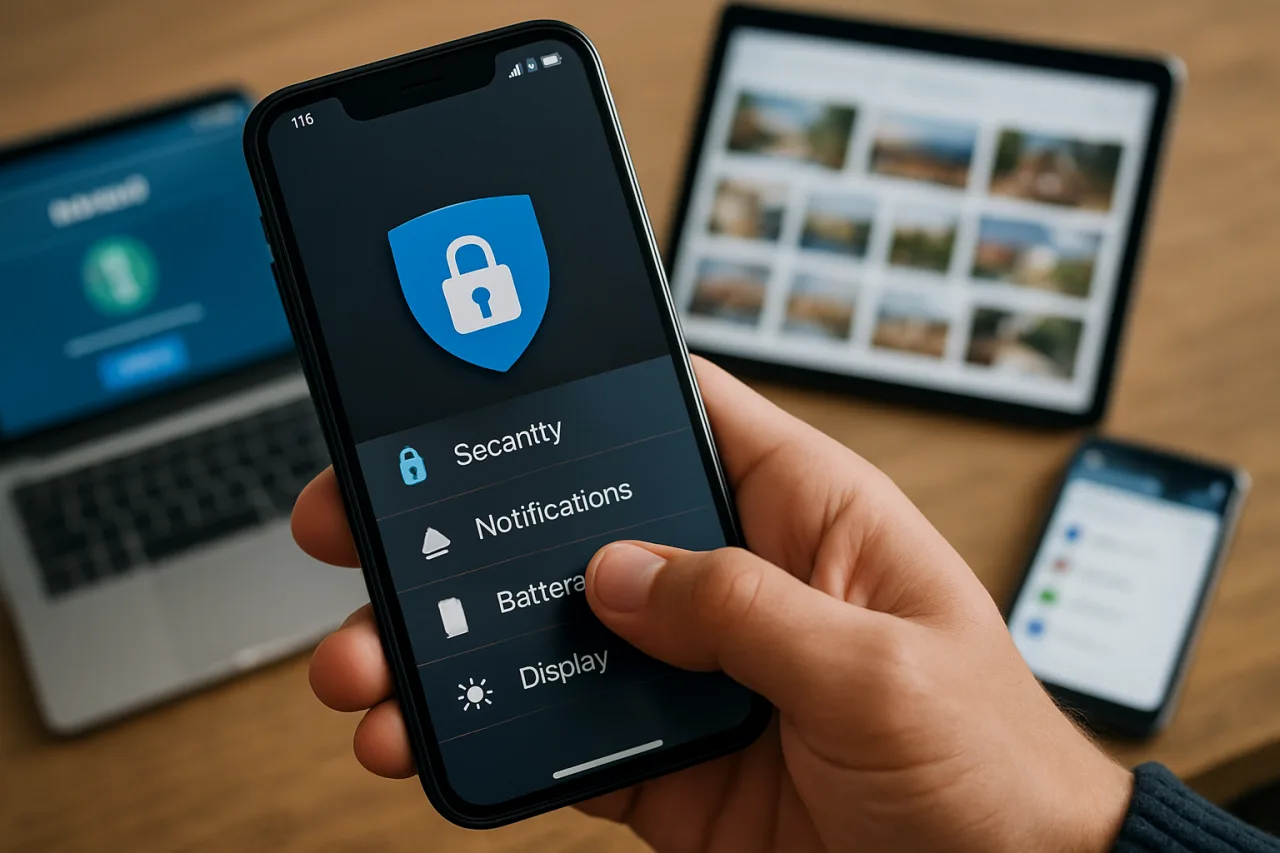
Smartphone security settings are the most overlooked defense in your digital life. You know that feeling when you hand your phone to a friend to show a photo, and they start swiping — and you feel a small jolt of panic? That instinct is correct. Your phone holds your banking app, your email, your photos, your location history, your messages, and your passwords. But the factory settings on both iPhone and Android are designed for data collection and convenience — not for your security. Here are 7 settings you should change right now, on both platforms, in under 10 minutes.
Key Takeaway
- 📱 The Problem: Your phone’s factory settings prioritize data collection and convenience over privacy. Location tracking, ad personalization, and background app permissions are enabled by default — on both iPhone and Android.
- 🔓 The Risk: A stolen or compromised phone gives an attacker access to your banking (GCash, BDO, BPI), email, social media, and stored passwords. 43% of Filipino credential theft in 2026 originated from mobile devices.
- ✅ The Fix: 7 settings you can change in 10 minutes: lock screen, app permissions, location services, ad tracking, auto-lock, USB accessories, and Stolen Device Protection.
- 🇵🇭 Philippine Context: Filipino professionals average 4-6 hours per day on mobile. GCash and Maya process billions of pesos monthly through smartphones. Phone theft in Metro Manila remains high — PNP recorded 12,000+ phone theft cases in 2025.
- 💡 Cost: Free. Every setting is already built into iOS and Android. No apps to download.
The thesis here is simple: your phone knows more about you than any other device you own. It knows where you live (GPS), who you talk to (contacts, messages), what you buy (banking apps), what you search for (browser history), and what you look like (camera roll). Smartphone security settings determine who else gets access to that information. The default answer is: advertisers, app developers, and anyone who steals your phone. The correct answer is: no one but you.
In the Philippines, this matters more than most people realize. The shift to mobile-first banking means that GCash, Maya, BDO Mobile, and BPI Online are all accessible from a single device. As we documented in our GCash account security guide, the most common attack vector is physical phone theft followed by unauthorized access to banking apps. The PNP recorded over 12,000 phone theft cases in 2025, and that number does not include unreported incidents. Smartphone security settings are not a luxury — they are the difference between a stolen phone and a stolen identity.
7 Smartphone Security Settings to Change Right Now
Setting 1: Use a 6-Digit PIN or Stronger (2 minutes)
A 4-digit PIN has 10,000 possible combinations. A 6-digit PIN has 1,000,000. On iPhone, go to Settings, Face ID and Passcode, and ensure your passcode is set to 6 digits. On Android, go to Settings, Security, Screen Lock, and choose a 6-digit PIN or pattern. Better yet, use an alphanumeric passcode — a short phrase like “BahayKubo2026” is both stronger and easier to remember than a random number. Enable “Erase Data” on iPhone (Settings, Face ID and Passcode, Erase Data) to wipe the phone after 10 failed attempts. On Android, enable “Auto Factory Reset” under Security settings.
Setting 2: Audit App Permissions (3 minutes)
Most apps request more permissions than they need. A flashlight app does not need your location. A calculator does not need your contacts. On iPhone, go to Settings, Privacy and Security, and review each permission category: Location Services, Camera, Microphone, Contacts, Photos. For each app, set permissions to “Never” or “While Using” — never “Always.” On Android, go to Settings, Privacy, Permission Manager, and do the same. Pay special attention to Location — many apps track your location in the background even when you are not using them. Disable location access for any app that does not need it to function.
Setting 3: Disable Background Location Tracking (1 minute)
Background location tracking allows apps to record your movements even when you are not using them. This data is sold to advertisers, shared with data brokers, and can be subpoenaed by law enforcement. On iPhone, go to Settings, Privacy and Security, Location Services, and for each app, change “Always” to “While Using” or “Never.” Turn off “Significant Locations” (Settings, Privacy, Location Services, System Services, Significant Locations) — this keeps a log of every place you visit. On Android, go to Settings, Location, App Location Permissions, and restrict background location access. As we noted in our AI voice cloning scam guide, limiting the personal data available about you — including your location patterns — reduces your exposure to social engineering attacks.
Setting 4: Disable Ad Tracking and Personalized Ads (1 minute)
Both Apple and Google operate advertising networks that track your activity across apps and websites to serve targeted ads. On iPhone, go to Settings, Privacy and Security, Tracking, and turn off “Allow Apps to Request to Track.” Also go to Settings, Privacy and Security, Apple Advertising, and turn off “Personalized Ads.” On Android, go to Settings, Security and Privacy, Ads, and select “Delete Advertising ID.” This stops apps from using your unique advertising identifier to track you across the ecosystem. You will still see ads — they will just be generic instead of targeted based on your browsing history.
Setting 5: Set Auto-Lock to 30 Seconds (1 minute)
The shorter your auto-lock time, the less time an attacker has to access your phone if you set it down or lose it. On iPhone, go to Settings, Display and Brightness, Auto-Lock, and set it to 30 Seconds. On Android, go to Settings, Display, Screen Timeout, and set it to 15 or 30 seconds. Yes, you will need to unlock your phone more often. That is the point. The inconvenience of typing your PIN three extra times per day is nothing compared to the inconvenience of a drained bank account.
Setting 6: Disable USB Accessories / Juice Jacking Protection (1 minute)
Public USB charging stations — found in airports, malls, and cafes across the Philippines — can be modified to install malware on your phone or extract data when you plug in. This is called “juice jacking.” On iPhone, go to Settings, Privacy and Security, and scroll down to “Allow Accessories to Connect.” Set it to “Ask for New Accessories” — this requires your permission before any USB device can connect. On Android, go to Settings, Security, and look for “Block USB Accessory” or “Charging Only” mode. As we documented in our hotel WiFi DNS hijack investigation, public infrastructure is a common attack vector for traveling Filipinos.
Setting 7: Enable Stolen Device Protection (iPhone) or Anti-Theft (Android) (1 minute)
On iPhone (iOS 17.3+), go to Settings, Face ID and Passcode, Stolen Device Protection, and turn it on. This requires Face ID or Touch ID — with no passcode fallback — for sensitive actions like viewing saved passwords or using Apple Pay when your phone is away from familiar locations like home or work. It also adds a security delay for critical settings changes, preventing a thief from immediately disabling Find My iPhone or changing your Apple ID password. On Android, go to Settings, Security, and enable “Find My Device” and “Remote Lock.” On Android 16+, enable “Identity Check” which works similarly to Apple’s Stolen Device Protection. These settings ensure that even if a thief knows your passcode (because they watched you type it), they cannot access your most sensitive data or disable tracking.
What to Do If Your Phone Is Stolen
If your phone is stolen despite these protections, act immediately. On another device, go to icloud.com/find (iPhone) or android.com/find (Android) and mark the phone as lost. This locks it and displays a message with your contact number. If you believe the data cannot be recovered, use the remote erase option. Contact your bank (GCash: 2882, BDO: 631-8000, BPI: 89-100) and request to freeze your mobile banking access. Change the passwords for your email, banking, and social media accounts from another device. File a police report with the PNP — you will need the report number for insurance claims and bank disputes. As we outlined in our data breach response plan, the first 48 hours determine whether you recover or suffer permanent loss.
Android vs iPhone: Which Is More Secure?
A common question from Filipino professionals: which platform offers better smartphone security settings — iPhone or Android? The honest answer is that both are secure if configured correctly, and both are vulnerable if left at factory defaults. iPhone has a structural advantage in update distribution: Apple pushes security updates directly to all supported devices simultaneously, meaning the latest patch reaches every iPhone within days. Android updates depend on the manufacturer and carrier — Google Pixel phones receive updates immediately, but Samsung, Oppo, Vivo, and Xiaomi devices may wait weeks or months. In the Philippines, where budget Android phones from Oppo, Vivo, and Cherry Mobile dominate the market, delayed updates are a real security risk.
For smartphone security settings, iPhone’s Stolen Device Protection (iOS 17.3+) gives it an edge against physical theft — a significant concern in Metro Manila. Android’s advantage is flexibility: you can install apps from outside Google Play (sideloading), change default browsers, and configure DNS settings. But this flexibility is also a risk — sideloaded apps are a common malware vector. The practical recommendation: if you use an iPhone, enable Stolen Device Protection and Lockdown Mode for high-risk situations. If you use Android, install apps only from Google Play, enable Google Play Protect, and check for security updates monthly under Settings, System, System Update.
For both platforms, the most important smartphone security settings remain the same: strong lock screen, restricted app permissions, disabled background tracking, and MFA on all financial accounts. The platform matters less than the configuration.
Frequently Asked Questions About Smartphone Security Settings
What are the most important smartphone security settings to change?
The seven most important smartphone security settings are: use a 6-digit or alphanumeric PIN, audit app permissions, disable background location tracking, turn off ad tracking, set auto-lock to 30 seconds, disable USB accessory connections, and enable Stolen Device Protection (iPhone) or Anti-Theft (Android). All seven can be changed in under 10 minutes at no cost using settings already built into your phone.
How do I secure my smartphone from hackers?
Secure your smartphone by enabling a strong lock screen, restricting app permissions (especially location, camera, and microphone), disabling background tracking and personalized ads, setting a short auto-lock timeout, protecting against USB juice jacking, and enabling Stolen Device Protection. Additionally, enable MFA on all banking and email apps, keep your operating system updated, and install apps only from official app stores (Google Play or Apple App Store).
Should I disable location services on my phone?
Do not disable location services entirely — you need it for maps, ride-hailing apps (Grab), and emergency services. Instead, restrict it: set location access to “While Using” for apps that need it (Grab, Google Maps) and “Never” for apps that do not (games, calculators, flashlights). Turn off “Significant Locations” on iPhone and background location access on Android. This prevents apps from tracking your movements when you are not using them.
What is Stolen Device Protection on iPhone?
Stolen Device Protection is an iOS feature (available on iOS 17.3+) that requires Face ID or Touch ID — with no passcode fallback — for sensitive actions like viewing saved passwords, using Apple Pay, and changing Apple ID settings when your phone is away from familiar locations. It also adds a security delay for critical settings changes. This protects you even if a thief watches you type your passcode before stealing your phone, because they cannot bypass the biometric requirement for sensitive actions.
How do I protect my GCash and banking apps if my phone is stolen?
Enable Stolen Device Protection (iPhone) or Identity Check (Android 16+) to prevent thieves from accessing banking apps without biometric authentication. Set up transaction alerts on GCash, Maya, and your bank apps so you receive immediate notification of any transaction. If your phone is stolen, call GCash hotline 2882, BDO 631-8000, or BPI 89-100 immediately to freeze mobile banking access. Change passwords for all financial accounts from another device.
Is it safe to charge my phone at public USB stations?
Not entirely. Public USB charging stations can be modified to install malware or extract data — a technique called juice jacking. On iPhone, set “Allow Accessories to Connect” to “Ask for New Accessories” in Settings, Privacy and Security. On Android, use “Charging Only” mode. Better yet, carry your own USB power adapter and plug into a wall outlet instead of a USB port. A power bank is the safest option for charging on the go.
How often should I update my phone’s operating system?
Install OS updates as soon as they are available. Both Apple and Google release security patches monthly that fix vulnerabilities actively exploited by attackers. CrowdStrike’s 2026 report found that 88% of exploitation happens within 48 hours of a vulnerability being made public. If you delay updates by even one week, you are in the attack window. Enable automatic updates on iPhone (Settings, General, Software Update, Automatic Updates) and Android (Settings, System, System Update).
This article is for informational and educational purposes only. It does not constitute professional cybersecurity advice. For official smartphone security guidance, consult CISA’s mobile device security resources or the DICT Cybersecurity Bureau.