Table of Contents
Reading Time: 7 minutes
Key Takeaway
- 📱 The remittance apps you open on airport and hotel WiFi are the most valuable target on the network: GCash, bank apps, and remittance logins entered on shared networks are exactly what session-sniffing and fake-portal kits hunt — and the fix is a 3-layer stack, not fear.
- 🛡️ Layer one is the tunnel: a VPN on before the first login — NordVPN’s Threat Protection and kill switch mean a dropped tunnel never becomes a naked login — with the app-only rule keeping browsers out of the money lane.
- 🧯 Layer two is the session discipline: one app, one session, logged out after the transfer — the session that stays logged in on shared WiFi is the one a stranger’s tooling can reach — remittance apps especially.
- 👁️ Layer three is the tripwire: a dark-web monitor on the remittance email catches the credential leak you can’t see, converting “change password someday” into a same-day action.
- 📋 The 10-minute setup inside: the exact order — install, tunnel, app-only, monitor — plus the three mistakes that turn protection into false confidence.
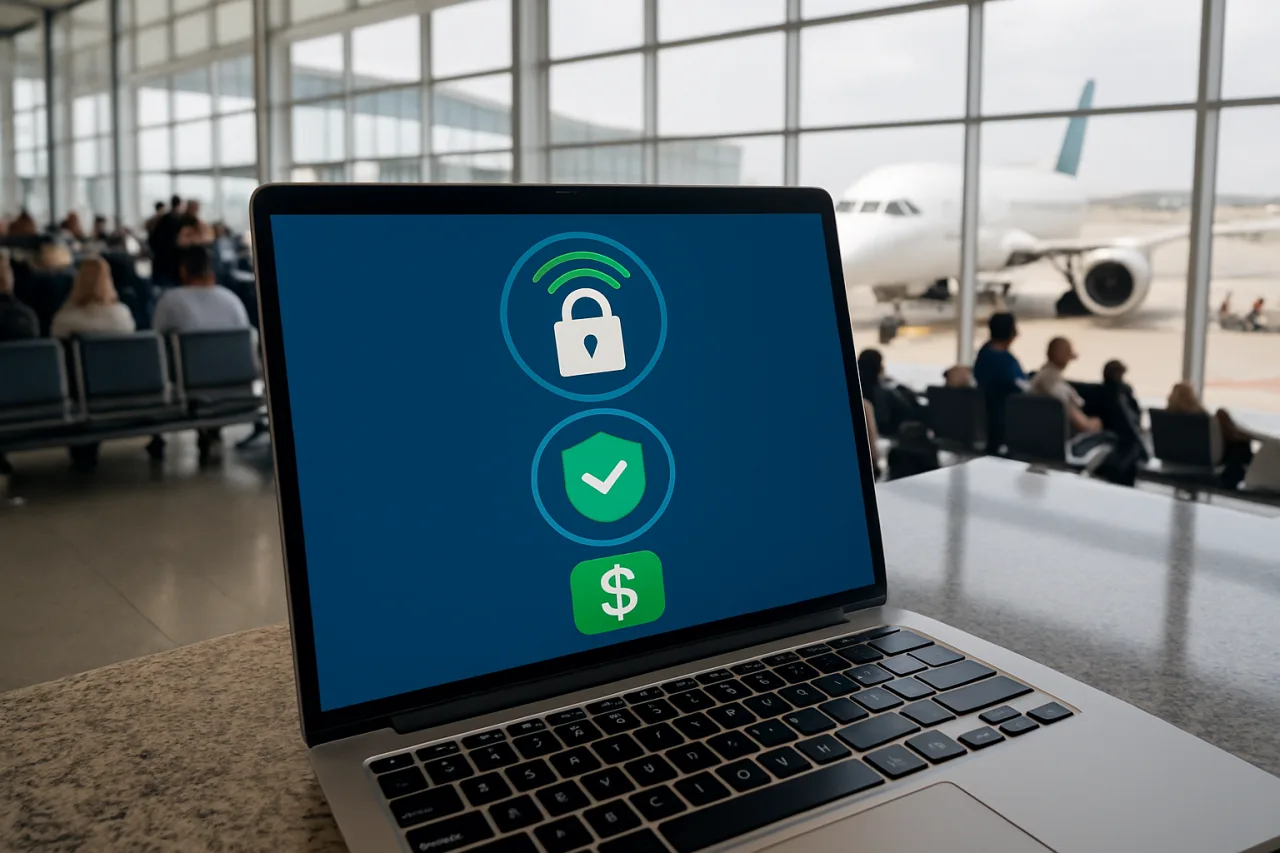
The most dangerous thirty seconds in an OFW’s month looks like nothing at all: opening the remittance apps on the airport’s free WiFi, the hotel lobby network, or the mall’s guest hotspot, and transferring the family’s money. Remittance apps on public WiFi make every shared network a shared office — and the remittance login inside your remittance apps is the highest-value item in it. This guide builds the 3-layer stack that keeps remittance apps safe on any network: the tunnel (a VPN that’s on before the first login, with the kill switch that closes the dropped-connection gap), the session discipline (one app, one session, logged out after every transfer), and the tripwire (a dark-web monitor that turns credential leaks into same-day password rotations). Ten minutes to set up once, then the routine runs itself at every airport, hotel, and co-working table from Riyadh to Manila. The stakes deserve the ten minutes: the money moving through the remittance apps is the household’s entire month, and the networks it moves across are the most hostile surfaces it will ever touch.
Related: AI Agent Security: The Evaluation Perimeter Is the New Attack Surface
Why Public WiFi and Remittance Apps Mix Badly
The threat is not the Hollywood hacker-in-the-ceiling; it is three boring, real mechanisms. Shared-segment sniffing: on open networks, a device at the next table can see the traffic metadata of every unencrypted session — banking apps encrypt their payloads, but the surrounding sessions (email, OAuth flows, the browser fallback you open “just this once”) leak the edges. Evil-twin hotspots: a fake network with the airport’s name — “NAIA_Free_WiFi_2” — harvests whatever you type into the login page it serves; remittance credentials entered there are harvested, not transmitted. Session hijack risk: apps that stay logged in keep a live session token on the device, and a network-level attacker’s tooling probes exactly those sessions. The pattern this site’s Cyber Watch #001 taught applies directly: incidents make users reactive, and reactive users on hostile networks are the harvest. The stack below closes all three mechanisms with three layers that cost one evening to configure — and the tunnel is the first because it is the only layer that works before the threat is visible.
WorldNgayon Analysis: The remittance apps are the family’s most valuable digital asset and the most casually handled — the same person who locks the house door forgets the app holding the month’s salary on open WiFi.
Bottom Line: Public WiFi makes every login a street transaction — the three layers below are the difference between transferring money and exposing it.
Layer One — the Tunnel That’s On Before Your Remittance Apps Open
The rule that makes everything else work: the VPN connects before the remittance app opens — never after. The tunnel encrypts the network layer so the shared segment sees only encrypted flow to the VPN’s exit, killing the sniffing vector and most session-probing at once. The setup in the NordVPN app (the service this site’s guides standardize on, with independent audit history published on its official site): install, log in once at home on a trusted network, enable Threat Protection (blocks malicious domains and trackers at the connection level), and — the setting that matters most for money apps — turn on the kill switch, which cuts all traffic the moment the tunnel drops, so a network blip never becomes a naked login. Then the routine: land at the airport, connect to the tunnel, verify the app shows protected, then open GCash. One tap of extra friction per session, and the hostile network becomes a pipe, and your remittance apps ride it invisibly. The OFW-specific note: install and configure before the flight — hotel reception desks and airport kiosks are where tunnel setup fails, and home Wi-Fi is where it takes two minutes.
Bottom Line: Tunnel first, app second — the sequence is the security; a VPN that connects after the login has already missed its one job.
Layer Two — One App, One Session, Logged Out
The tunnel handles the network; the session discipline handles the device. The routine that makes remittance apps boring to attackers: one dedicated app per money service (the app, never the browser — remittance apps pin certificates and skip the fake-login-page class of attack entirely), one session per transfer (open, transfer, close the app — not minimize, close), and biometric-only re-entry (face or fingerprint unlock, so a peeked password is worthless). The anti-pattern to retire: the remittance app that lives logged-in in your phone’s background “for convenience” — that convenience is the attacker’s convenience, because the session is alive on every network the phone joins, tunnel or not. The 30-second version of the discipline: open app → tunnel verified → transfer → app closed. The rhythm sounds trivial and it is: that is the point, because a security routine survives when it is short enough to run at every airport, every lobby, and every layover without negotiation. On top of the session rules sits the one-time verification habit: for any transfer above your standing comfort threshold, the confirmation happens through the app’s built-in second factor — and the SMS 2FA sunset piece already covered why that second factor should be an authenticator app, not a text message, before February 2027 ends carrier-delivered codes.
Bottom Line: Apps over browsers, one session per transfer, logged out by default — the session layer is where convenience culture and security culture split.
Layer Three — the Tripwire That Watches While You Fly
The first two layers secure the sessions; the third layer watches the credentials between them. A dark-web monitor tied to your remittance email scans the leak corpora where stolen credentials surface and alerts when your address appears — which converts the vague anxiety of “was I in that breach?” into a same-day action item. The setup takes minutes inside the same Nord subscription (the walkthrough in the 30-minute breach-response guide covers the monitor step by step), and the routine it enables is the tripwire loop: alert arrives → change the exposed password that day (the password manager makes it a 60-second job) → verify no unauthorized sessions in the app’s device list. The tripwire matters most for OFWs because the remittance email your remittance apps alert is the master key: it receives the bank notices, the wallet receipts, and the password resets — which makes it the one address worth monitoring continuously. Three layers, one stack: tunnel for the network, discipline for the session, tripwire for the between-times.
Bottom Line: The tripwire is what catches the leak you didn’t cause — the breach at some other service that now points at your remittance email.
The 10-Minute Setup — the Whole Stack, Sequenced
Before the next flight, one sitting: minute one — install the VPN app, sign in, enable Threat Protection and the kill switch, and add the airport and hotel networks you’ll hit to the auto-connect list (the tunnel then joins them before you remember to). minute four — move the remittance and banking apps onto one home screen, log every one of them out, and turn on the app’s built-in second factor with an authenticator app. minute seven — add the remittance email to the dark-web monitor and confirm the alert address is one you actually check. minute seven — run one test session on a hotspot: tunnel on, app open, transfer a token amount, app closed, tunnel off — the routine rehearsed once is the routine that survives the real airport. minute nine — check every linked device in each app’s security page and sign out the ones you don’t recognize. minute ten — calendar the quarterly review: devices, tunnel settings, monitor status. The stack is now ambient; the routine runs on autopilot, and the shared office stops being shared.
Bottom Line: Ten minutes before the flight buys three layers — tunnel, discipline, tripwire — that run themselves for the whole contract.
The Three Mistakes That Break the Stack
Three failure modes undo the whole build, and all three are common. The browser fallback: the app won’t load, so the user opens the bank’s website “just this once” — on the hostile network, in the browser, where fake login pages live; the rule is absolute, the app or nothing, because the one exception is the one harvest. The tunnel-after habit: connecting the VPN after the app is already logged in protects the next byte and not the session that mattered — the order is the security. The logged-in convenience: keeping the remittance app alive for “faster transfers” leaves the session exposed on every network between transfers — the exact surface the tripwire exists to catch after the fact. Each mistake is small, each is daily, and each is the difference between a stack that protects and a stack that decorates a phone. The discipline costs seconds; the alternative costs the month’s remittance.
WorldNgayon Analysis: The stack’s honest edge: no tool defeats a user who logs into the fake network anyway — the tunnel, the discipline, and the monitor only protect the routine they’re part of, which is why the routine is the product.
Bottom Line: The stack breaks at the shortcuts — no browser fallback, tunnel first, logged out — three habits that cost nothing and carry the whole month.
Frequently Asked Questions
Is it safe to use banking apps on public WiFi with a VPN?
Yes with the stack: tunnel on before the app opens, Threat Protection filtering the connection, kill switch covering drops, one-session discipline, and an authenticator second factor. The VPN removes the shared-network exposure; the session rules remove the residual surface; the tripwire catches what neither can.
What is the best VPN for remittance apps?
The one that’s running before you log in: the criteria that matter are an audited no-logs policy, a working kill switch, Threat Protection-class filtering, and apps that auto-connect on untrusted networks — NordVPN meets all four and is the stack this site documents; the same rules evaluate any alternative — and the audit history matters because the tunnel sees everything the phone does while the remittance apps run through it.
Can someone hack my GCash through public WiFi?
Not the app’s transport — GCash’s traffic is encrypted — but the surrounding surface is where risk lives: fake hotspots harvesting typed logins, hijackable logged-in sessions, and browser fallbacks. The stack closes all three: tunnel first, app-only, session discipline, authenticator lock. The residual risk after the stack is the human layer — a password reused from a breached site, or a code read out to a caller — which is why the tripwire monitor pairs with the password manager: the monitor finds the exposure and the manager rotates the credential in under a minute, keeping the app’s strong transport from being undermined by a weak front door.
How do I know if my email was leaked in a breach?
A dark-web monitor tied to your remittance email checks continuously and alerts on any appearance in known leak corpora — the same-day action is changing that account’s password and revoking active sessions. Manual one-off checkers work but only answer once; the monitor answers every day. The National Privacy Commission‘s breach advisories carry the data-side obligations for Philippine services.
Should I use SMS or an authenticator app for banking 2FA?
Authenticator app — SMS codes die in February 2027 and are interceptable today through SIM-swap attacks; the authenticator binds to the device you hold. Move the remittance and bank apps to authenticator-based 2FA during the 10-minute setup, ahead of the carrier sunset.
Financial Disclaimer: This article is for general information and education, not security or financial advice. App security features and provider policies change; verify settings with your bank and remittance provider’s official channels. WorldNgayon.com is not a cybersecurity service provider.