Key Takeaway
- 🔓 A passkey replaces the password with a key pair that never leaves your device: the site keeps only a public key, your device keeps the private half behind your fingerprint, face, or PIN — nothing phishable crosses the wire, which is why the 39 bypass attacks our security guide documents avoid it rather than defeat it.
- 📱 The passkey setup flow is now native on every major platform: Google (Account → Security → Passkeys), Apple (system Passwords app with iCloud Keychain sync), Microsoft (account security page with Authenticator, Hello, or security-key options), Amazon (Login & security → Passkeys) — the 15-minute full-house rollout runs account by account.
- 🔁 Sync is the modern default, devices are the legacy method: a synced passkey follows your Keychain or Google Password Manager across your phone, tablet, and laptop; a device-bound passkey stays on one machine and pairs via QR — both kill phishing, only one travels with you.
- 🧩 Version floors matter before you start: iOS 16, macOS Big Sur, Android 9, Windows 11 with current browsers — the Amazon requirements hold everywhere — and passkey setup per marketplace (amazon.com vs .co.uk) is separate.
- 🪜 Migrate the crown jewels first, then sweep: email and financial logins earn passkeys on day one; the rest of the household’s accounts follow a 15-minute schedule — the setup playbook makes the family rollout boring and total.
Table of Contents
Passkey setup is the fifteen minutes that retires your phishable password, and 2026 is the year the flow finally runs natively everywhere: Google builds it into account security, Apple syncs it through iCloud Keychain and the Passwords app, Microsoft offers every storage option from Hello to hardware keys, and Amazon walks it in four taps. This guide runs the cross-ecosystem playbook — what a passkey technically is in two sentences, how synced and device-bound passkeys differ, the exact passkey setup paths for the four majors plus the household sweep, and the version and browser floors that trip the setup. The payoff compounds with every account migrated: a login that cannot be phished, replayed, or breached — the layer our passkey-security coverage calls the thing the 39 documented bypasses route around rather than through.
What a Passkey Actually Is (Two Sentences, Then Setup)
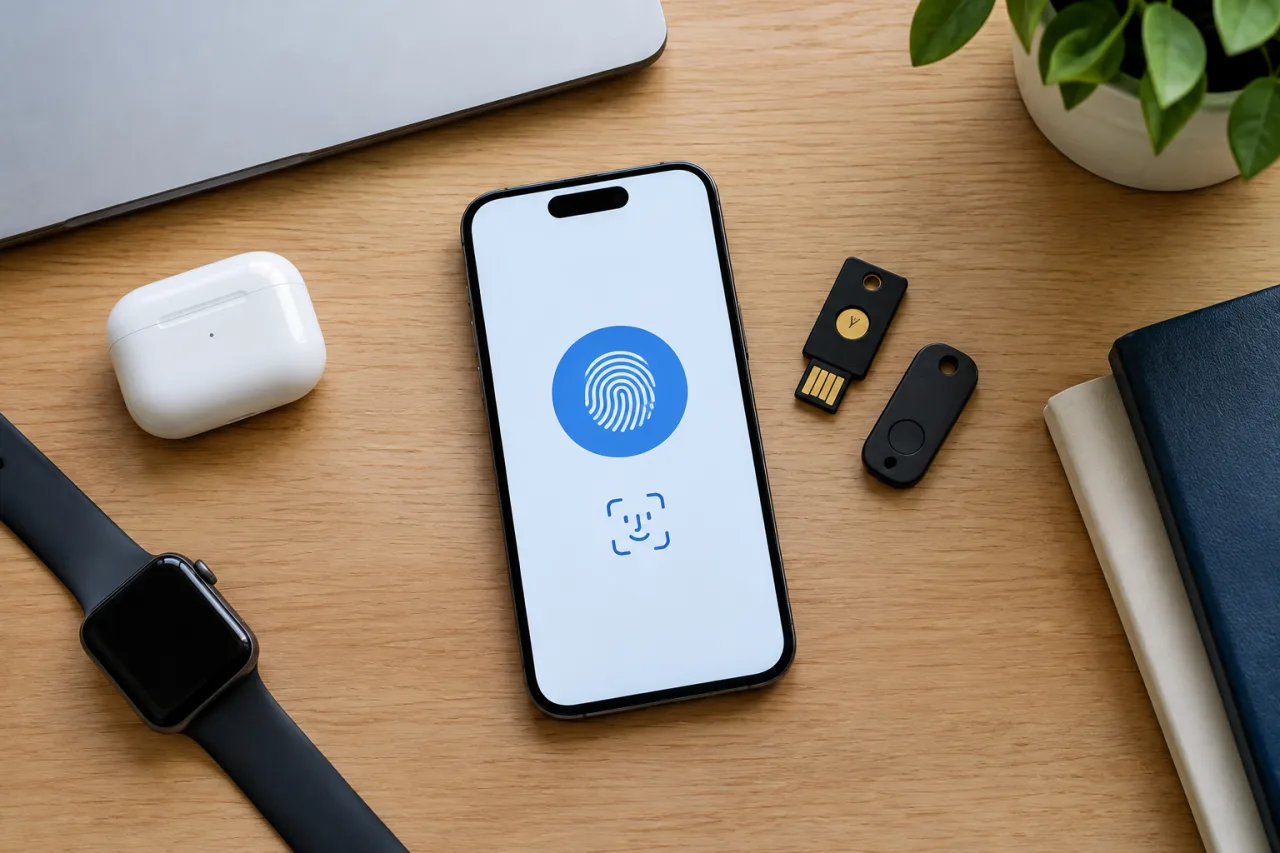
A passkey is a cryptographic key pair created per account: your device generates the private half and locks it behind biometrics or PIN, while the website stores the public half. Sign-in proves possession of the private key to the account’s origin domain — nothing shareable ever crosses the network, so there is nothing for a phishing page to capture, and a breached site reveals no credential worth stealing. That origin-binding is the same property that made the phishing-lane attacks fail against it in our security coverage: a lookalike domain is a different site asking a different key, and the browser refuses. The two practical shapes: synced passkeys (stored in your Apple or Google credential cloud, available on every logged-in device — the modern default) and device-bound passkeys (trapped on one phone or a security key, pairing across devices via QR with Bluetooth verification — the legacy shape, still common for security keys and enterprise). Both models end the password; they differ in what happens when the phone does.
Passkey Setup on Google: the Two-Minute Path
Google integrates the whole flow into account settings: the ecosystem paths are Account → Security → Passkeys and security keys → Create a passkey; Microsoft’s official page walks the full storage matrix — on Android, the passkey saves to Google Password Manager and syncs wherever that account signs in; on iPhone, creating it for a Google account offers saving into the Passwords app or iCloud Keychain with QR-based cross-device flows. Sign-in afterward is the device’s own unlock — face, fingerprint, or PIN — with Google handling the origin check. Account recovery still matters: Google account recovery paths (recovery email, phone) remain your lifeline if devices are lost, which is why the recovery contact is the first item on the household sweep below. One note for multi-account families: passkeys are per account — create one per Google account, name them, and the Passwords app keeps them straight.
Passkey Setup on Apple: the Passwords App Route
Apple’s system-wide Passwords app (iOS 16+, macOS Big Sur+ for passkey support; the modern app ships current OS builds) is the synced credential home: passkeys created on any Apple device sync through iCloud Keychain end-to-end-encrypted to iPhone, iPad, and Mac signed into the same Apple ID. The flow on any website: register a passkey, choose the system option, authenticate with Face ID or Touch ID, done — the next sign-in on any synced Apple device offers the passkey automatically. Cross-ecosystem use (an Apple-saved passkey on a Windows machine, or vice versa) runs the QR-plus-Bluetooth pairing: scan with the phone holding the passkey, verify proximity, sign in. Apple’s account recovery — your trusted devices and phone number — stays the recovery lane; a lost-everything scenario still resolves through account recovery, which is why the trusted-device list belongs in the same monthly audit as the other accounts.
Passkey Setup on Microsoft: Four Storage Options
Microsoft’s flow mirrors the ecosystem but exposes the full storage matrix — their official page walks personal and work/school accounts through five save locations: Microsoft Password Manager, an iPhone/Android device (via Authenticator or the QR flow), a physical security key, or local Windows Hello on the device. The work-account path matters for the WFH reader: enterprise passkeys live under the organization’s policy, and the same support page covers both shapes. Microsoft’s Edge option (“Automatically upgrade to passkeys”) flips the migration to autopilot for the household sweep. Sign-in then runs through Hello on the Windows device, the Authenticator tap on the phone, or the key’s touch — the phishing-proof property identical across all four storage homes.
Passkey Setup on Amazon (and the Marketplace Rule)
Amazon’s passkey setup is the four-tap version of the pattern: Your Account → Login & security → Set up next to Passkeys → follow the on-screen steps, with the passkey saved to your passkey-provider account (Apple ID or Google account) so every associated device can use it. The rules that trip people, straight from that page: one passkey per passkey provider, minimum software floors (iOS 16, macOS Big Sur, Android 9, Windows 11, current browsers), and a separate passkey setup per marketplace — amazon.com and amazon.co.uk are different sign-in origins with their own keys. High-risk checkout moments may re-request the passkey, which is the feature working: the strongest factor guards the money move.
The Household Sweep: 15 Minutes, Every Account
- Set the recovery base first. Recovery email and phone verified on the primary accounts — the lifeline if a device dies mid-rollout.
- Crown jewels day one: primary email, bank, exchange (the Binance lesson is fresh), and the work login — the four accounts whose takeover costs the most — the hardening playbook covers the settings around them.
- Email providers second — the password-reset hub for everything else; a passkey here cuts the takeover risk of every downstream account.
- Social and creator platforms third — the recovery-guide family covers Facebook pages and YouTube channels; sweep them by importance all support passkey or equivalent hardware-friendly sign-in; sweep them by importance.
- Keep the password as the documented backup — passkeys coexist with passwords; store the password in the manager, note the recovery codes on paper or in the safe, and leave the 2FA app in line. Redundancy is the fallback when hardware dies.
- Browser autopilot for the tail: Edge’s auto-upgrade setting (and Chrome’s equivalents) converts eligible logins without visits — the tail of the household list finishes itself.
Frequently Asked Questions
What Is a Passkey and How Is It Different From a Password?
A passkey is a per-account key pair: the private half stays on your device behind biometrics or PIN, the public half sits with the website. Sign-in proves possession of the private key to the legitimate domain — no secret crosses the network for a phisher to capture, and a breached site exposes nothing worth stealing. A password is a shared secret you type anywhere; a passkey is a possession proof bound to one origin.
How Do I Run a Passkey Setup on Google, Apple, Microsoft, and Amazon?
Google: Account → Security → Passkeys and security keys → create, saving into Google Password Manager or the Apple Passwords app. Apple: any passkey-created site offers the system option; it saves to the Passwords app and syncs via iCloud Keychain. Microsoft: account security page with five storage choices (manager, phone via Authenticator, security key, Windows Hello) per their official create-and-save guide. Amazon: Your Account → Login & security → Set up beside Passkeys — one passkey per provider account, separate setup per marketplace.
What Happens to My Passkey If I Lose My Phone?
A synced passkey survives the phone — it lives in the credential cloud (iCloud Keychain or Google Password Manager) and reappears on the replacement device once you sign in to that ecosystem. A device-bound passkey on a lost phone or security key is gone with it; recovery runs through the account’s own recovery lanes (recovery email, phone, backup codes) — which is exactly why the recovery base gets set before the household sweep starts and why backup codes belong on paper.
Are Passkeys Really Phishing-Proof?
Against credential capture, yes — the passkey signs only for the origin it was created on, so a lookalike page asking for your login cannot use it, and browser-level warnings fire on mismatched origins. The documented bypass list runs around this property: social-engineering you into approving a sign-in on the REAL domain, session theft of an already-open browser, or enrollment scams that trick you into creating a passkey on an attacker-controlled account. The passkey raises the floor; the human layer still needs the skepticism habits.
Do I Still Need Two-Factor Authentication After Passkey Setup?
The passkey IS the second factor and the first — possession plus biometric in one gesture — so app-based 2FA becomes a backup layer rather than the front door. Keep the authenticator app enrolled, keep recovery codes stored, and keep SMS out of the stack per the SMS-2FA shutdown lane; the household sweep’s redundancy rule (passkey + stored recovery codes) is what survives the lost-device day.
Disclaimer
This article provides general security guidance and does not constitute legal advice. Setup paths, software requirements, and platform tools change over time; verify against each provider’s official support pages before acting. The author and publisher disclaim any liability for actions taken based on this information.
External sources linked in this article, in order of first mention. Spotted an error or a broken link? Tell us.
Cite this pagePublished Oct 31, 2026
Agron, E. (2026, October 31). Passkey Setup Guide: Enabling Passwordless Sign-In on Google, Apple, Microsoft, and Amazon. WorldNgayon. https://worldngayon.com/passkey-setup-guide/
Agron, Edmon. “Passkey Setup Guide: Enabling Passwordless Sign-In on Google, Apple, Microsoft, and Amazon.” WorldNgayon, 31 Oct. 2026, worldngayon.com/passkey-setup-guide/.
Agron, Edmon. “Passkey Setup Guide: Enabling Passwordless Sign-In on Google, Apple, Microsoft, and Amazon.” WorldNgayon, October 31, 2026. https://worldngayon.com/passkey-setup-guide/.
Agron, E. (2026) ‘Passkey Setup Guide: Enabling Passwordless Sign-In on Google, Apple, Microsoft, and Amazon’, WorldNgayon, 31 October. Available at: https://worldngayon.com/passkey-setup-guide/.
E. Agron, “Passkey Setup Guide: Enabling Passwordless Sign-In on Google, Apple, Microsoft, and Amazon,” WorldNgayon, Oct. 31, 2026. [Online]. Available: https://worldngayon.com/passkey-setup-guide/
@online{agron2026passkeysetup,
  author       = {Agron, Edmon},
  title        = {{Passkey Setup Guide: Enabling Passwordless Sign-In on Google, Apple, Microsoft, and Amazon}},
  year         = {2026},
  date         = {2026-10-31},
  organization = {WorldNgayon},
  url          = {https://worldngayon.com/passkey-setup-guide/},
  urldate      = {}
}TY - ELEC AU - Agron, Edmon TI - Passkey Setup Guide: Enabling Passwordless Sign-In on Google, Apple, Microsoft, and Amazon T2 - WorldNgayon PY - 2026 DA - 2026/10/31/ UR - https://worldngayon.com/passkey-setup-guide/ Y2 - ER -
Cite the version you read; the page may be updated. Zotero and Mendeley can also import this page directly.