Key Takeaway
- 🎙️ ChatGPT voice is now three experiences, not one: Live (natural back-and-forth, powered by GPT-Live-1), Advanced (real-time with video and screen sharing), and Standard (turn-by-turn with transcription) — pick the right one in Settings → Voice.
- ⏱️ The limits are concrete: Free gets limited GPT-Live-1 mini, Plus gets 3 hours with GPT-Live-1, Pro ($200/month) gets unlimited, and Business Standard pays 1.25 credits per minute beyond its 3-hour allowance.
- 🗣️ Nine voices ship by default — Arbor, Breeze, Cove, Ember, Juniper, Maple, Sol, Spruce, and Vale — and switching voices mid-chat starts a new voice call in the same conversation.
- 🚗 The underrated features: CarPlay integration, background conversations while your phone is locked, and Start with Voice (the app opens ready to talk) — the three settings that make voice a daily habit.
- 🇵🇭 Why Filipinos should care: voice is the fastest interface for bilingual, multitasking, remote work — client calls while commuting, hands-free note processing, and English-pronunciation practice in one app.
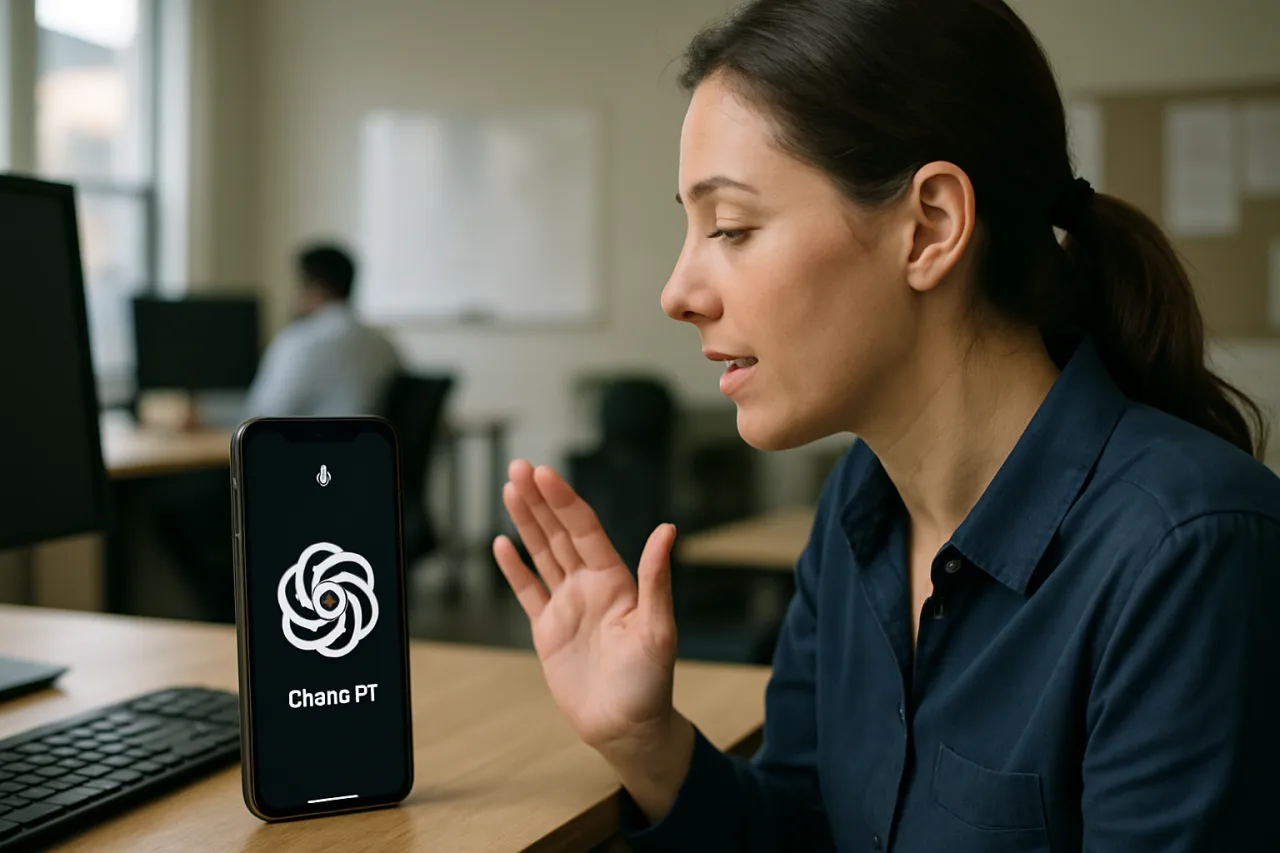
Typing is the slowest way to use the world’s most popular AI. The fastest is talking — and in 2026, ChatGPT voice matured into a three-mode system with per-plan allowances, nine voices, CarPlay support, and background conversations that survive a locked phone. Most users have never opened Settings → Voice; they tap the icon, talk, and accept whatever mode the app gave them. This guide fixes that: the 10-minute setup covers choosing the right mode, picking a voice, setting your language, enabling background calls, and the nine practical setups — from commuting brainstorms to cooking-hands-free recipes to client-call rehearsal — that turn voice mode from a party trick into a daily working habit.
Table of Contents
Step 1: Pick Your Mode — Live, Advanced, or Standard
The single biggest ChatGPT voice upgrade is knowing the modes exist. Open Settings → Voice and choose from three experiences. Live — powered by GPT-Live-1 or GPT-Live-1 mini depending on your plan — is the natural one: it listens and speaks at the same time, handles interruptions, can use web search and memory, shows visual results, and accepts text and images in the same chat. Advanced is the previous real-time experience, retained because it still supports mobile capabilities Live doesn’t: live video sharing and screen sharing. Standard is the turn-by-turn mode that transcribes your speech before generating a response — slower, but useful where transcription accuracy matters more than flow. The right default for most professionals: Live for everything, switch to Advanced on mobile when you need to point your camera at something or share a screen, and Standard when you want your words transcribed verbatim before the model answers.
Business, Enterprise, Edu, and Healthcare workspaces get two additional experiences: Voice in Chat (the same real-time conversation, enabled by a workspace owner) and Voice in Desktop — voice for starting tasks, checking progress, and coordinating multiple agents from the macOS and Windows desktop app. If your company runs ChatGPT at work, Desktop voice is the one worth learning: it is the interface for managing agent fleets by speech.
Step 2: Know Your Plan’s Hours
Voice in Chat usage is measured over a rolling 24-hour period, and the per-plan allowances are the guide’s most practical table: Free — limited access to GPT-Live-1 mini; Go — 3 hours with GPT-Live-1 mini; Plus — 3 hours with GPT-Live-1; Pro at $100/month — 15 hours with GPT-Live-1; Pro at $200/month — unlimited GPT-Live-1. Business Standard includes 3 hours with GPT-Live-1 and consumes 1.25 credits per minute beyond it; Business Premium includes 15 hours on the same credit math; Enterprise’s usage-based pricing runs $0.05 per minute. Two structural notes: you can hold one voice conversation at a time, and a conversation ends at the usage limit, the maximum session length, or the context limit — ChatGPT shows a notice when possible, and you can continue in text afterward.
Step 3: Choose Your Voice and Language
Nine voices ship by default: Arbor (easygoing and versatile), Breeze (animated and earnest), Cove (composed and direct), Ember (confident and optimistic), Juniper (open and upbeat), Maple (cheerful and candid), Sol (savvy and relaxed), Spruce (calm and affirming), and Vale (bright and inquisitive). Brazil adds Viola and Rio. The practical pick: Cove or Sol for work conversations — composed and direct reads best in client contexts — and Breeze or Vale for brainstorming energy. One mechanic to know: changing the selected voice during a conversation starts a new voice call in the same chat, so pick before long sessions.
Related: Best Blogging Niches in 2026: How to Choose One You Can Actually Win
Language matters more than voice. Under Settings → Voice → Language, set the language you speak most often — it measurably improves speech recognition. You can also ask ChatGPT mid-conversation to switch languages, which makes voice mode the most convenient language-practice tool in the app: ask it to speak Tagalog, English, or Arabic and correct your pronunciation in real time. Preset personalities do not currently apply to Live, but you can still ask for a different tone, pace, or response style mid-conversation — and ask it to speak faster or slower, though precise playback-speed controls are not yet available.
Step 4: Enable the Three Power Settings
Three settings under Settings → Voice separate daily users from occasional tinkerers. Background conversations: turn it on and voice continues while you use other apps or your phone is locked — the setting ends only when you end it, force-close the app, hit a usage limit, or reach maximum session length. Start with Voice: when enabled, opening ChatGPT to a new or empty conversation starts voice automatically — the difference between thinking “I should ask ChatGPT” and already talking. CarPlay: ChatGPT voice runs in Apple CarPlay on supported iPhones — start a conversation, continue a recent or pinned chat, or start a conversation inside a project from the car screen; enable “Start automatically in CarPlay” after first use. Safety note attached: set up before driving, and never interact with the device while the vehicle is in motion.
The 9 Practical Setups That Make Voice a Business Tool
- The commute brainstorm: Start with Voice + background conversations — think out loud on your drive or commute, and the transcript waits in chat history for review at your desk.
- The waiting-room ask: ask Live to “wait until I ask you to respond,” think aloud through a problem, then request the answer — the think-aloud mode the help doc explicitly supports.
- The camera consult (Advanced, mobile): share live video while walking a warehouse, site, or shelf — ask what’s wrong with what the camera sees.
- The screen-share walkthrough (Advanced, mobile): share your screen and narrate the problem — support and training use cases run twice as fast by voice.
- The client-call rehearsal: practice a difficult client conversation with Cove’s composed tone, ask for objection handling, and rehearse until it lands.
- The bilingual desk: set language to English, practice code-switching mid-call — the OFW interview drill that actually improves delivery.
- The cooking hands-free: background conversations + speaker phone: recipe steps, unit conversions, and substitutions answered while both hands are busy.
- The agent dispatcher (Desktop, Business): Voice in Desktop to start tasks, check progress, and coordinate multiple agents — status meetings with your AI workforce.
- The drive-in debrief (CarPlay): end-of-day verbal debrief on the drive home; the transcript becomes tomorrow’s task list in chat.
Privacy: What Happens to Your Recordings
The facts, straight from OpenAI’s help documentation. Audio clips from Live and Advanced conversations are stored with the transcript in your chat history and retained for 30 days; deleting a chat deletes its clips within 30 days (archiving does not). OpenAI does not train models on your audio unless you opt in — via “Improve the model for everyone” plus “Include your audio recordings” in Settings → Data Controls — and Business, Enterprise, and Edu workspaces cannot share audio clips at all. Standard-mode audio is deleted after transcription completes. Two habits worth adopting: use headphones in shared spaces (interruption accuracy improves too), and if the conversation includes client-confidential material, keep it out of voice chats or verify your workspace’s data controls first. Voice transcripts are not verbatim records — review before treating them as quotes.
Troubleshooting: the Two Common Failures
It keeps interrupting me: background noise, long pauses, and other speakers cause most interruptions. Use headphones, move somewhere quieter, or on iPhone open Control Center during the conversation, select Mic Mode, and enable Voice Isolation. It heard me wrong: check Settings → Voice → Language matches what you speak; include the exact date, time zone, or location for time-sensitive asks (voice uses your device’s time zone for words like “today”); and remember overlapping speech degrades recognition. Live is designed for one-on-one conversation — group chatter confuses it. If a conversation ends unexpectedly, you likely hit the usage limit, maximum session length, or context limit; continue in text or restart voice.
Frequently Asked Questions
How do I turn on ChatGPT voice mode?
On mobile, select the Voice icon in the message bar, allow microphone access, and choose a preferred voice on first use. On web, go to ChatGPT.com and select the Voice icon in the prompt window. To switch modes (Live, Advanced, Standard), open Settings → Voice. To make voice the default when you open the app, enable “Start with Voice” in Settings → Voice.
What is the difference between Live, Advanced, and Standard voice?
Live (powered by GPT-Live-1 or its mini variant) is the current flagship: simultaneous listen-and-speak, interruptions, web search, memory, images in the same chat. Advanced is the previous real-time mode, retained for video and screen sharing on mobile. Standard is turn-by-turn: it transcribes your speech before responding, and deletes the audio after transcription. Choose Live by default, Advanced for camera/screen work, Standard for transcription-sensitive requests.
How many hours of ChatGPT voice do I get?
Per the rolling 24-hour window: Free — limited GPT-Live-1 mini access; Go — 3 hours (GPT-Live-1 mini); Plus — 3 hours (GPT-Live-1); Pro $100 — 15 hours; Pro $200 — unlimited. Business Standard includes 3 hours then consumes 1.25 credits per minute; Enterprise usage-based pricing is $0.05 per minute. Only one voice conversation runs at a time.
Can ChatGPT voice speak Tagalog or other languages?
Set your preferred language under Settings → Voice → Language to improve recognition, and you can ask ChatGPT mid-conversation to speak a different language — voice mode works as a language-practice tool for Tagalog-English code-switching, English pronunciation, or any language your plan supports. Choosing the language you speak most often measurably improves accuracy.
Does ChatGPT voice listen to my recordings?
Not for training, unless you opt in. Audio clips are stored with transcripts for 30 days and deleted with the chat; OpenAI trains on audio only if you enable “Improve the model for everyone” plus “Include your audio recordings” in Data Controls — and Business/Enterprise/Edu workspaces cannot share clips at all. Standard-mode audio is deleted after transcription regardless.
Can I use ChatGPT voice while driving?
Yes, through Apple CarPlay on supported iPhones — start conversations, continue pinned chats, or open a project conversation from the car screen, with “Start automatically in CarPlay” available after first use. The safety rule OpenAI states plainly: set up before driving and never interact with the device while the vehicle is in motion.
Final Word: the Interface You Already Own
Voice mode ships inside the app you already have — no new subscription, no new tool to learn, just three settings and a habit. The 10-minute setup pays for itself the first week you brainstorm on a commute, rehearse a client call, or delegate an agent task by speech from a desktop app. ChatGPT voice in 2026 is the interface for the moments typing fails: hands busy, eyes occupied, ideas moving faster than thumbs. The professionals who make it a daily tool do one thing differently — they stopped treating it as a novelty and started treating it as the fastest keyboard they own.
- help.openai.com/en/articles/12168547-voice-dictation-faq — help doc
- help.openai.com/en/articles/20001274-chatgpt-voice — OpenAI’s help documentation.
External sources linked in this article, in order of first mention. Spotted an error or a broken link? Tell us.
Cite this pagePublished Sept 20, 2026 · Updated Oct 17, 2026
Agron, E. (2026, September 20). ChatGPT Voice Mode in 2026: the 10-Minute Setup That Makes It Your Best Coworker. WorldNgayon. https://worldngayon.com/chatgpt-voice-mode-guide-2026/
Agron, Edmon. “ChatGPT Voice Mode in 2026: the 10-Minute Setup That Makes It Your Best Coworker.” WorldNgayon, 20 Sept. 2026, worldngayon.com/chatgpt-voice-mode-guide-2026/.
Agron, Edmon. “ChatGPT Voice Mode in 2026: the 10-Minute Setup That Makes It Your Best Coworker.” WorldNgayon, September 20, 2026. https://worldngayon.com/chatgpt-voice-mode-guide-2026/.
Agron, E. (2026) ‘ChatGPT Voice Mode in 2026: the 10-Minute Setup That Makes It Your Best Coworker’, WorldNgayon, 20 September. Available at: https://worldngayon.com/chatgpt-voice-mode-guide-2026/.
E. Agron, “ChatGPT Voice Mode in 2026: the 10-Minute Setup That Makes It Your Best Coworker,” WorldNgayon, Sept. 20, 2026. [Online]. Available: https://worldngayon.com/chatgpt-voice-mode-guide-2026/
@online{agron2026chatgptvoice,
  author       = {Agron, Edmon},
  title        = {{ChatGPT Voice Mode in 2026: the 10-Minute Setup That Makes It Your Best Coworker}},
  year         = {2026},
  date         = {2026-09-20},
  organization = {WorldNgayon},
  url          = {https://worldngayon.com/chatgpt-voice-mode-guide-2026/},
  urldate      = {}
}TY - ELEC AU - Agron, Edmon TI - ChatGPT Voice Mode in 2026: the 10-Minute Setup That Makes It Your Best Coworker T2 - WorldNgayon PY - 2026 DA - 2026/09/20/ UR - https://worldngayon.com/chatgpt-voice-mode-guide-2026/ Y2 - ER -
Cite the version you read; the page may be updated. Zotero and Mendeley can also import this page directly.