Key Takeaway
- 🔑 A router password is really two passwords: one opens the router’s admin page, the other unlocks the Wi-Fi itself — and most people have never changed either, because they were printed on a sticker in the box.
- ⏱️ The whole lockdown takes ten minutes: change the admin password, rotate the Wi-Fi passphrase to WPA3 (or WPA2 at minimum), update the firmware, kill remote administration — CISA puts these exact moves on its Secure Our World list.
- 🕸️ The router sees everything: every phone, laptop, camera, and doorbell rides through it — whoever holds the router password can intercept, redirect, or watch the whole household’s traffic.
- 🛜 The 2026 edge-device wave makes it urgent: nation-state hackers spent the year targeting exactly these kinds of network appliances, and a default admin password is the smallest door on any of them.
- 🔄 The six-month rule keeps it closed: firmware checks and password rotation twice a year is the whole maintenance schedule — one calendar reminder per household.
Table of Contents
The router password is the single most valuable lock in the house you can change in ten minutes, and it is the one thing every household leaves on factory settings. The sticker in the box exists for setup, not for life — yet surveys and incident reporting keep showing the same pattern: admin pages that still open with “admin/admin,” Wi-Fi passphrases that outlive roommates, and firmware stuck years behind. CISA’s Secure Our World guidance lists the moves in plain order — update software, use strong passwords — and the 2026 edge-device wave (nation-state actors compromising thousands of gateway appliances) showed what an ignored router becomes: not just a device, but an open door to everything behind it. This guide changes both passwords the right way, kills the remote door, and sets the six-month routine.
Why the Router Is the Highest-Value Ten Minutes in Home Cyber
The router sits at the center of the household map of everything that connects: work laptops, banking sessions, home cameras, kids’ consoles, the doorbell that faces the street. Every packet from every device passes through it. That position is also why attackers start there — a router password that survives from the factory hands over the network’s traffic director, and the consequences run from slow browsing to a live redirect of your banking session. Our guide to how hackers turn firewalls and VPN gateways into entry points documents the same pattern at the industrial scale: edge devices became 2026’s favorite intrusion target precisely because nobody audits them, and the home router is the smallest, most common member of that family. The asymmetry runs the story: an attacker needs one unpatched appliance and one default password; the household needs one calendar reminder to close both.
The Two Passwords: Admin vs Wi-Fi, and How They Differ
The admin password opens the router’s control panel — the settings page where firmware, DNS, and access rules live. The Wi-Fi passphrase unlocks the wireless network itself. They fail in different directions: a leaked Wi-Fi passphrase lets a neighbor or a parked stranger onto your network; a leaked admin password lets an attacker change everything, including what DNS your whole household resolves through. Both should be unique, and neither should be the sticker default. The convention worth keeping: two different passwords, each 16+ characters per CISA’s strong-password guidance, with the Wi-Fi phrase long but memorable (a sentence works) and the admin password generated by a password manager.
Router Password Change: The Ten-Minute Lockdown
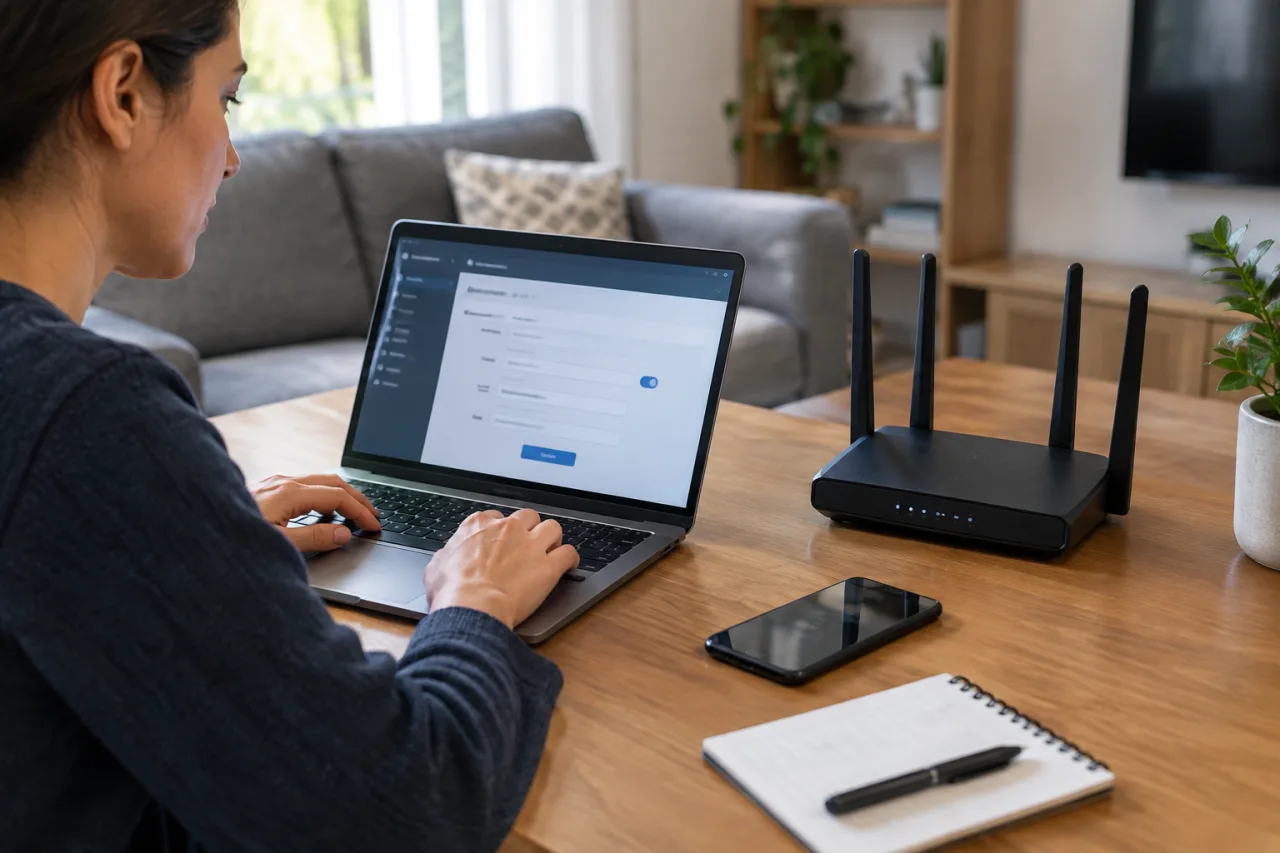
- Open the admin page. From a connected device, reach the router’s admin address — typically 192.168.0.1 or 192.168.1.1, sometimes printed on the device or its app. Log in with the current credentials (the sticker defaults, or whatever the ISP set).
- Change the admin password first. Replace the sticker with a generated 16+ character password, stored in a password manager — this is the lock for every future session, and it should differ from anything else in the house.
- Rotate the Wi-Fi passphrase. New passphrase, WPA3 security mode (WPA2-AES if old devices refuse it), and a network name that carries no clues — no family name, no address. Devices reconnect once with the new passphrase; the guest camera at grandma’s house reconnects this week or it reconnects at Christmas.
- Check firmware. Run the update check in the same admin page — a router password that guards outdated firmware guards old walls. CISA’s software-update guidance is the rule here: install updates the day they appear, because the patch delay is the attack window in every edge-device story of the past two years.
- Turn off remote administration. The “manage from anywhere” feature exposes the admin page outside your walls — the single riskiest default on consumer routers. Off.
- Turn on the guest network. Visitors, smart plugs, and work guests ride an isolated guest SSID that never sees your personal devices.
When You Can’t Log In: The Reset Path
Forgotten admin credentials end the same way: hold the router’s reset pinhole for the manual seconds the manual specifies (usually 10-30), which restores factory settings — then reconfigure from scratch, set BOTH passwords as in the checklist, and rejoin devices in the same session. ISP-supplied routers sometimes lock their admin page to the provider; the fix there is a support call that resets credentials on the provider’s side — refuse any “the password is fine” brushoff, since the admin page belongs to your household, not theirs. The reset path costs an hour; leaving the sticker password costs everything behind it. Store the new passwords where every adult can reach them — the password and 2FA setup guide covers the manager shelf that makes this easy.
Router Password Rules for Renters, Condos, and ISP Combo Boxes
Not every household owns its router, and the rules still apply with small edits. Combo modem-router units rented from the ISP carry the same sticker passwords and the same admin page — the provider just pre-filled them; changing both passwords and killing remote administration remains yours to do, and support resets admin credentials on request. Condo buildings that run a shared riser add one wrinkle: your Wi-Fi passphrase is the only layer you fully control, so lean on the guest network and device isolation where available. A landlord’s router in a shared house deserves a conversation: whoever shares the lease should share the admin password, or the router belongs to the person paying the internet bill and everyone else connects as guests. The ten-minute lockdown is identical either way — the only thing that changes is who holds the admin password after it’s done.
The Six-Month Routine That Keeps It Closed
Twice a year — the calendar reminder takes ten seconds to set — open the admin page: check firmware (update if available), scan the connected-devices list for anything unfamiliar, confirm remote administration stayed off, and rotate passwords only if anything in the household changed (a new roommate, a lost device, a breakup — the moments when a Wi-Fi password needs turning). Everything else rests. This routine plus the ten-minute lockdown is the entire home-router maintenance schedule; anything a security company sells you beyond it is either convenience or theater.
Mistakes to Avoid
- Never connect to a router’s admin page over public Wi-Fi — the page you reach might not be yours; do it from your own home network.
- Never name the guest network “guest.” A specific name (like “the-street’s-guest-net”) makes the SSID findable without advertising “free open router here.”
- Never skip the firmware check because the router “works.” Firmware updates patch the exact vulnerabilities routers were exploited through this year — and this same edge-device discipline is why our edge-device security guide pushes weekly checks on bigger gateways.
- Never share the admin password verbally or over text to anyone outside the household — the admin password is the router’s whole lifetime, not a one-time code.
- Never leave the ISP’s DNS untouched if it “looks fine.” Check DNS once in the lockdown — a hijacked DNS server redirects every household browser quietly, a documented in-the-wild compromise in the edge-device attacks.
Frequently Asked Questions
Router Password Change — How Often Should I Do It?
The schedule: rotate the router password (both of them) whenever anything in the household’s trust model changes, plus a check twice a year; the firmware check runs on every visit. The CISA guidance is explicit that strong passwords and software updates are the two moves that hold most of the wall — the calendar reminder covers both.
Is a strong Wi-Fi passphrase enough, or do I need the router password too?
Both, and they protect different doors. The Wi-Fi passphrase controls network entry; the admin password controls the device behind it. An attacker with your Wi-Fi passphrase can watch traffic from inside the network; an attacker with the admin password can change everything, including the DNS your whole household resolves through. Two passwords, both changed, both unique — that is the router password discipline in one line.
My router only came with a PIN-sticker — is that a password?
The sticker PIN is the factory default, meant for first setup; treat it as an expired password the moment setup completes. Change both the admin password and the Wi-Fi passphrase in the same sitting, and store both in a password manager.
Does changing the router password disconnect my smart devices?
Only until they reconnect: phones, laptops, and recent devices rejoin instantly with the new passphrase; older cameras and consoles sometimes need re-setup, and the guest network assignment happens in the same pass. The reconnection cost is minutes; the security gain holds for years. Reconnection order that spares the pain: phones first (verify the Wi-Fi works), then laptops, then streaming boxes, then the camera tier — and anything that can’t reconnect gets one deliberate setup pass instead of an invisible failure.
What’s the single fastest thing a renter can do without breaking the ISP’s terms?
Change the admin password plus the Wi-Fi passphrase, and turn off remote administration — all three are settings that belong to you no matter who owns the hardware, and none of them touch the ISP’s service. Add the firmware check on the next visit, and the renter’s router is as locked as a homeowner’s. The one renter extra: photograph the admin page’s session list before you sign out — it documents the devices your ISP tech may have connected, and it’s the fastest baseline for the next audit.
Financial Disclaimer
This article provides general cybersecurity guidance and does not constitute professional security or financial advice. Router interfaces, security modes, and update paths change over time and vary by manufacturer; verify every step against your device’s official documentation and CISA guidance before acting. The author and publisher disclaim any liability for actions taken based on this information.