Table of Contents
Google account security is the one checkpoint that guards everything that guards your email, your photos, your documents, your contacts, your calendar, your location history, and — for most Filipino professionals — your GCash, your bank logins, and your work identity. If someone compromises your Google account, they can reset the password for every other service that uses your Gmail as the recovery email. You have 15 minutes to secure it before an attacker can do all of that. Here are 7 steps to lock it down.
Key Takeaway
- 📧 The Stakes: Your Google account is the master key to your digital identity. If compromised, an attacker can reset passwords for your banking, social media, and work accounts through Gmail recovery links.
- 🔓 The Problem: 19.2 million Filipino credentials were compromised in H1 2026, per Viettel Cyber Security. Most use Gmail as their primary email. Credential stuffing attacks test stolen passwords against Google accounts automatically.
- ⏱️ The Window: Google’s Security Checkup takes 5 minutes. Enabling passkeys takes 2 minutes. Reviewing third-party app access takes 3 minutes. Total: 10 minutes to go from vulnerable to locked down.
- 🇵🇭 Philippine Context: GCash, Maya, BDO, and BPI all allow Google account-based password recovery. A compromised Gmail account means a compromised path to every financial account linked to it.
- ✅ The Fix: 7 steps: run Security Checkup, enable passkeys, review third-party apps, check recent activity, set up recovery phone, enable enhanced safe browsing, and run Password Checkup.
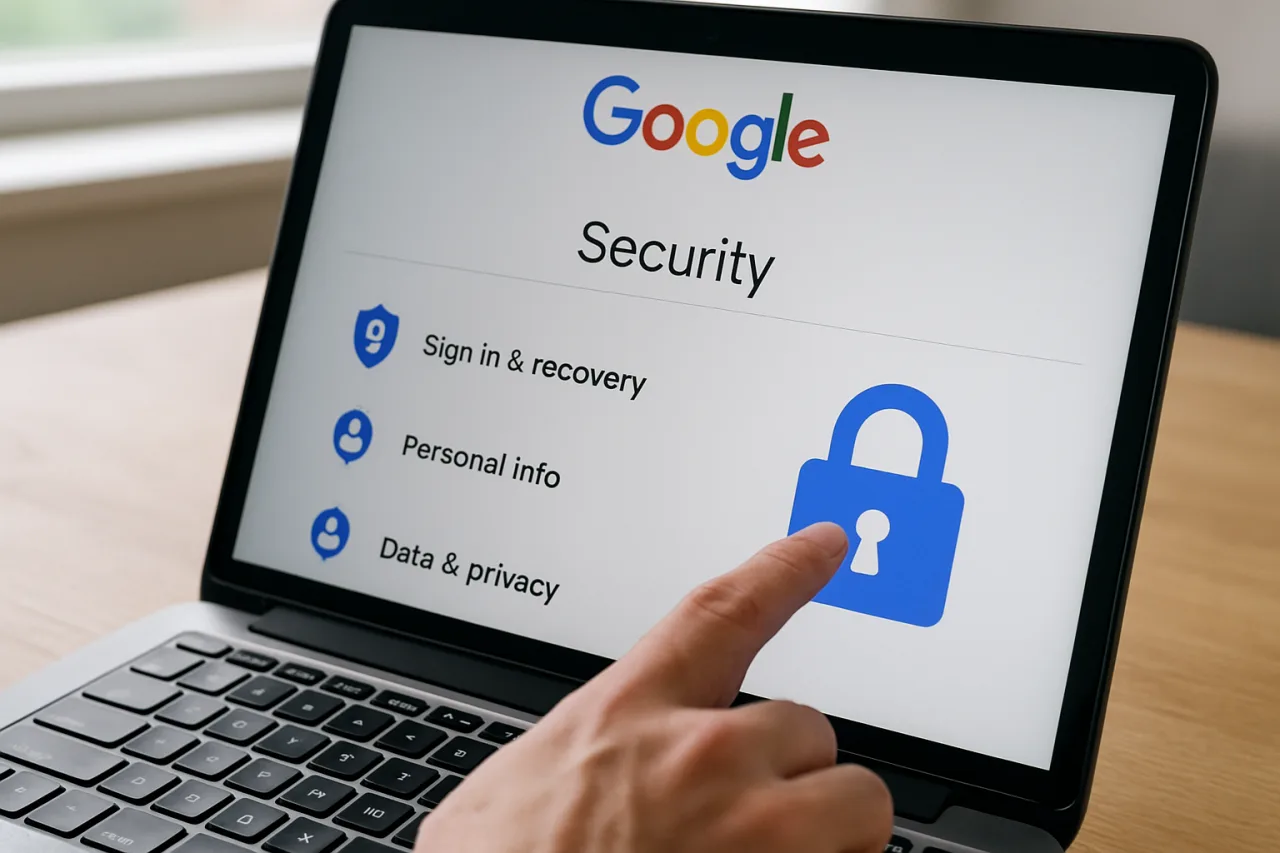
Google account security is not one setting — it is a system — it is a system. Your Google account connects to Gmail, Google Drive, Google Photos, YouTube, Google Maps, Google Calendar, Android (if you use it), and every service that uses your Gmail as a recovery email. The Google Security Checkup tool gives you a personalized security report in one place. Run it now, then follow the 7 steps below to close every gap it identifies.
In the Philippines, this is especially critical. Most Filipino professionals use Gmail as their primary email — for banking, work, social media, and government services. GCash registration requires a mobile number linked to a Google account for recovery. BDO and BPI online banking allow password resets via email. As we documented in our GCash account security guide, a compromised Gmail account gives an attacker a direct path to your financial life. The 19.2 million credentials compromised in H1 2026 per Viettel Cyber Security included a significant proportion of Gmail addresses — and credential stuffing tools test these against Google accounts automatically, 24 hours a day.
7 Steps to Lock Down Your Google Account
Step 1: Run Google Security Checkup (5 minutes)
Go to myaccount.google.com/security-checkup. Google will show you a personalized report of your account security status. It checks: which devices are signed into your account, recent security events (logins from new locations, password changes), third-party apps with access to your account, and whether your recovery phone and email are current. Review every item. If you see a device you do not recognize, click “Sign out” immediately. If you see a login from a location you have not visited, change your password. As we documented in our device code phishing defense guide, attackers who steal session tokens can maintain access even after you change your password — revoking sessions through Security Checkup is essential.
Step 2: Enable Passkeys (2 minutes)
Passkeys replace passwords with cryptographic key pairs stored on your device. They are phishing-resistant by design — the key is cryptographically bound to accounts.google.com and cannot be used on a fake login page. Google reported that passkeys eliminated phishing for employees who adopted them. To enable: go to myaccount.google.com, Security, How you sign in to Google, and look for “Passkeys.” Follow the prompts to create a passkey using your phone’s biometric (fingerprint or face scan) or a hardware security key. Once enabled, you can sign in without typing a password — and no one can sign in without your device and biometric. For Filipino professionals who use Android phones, passkeys integrate seamlessly with Google’s ecosystem.
Step 3: Review and Remove Third-Party App Access (3 minutes)
Over time, you have granted third-party apps access to your Google account — for reading email, accessing contacts, viewing calendar, or signing in with Google. Many of these apps you no longer use, but they retain access to your data. Go to myaccount.google.com, Security, Third-party apps with account access. Review every app. For each one you do not recognize or no longer use, click “Remove Access.” This revokes the app’s ability to read your Gmail, contacts, or other Google data. This is especially important if you have ever used “Sign in with Google” on websites you no longer trust — those sites may still have a token that grants ongoing access. As we noted in our password manager setup guide, reviewing and revoking stale access is a critical hygiene step.
Step 4: Check Recent Account Activity (2 minutes)
Go to myaccount.google.com, Security, Recent security events. This shows every login, password change, security setting change, and device authorization in the past 28 days. Look for: logins from locations you have not visited, devices you do not own, password changes you did not make, and new app authorizations you did not approve. If you see any suspicious activity, change your password immediately, enable 2-Step Verification if not already active, and revoke all sessions. For Filipino OFWs who travel frequently, logins from multiple countries are normal — but logins from countries you have never visited are a red flag. As we outlined in our data breach response plan, early detection is the difference between controlled recovery and total compromise.
Step 5: Set Up Recovery Phone and Email (1 minute)
Your recovery phone number and email are how Google verifies your identity if you lose access to your account. Go to myaccount.google.com, Security, Recovery phone and Recovery email. Ensure both are current and accessible. If your recovery phone is a number you no longer have, change it immediately. If your recovery email is an account you no longer check, update it. A stale recovery phone is worse than none — if an attacker gains access to your old SIM card (through SIM swapping), they can use it to bypass your 2-Step Verification and reset your password. As we documented in our BSP scam reimbursement guide, SIM swapping is an active threat in the Philippines.
Step 6: Enable Enhanced Safe Browsing (1 minute)
Google’s Enhanced Safe Browsing provides real-time protection against malicious websites, downloads, and Chrome extensions. It checks every URL you visit against Google’s live blocklist, warns you about suspicious downloads, and alerts you if a Chrome extension you installed turns out to be malicious. Go to myaccount.google.com, Security, Enhanced Safe Browsing, and turn it on. The trade-off is minimal: Google receives slightly more data about your browsing to improve its protections. The benefit is significant: you get warnings about threats before they reach you. For Filipino professionals who click links from unknown sources — Facebook messages, Viber groups, email forwards — this is a critical layer of protection.
Step 7: Run Password Checkup (2 minutes)
If you save passwords in Chrome or Google Password Manager, Google can check them against known breach databases. Go to passwords.google.com and look for “Password Checkup.” Google will flag: passwords that have been exposed in known data breaches, passwords that are reused across multiple accounts, and passwords that are too weak. For each flagged password, change it to a new, unique, 16+ character password generated by your password manager. As we outlined in our password manager setup guide, every reused password is a single point of failure for your entire digital identity. Start with your Google account password itself, then your banking, email, and work accounts. As we noted in our phishing email detection guide, compromised credentials are the top entry point for attacks targeting Filipino accounts.
Monthly Google Account Security Habits
Google account security is not a one-time setup — it is a monthly practice. Set a calendar reminder for the first of every month and spend 10 minutes running through this checklist. Google account security is a habit, not a project.
Monthly Google account security checklist: Run Security Checkup, review recent security events, check for new third-party app authorizations, verify recovery phone is current, run Password Checkup, check which devices are signed in. If anything looks unfamiliar, take action immediately. Do not wait to investigate “later” — later becomes never.
Quarterly Google account security checklist: Review all passkey-registered devices and remove old ones, audit which apps have “Sign in with Google” access, check your Google Activity controls (myaccount.google.com, Data and Privacy) to review what Google is storing about you, and clear location history and search history if you do not need it. Google stores your location, search, and voice activity by default — you can turn this off under Activity Controls without losing account functionality.
Annual Google account security checklist: Change your Google password, review your recovery email address, and audit your YouTube connected apps. If you have used the same Google password for more than a year, change it — even if there is no known breach. Passwords age, and the longer you keep one, the higher the probability it has been exposed in a breach you do not know about.
Frequently Asked Questions About Google Account Security
How do I secure my Google account?
Secure your Google account in 7 steps: run the Google Security Checkup at myaccount.google.com, enable passkeys, review and remove third-party app access, check recent account activity, verify your recovery phone and email, enable Enhanced Safe Browsing, and run Password Checkup. Total time: 15 minutes. All tools are free and built into your Google account.
What is Google Security Checkup and why should I use it?
Google Security Checkup is a free tool at myaccount.google.com that scans your account for security risks and shows you a personalized report. It identifies unfamiliar devices signed into your account, recent security events, third-party apps with access, and whether your recovery information is current. Run it monthly — it takes 5 minutes and catches security issues before they become compromises.
Should I use passkeys instead of passwords for my Google account?
Yes. Passkeys replace passwords with cryptographic keys stored on your device. They are phishing-resistant — the key is bound to accounts.google.com and cannot be used on fake login pages. Google reported that passkeys eliminated phishing for employees who adopted them. Enable passkeys at myaccount.google.com, Security, How you sign in to Google. Once enabled, you sign in with your fingerprint or face scan — no password needed.
How do I know if someone has accessed my Google account?
Check myaccount.google.com, Security, Recent security events. This shows every login, device authorization, and security setting change in the past 28 days. Look for logins from locations you have not visited or devices you do not own. Also check the “Devices” section to see which devices are currently signed into your account. If you see anything suspicious, sign out of all devices, change your password, and enable 2-Step Verification or passkeys.
How do I remove third-party apps that have access to my Google account?
Go to myaccount.google.com, Security, Third-party apps with account access. You will see every app and website that has permission to read your Gmail, access your contacts, view your calendar, or use your Google sign-in. For each app you no longer use or do not recognize, click “Remove Access.” This revokes the app’s token immediately. Do this every few months — apps accumulate access over time, and old permissions are a security liability.
Is Enhanced Safe Browsing safe to enable on my Google account?
Yes. Enhanced Safe Browsing provides real-time protection against malicious websites, downloads, and Chrome extensions. It checks URLs against Google’s live blocklist and warns you before you visit a dangerous site. The trade-off is that Google receives slightly more data about your browsing activity to improve its protections. For most users, the security benefit far outweighs the privacy trade-off. Enable it at myaccount.google.com, Security, Enhanced Safe Browsing.
How do I protect my Google account if my phone is stolen?
If your phone is stolen, go to myaccount.google.com from another device and sign in. Go to Security, Your devices, and sign out of the stolen device. Change your Google password immediately. If you have passkeys enabled, the stolen device’s passkey will be revoked when you sign out. Enable 2-Step Verification if not already active, and change passwords for any banking or financial accounts linked to your Gmail. As we documented in our smartphone security settings guide, enabling Stolen Device Protection on iPhone or Identity Check on Android prevents thieves from accessing your Google account even with your passcode.
This article is for informational and educational purposes only. It does not constitute professional cybersecurity advice. For official Google account security guidance, visit Google Safety Center at safety.google.
- myaccount.google.com/intro/security-checkup — Google Security Checkup
External sources linked in this article, in order of first mention. Spotted an error or a broken link? Tell us.
Cite this pagePublished Aug 22, 2026 · Updated Aug 24, 2026
Agron, E. (2026, August 22). Your Google Account in 15 Minutes: 7 Steps to Lock Down Your Digital Identity. WorldNgayon. https://worldngayon.com/google-account-security-2026/
Agron, Edmon. “Your Google Account in 15 Minutes: 7 Steps to Lock Down Your Digital Identity.” WorldNgayon, 22 Aug. 2026, worldngayon.com/google-account-security-2026/.
Agron, Edmon. “Your Google Account in 15 Minutes: 7 Steps to Lock Down Your Digital Identity.” WorldNgayon, August 22, 2026. https://worldngayon.com/google-account-security-2026/.
Agron, E. (2026) ‘Your Google Account in 15 Minutes: 7 Steps to Lock Down Your Digital Identity’, WorldNgayon, 22 August. Available at: https://worldngayon.com/google-account-security-2026/.
E. Agron, “Your Google Account in 15 Minutes: 7 Steps to Lock Down Your Digital Identity,” WorldNgayon, Aug. 22, 2026. [Online]. Available: https://worldngayon.com/google-account-security-2026/
@online{agron2026googleaccount,
  author       = {Agron, Edmon},
  title        = {{Your Google Account in 15 Minutes: 7 Steps to Lock Down Your Digital Identity}},
  year         = {2026},
  date         = {2026-08-22},
  organization = {WorldNgayon},
  url          = {https://worldngayon.com/google-account-security-2026/},
  urldate      = {}
}TY - ELEC AU - Agron, Edmon TI - Your Google Account in 15 Minutes: 7 Steps to Lock Down Your Digital Identity T2 - WorldNgayon PY - 2026 DA - 2026/08/22/ UR - https://worldngayon.com/google-account-security-2026/ Y2 - ER -
Cite the version you read; the page may be updated. Zotero and Mendeley can also import this page directly.