Key Takeaway
- 📱 iOS 27 replaced Wi-Fi Assist with Connectivity Assist — aggressive, on by default, and it changes how your iPhone networks.
- 🕳️ It probes DNS and switches blocked connections to cellular — routing requests around DNS-based protection (VPN phishing shields, Pi-hole, AdGuard, NextDNS).
- 🛡️ NordVPN confirmed on September 22, 2026 that the behavior breaks real-time scam/phishing protection’s “Always” mode on iOS 27 — Apple’s feature, not the VPN, is the culprit.
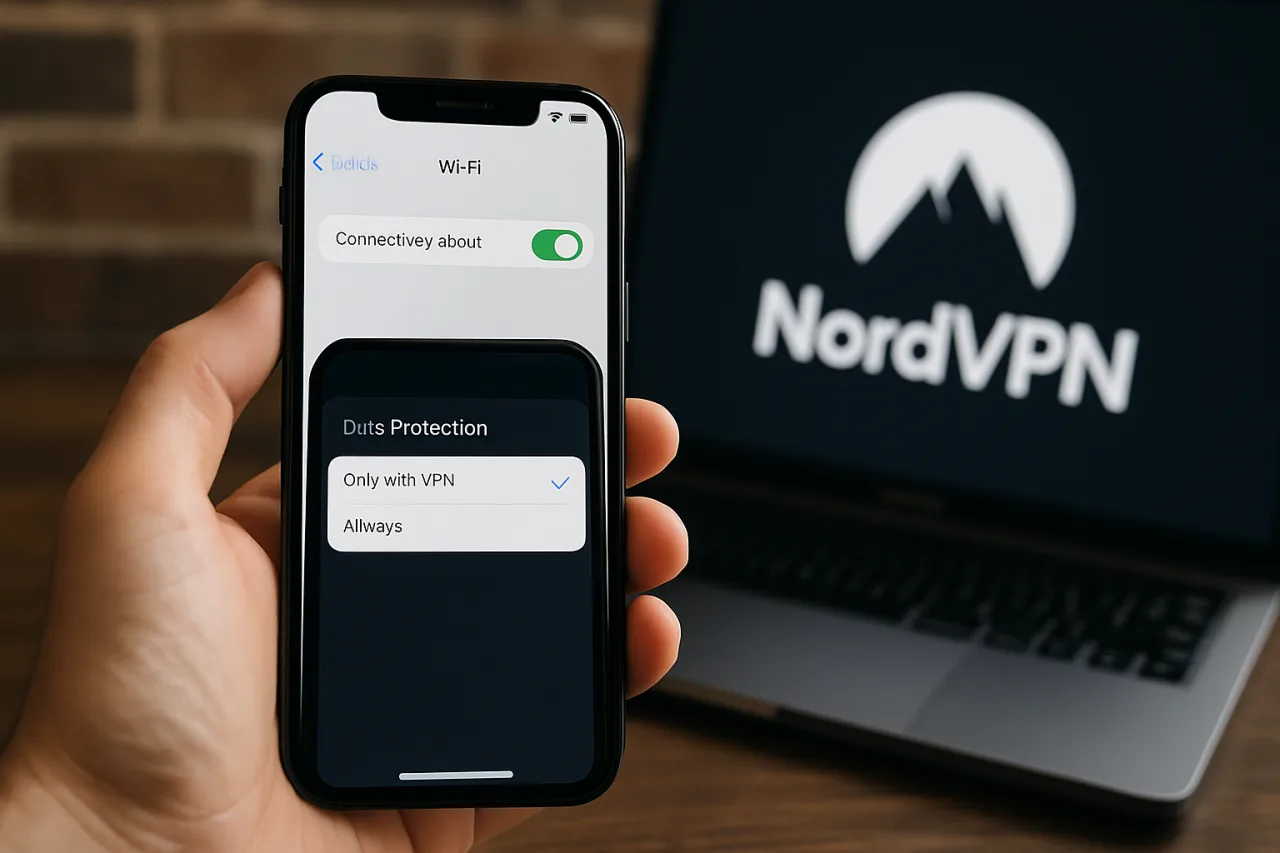
- 🔧 The fix is two minutes: Settings → Wi-Fi → turn off Connectivity Assist — or switch protection to “Only with VPN” mode inside the VPN app.
- ✈️ OFW iPhones are prime exposure: hotel and mall Wi-Fi plus silent protection loss is exactly the phishing window scammers wait for.
Apple’s newest iPhone update quietly changed a security assumption millions of Filipinos rely on, and the confirmation arrived last week from an unexpected witness.
On September 22, 2026, NordVPN disclosed that iOS 27’s new Connectivity Assist — the default-on feature that replaced the old Wi-Fi Assist — interferes with its real-time scam and phishing protection’s “Always” mode: the iPhone can route connections around the DNS-level protection without any visible sign.
The same behavior breaks home network filters — Pi-hole users documented ads loading over cellular data their own servers had blocked, one burning 109 MB re-downloading the very ads his filter rejected. This is a piece about the two minutes of settings that close the gap.
Table of Contents
What Connectivity Assist Actually Does
The feature Apple introduced in iOS 27 replaces Wi-Fi Assist with something far more assertive.
The old version switched you to cellular when Wi-Fi was weak; the new Connectivity Assist actively probes connectivity — including through DNS — and when a request appears blocked or slow, it reroutes the connection over cellular to “keep you online.” The design goal is user convenience; the side effect is that requests your DNS filter blocked do not die — they detour.
A malicious domain your VPN’s DNS shield refused on Wi-Fi can resurface over cellular, where the filter never sees it.
For a VPN’s real-time protection the collision is direct: the “Always” mode of NordVPN’s scam and phishing protection filters DNS system-wide — exactly the layer Connectivity Assist works around when it detects “blocked” connectivity and falls back to cellular.
The result Nord described in September: the protection’s DNS layer silently stops applying in the moments the feature intervenes. The VPN tunnel itself still encrypts — your traffic stays private — but the phishing-domain blocking that rides on DNS filtering is the piece that gets walked around.
Who Is Exposed — and How Silently
Three populations, all exposed by default.
VPN users with DNS-level protection: NordVPN’s real-time protection and similar DNS-based shields from other providers rely on filtering domains; the Connectivity Assist fallback undermines that specific layer — the tunnel stays up, which makes the gap invisible to anyone checking “am I connected?” Home-network filter users: the Pi-hole and AdGuard households that block ads and malware at the router watched iOS 27 devices quietly load blocked content over cellular — the r/pihole reports date to the July betas, weeks before public release.
Everyone on hostile networks: the feature’s DNS probing itself leaks lookups your filter would have handled — a privacy consideration independent of the blocking bypass.
The silence is the dangerous part. There is no notification, no settings prompt, no banner — the feature ships on, and the protection degrades without an error message. The 109-MB anecdote is the tell: the user only discovered the bypass because his blocked ads consumed visible mobile data. Most exposures leave no such receipt.
The Two-Minute Fix, Step by Step
Step 1 — Turn off Connectivity Assist. Open Settings → Wi-Fi → Connectivity Assist and toggle it off. That single switch stops the device from rerouting blocked connections to cellular — restoring the DNS layer every filter depends on. It also, pleasantly, protects your mobile data from the silent ad-refill problem.
Step 2 — Choose your protection mode. If you use NordVPN, open the app and check the Threat Protection (the real-time scam and phishing shield) settings: Option A — keep “Always” mode now that Connectivity Assist is off (full-time DNS filtering), or Option B — if you prefer to keep Connectivity Assist on, switch the protection to “Only with VPN” mode so the shield rides inside the tunnel where no detour can happen.
NordVPN’s support page documents both paths; either one restores a coherent protection story.
Step 3 — Re-verify after every iOS update. The feature’s behavior is Apple’s, and Apple iterates: after each iOS update, spend thirty seconds confirming the toggle state and running your protection’s test URL. The habit costs less per year than one successful phish costs once.
Verify It Worked — the 60-Second Test
The proof beats the settings screen. With Connectivity Assist off: connect your iPhone to your home Wi-Fi (the one with Pi-hole or your VPN’s DNS protection running), open Safari, and visit a known test domain your filter blocks — the page should fail to load.
Then toggle mobile data off-and-on and repeat: with the fix applied, the blocked domain stays blocked on both paths, because the fallback that detoured it no longer exists. Finally, open your VPN app’s protection status and confirm the real-time shield shows active in its current mode.
Sixty seconds, three checks, and the silent gap is closed with evidence instead of assumption.
The OFW Threat Model: Why This Matters More on the Road
The Connectivity Assist bypass matters differently depending on where your iPhone lives. At home on a trusted network, the bypass is a privacy annoyance — blocked ads reloading, tracker domains detouring.
On the road — a Dubai mall’s open Wi-Fi, a Hong Kong airport hotspot, a Manila co-working space — the same behavior becomes a security event. Public networks are exactly where DNS-based protection earns its keep: the phishing domain that the mall’s resolver never blocks is caught by your VPN’s real-time shield instead.
With Connectivity Assist silently detouring blocked lookups over cellular, the protection layer you believe is standing guard can be absent at the precise moment a fake login page is loading.
The OFW-specific exposure compounds: remittance app sessions, banking logins, and SSS or Pag-IBIG transactions run from phones on whatever network the workday offers.
A phishing domain that slips past a detoured DNS shield and presents a cloned login is the highest-value attack in the OFW threat model — and iOS 27’s default behavior widened that exact gap. The two-minute toggle is, in that light, not device hygiene; it is income protection for the remittance pipeline itself.
The Timeline: How This Was Found
The story’s timeline shows both companies behaving reasonably — and the user still needing to act. June: iOS 27 announced with the rebranded feature. July: beta users — Pi-hole operators especially — document the DNS bypass in forums, weeks before release.
September 22: NordVPN, after the public rollout reached its user base, publishes its advisory explaining the conflict with real-time protection’s Always mode and documenting the fixes.
The pattern is the modern compatibility reality: features that optimize connectivity will keep colliding with features that filter it, and the user who verifies settings after each update owns the resolution.
The Home Network Angle: Pi-hole and Family Filters
Parents who run Pi-hole, AdGuard Home, or a Firewalla for the family’s network have a second-order problem worth fixing tonight: every iPhone in the house on iOS 27 — including the kids’ — carries the same default-on bypass. The household rule that “the router blocks it” stopped being true the moment each device updated.
The fix is per-device: Settings → Wi-Fi → Connectivity Assist off, on every iPhone and iPad in the house. The family’s filter returns to being a wall instead of a suggestion, and the mobile-data bills stop carrying the ads the network already refused.
The same logic applies to OFW household devices anywhere in the world: the SIM in a Dubai phone and the SIM in a Manila phone behave identically under iOS 27 — which is the point. The fix travels with the device, not the network.
A note on what this piece is: a settings fix for a compatibility conflict, verified from NordVPN’s own advisory and independent reporting.
NordVPN’s Threat Protection is a next-gen antivirus-class feature; the full security suite is an all-in-one solution — antivirus, password manager, and encrypted cloud storage are bundled in its higher tiers — and its effectiveness depends on your device and usage. Pricing and availability vary by region.
The Bigger Lesson: Default Settings Are Policy Decisions About Your Security
Step back from this specific conflict and the transferable lesson stands: default-on convenience features make security decisions on your behalf, and the decisions are not always yours. Connectivity Assist trades filter coherence for connectivity optimism — a reasonable engineering trade for many users, and a wrong trade for anyone relying on DNS filtering for security.
The same shape appears across every modern OS: cloud-sync defaults that share more than expected, assistant features that process more than you assumed, network features that probe more than they announce.
The habit that resolves the whole category costs minutes per quarter: after every major OS update, read the update’s feature notes and audit the settings that changed. The audit finds what marketing releases skip — like a connectivity feature that quietly redefines what “blocked” means.
The professionals and families who run this audit meet each update with a checklist; everyone else meets the next Connectivity Assist with a discovery that arrives through a 109-MB data bill or a phishing message that should never have loaded. The mountain — and every careful user — watches the settings, not just the screen.
That discipline, more than any single toggle, is what keeps a security stack honest through a decade of updates that each reshuffle it slightly.
Frequently Asked Questions
What is Connectivity Assist in iOS 27?
Apple’s rebranded and upgraded successor to Wi-Fi Assist — on by default — that probes connectivity (including via DNS) and reroutes blocked or failing connections to cellular data to keep the device online.
How does it break DNS-based protection?
When a DNS filter blocks a request, Connectivity Assist can treat the failure as a connectivity problem and reroute the request over cellular — bypassing the filter entirely, which NordVPN confirmed interferes with its real-time scam and phishing protection’s “Always” mode.
Does turning it off cost me anything?
You lose the automatic cellular fallback for marginal Wi-Fi — pages may occasionally fail on weak Wi-Fi until you toggle Wi-Fi off manually. That is the trade: convenience versus coherent protection — and for anyone who carries remittance sessions on that phone, the protection side of the trade is worth far more than the convenience.
Which apps were affected besides VPNs?
DNS-based filters broadly: Pi-hole, AdGuard, NextDNS, Firewalla and similar tools all showed the same bypass behavior in reports dating to the iOS 27 betas.
Is my VPN tunnel still encrypted with Connectivity Assist on?
Yes — the tunnel encryption is unaffected; the issue is specifically the DNS-filtering layer being walked around when the feature reroutes blocked requests.
Does the fix also save mobile data?
Yes — the same detour that walks blocked requests around your filter was re-downloading blocked ads and content over cellular; users documented hundreds of megabytes of wasted data. Turning Connectivity Assist off stops both the bypass and the bill.
Will Apple fix it?
Apple has not announced a change; the reliable protection today is the per-device toggle, re-verified after each iOS update.
Disclosure: This article contains affiliate links. If you purchase through them, WorldNgayon may earn a commission at no additional cost to you. We only recommend tools we would use ourselves, and our reviews remain independent.